Reduce Video Size for Email and Social Media | FreeFast Blog
Video Conversion
Reduce Video Size for Email and Social Media
FF
FreeFast Team
9 min read
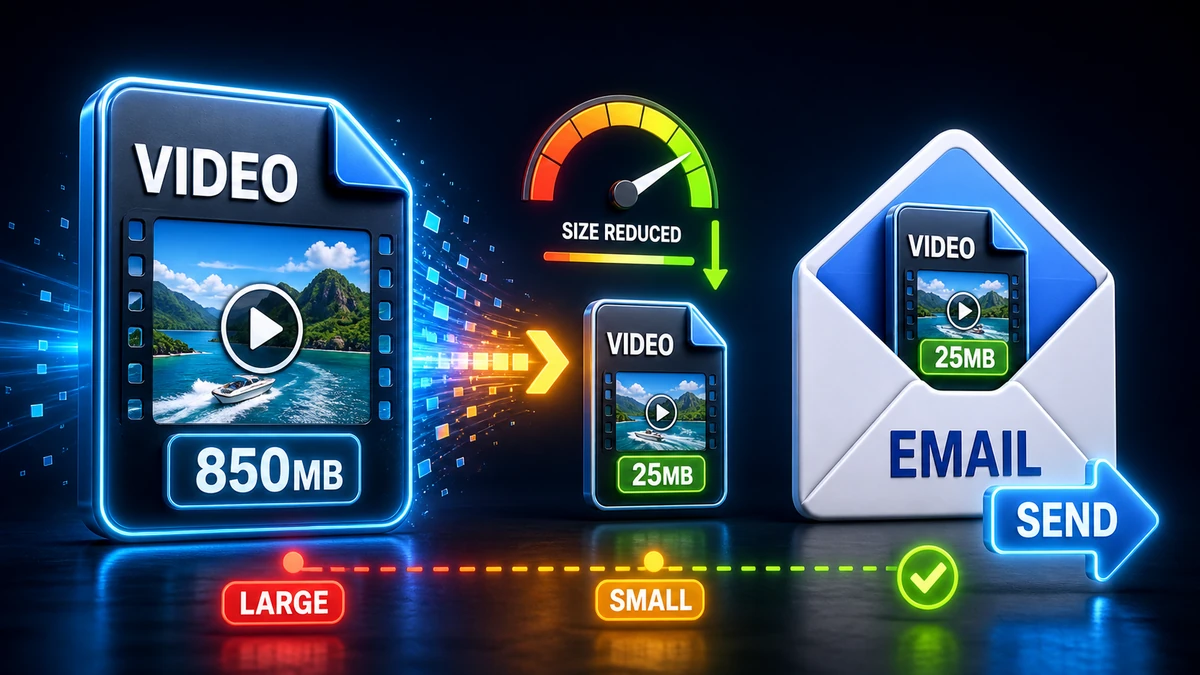
You just recorded the reliable video. It could be a product demo, a presentation for work, or a clip you want to share with family. But when you try to send it, your email bounces back with "attachment too large." Or Instagram refuses to upload it. Or it's taking forever to send on WhatsApp.
Video files are big. A one-minute HD video can easily be 100 MB or more. Email limits are usually 25 MB. Social media platforms have their own restrictions too.
The solution? Reduce your video file size without making it look terrible. This guide shows you exactly how to do that, step by step.
Why Video Files Are So Large
Before we dive into solutions, let's understand why video files are huge compared to images or audio.
Video is essentially a series of images (frames) played rapidly—typically 24 to 60 frames per second. Each frame is a complete image, which adds up quickly:
Example: 1 minute of HD video
Resolution: 1920 x 1080 pixels
Frame rate: 30 fps
Total frames: 1,800 frames
Uncompressed size: Over 11 GB
That's right—without compression, a single minute of HD video would be 11 gigabytes. Compression brings this down to manageable sizes, but videos still remain the largest files most people deal with daily.
WhatsApp has the strictest limits. Here's how to fit:
Settings:
Resolution: 480p or 720p
Codec: H.264
Bitrate: 0.5-1 Mbps Mbps
Trim to essential content only
Steps:
Compress using settings above
If still over 16 MB, reduce resolution further
Consider splitting into multiple clips
Alternative: Use WhatsApp's built-in compression (just send, it compresses automatically—but quality may suffer).
For Instagram Reels
Instagram technically accepts up to 4 GB, but smaller files upload faster and more reliably.
Recommended settings:
Resolution: 1080 x 1920 (vertical)
Codec: H.264
Bitrate: 8-10 Mbps
Frame rate: 30fps
These settings give excellent quality at ~75 MB per minute.
For YouTube
YouTube re-encodes everything anyway, so upload the highest quality you can.
Recommended settings:
Resolution: Your original (4K, 1080p, etc.)
Codec: H.264 or H.265
Bitrate: YouTube's recommended or higher
Frame rate: Your original
If upload speed is an issue, compress lightly to 1080p.
Common Mistakes That Ruin Your Video
Mistake #1: Over-Compressing
The problem: Cranking compression to extreme levels to hit file limits.
The result: Blocky, pixelated video that looks unprofessional.
The fix: Balance compression with resolution reduction. It's better to have a sharp 720p video than a blocky 1080p video.
Mistake #2: Wrong Aspect Ratio
The problem: Uploading a 16:9 video to a platform that expects 9:16.
The result: Your video gets cropped or letterboxed with ugly black bars.
The fix: Check platform requirements before recording if possible. For existing videos, consider cropping. Learn more in our video formats comparison.
Mistake #3: Re-Compressing Already Compressed Video
The problem: Downloading a video, compressing it, then compressing it again.
The result: Quality degrades severely with each pass (generation loss).
The fix: Always compress from your original source file. Keep master copies in highest quality.
Mistake #4: Ignoring Audio
The problem: Video is compressed, but audio takes up a surprising amount of space.
The result: File is larger than expected.
The fix: Use AAC audio at 128-192 kbps for video. That's plenty for video content. See our audio compression guide for more details.
Quick Size Reduction Cheat Sheet
Situation
Action
Expected Reduction
Video is way too large
Reduce resolution to 720p
50-75%
Video has unnecessary parts
Trim start/end
Varies by trim
Quality is more important
Reduce frame rate to 30fps
~50%
Need minimal loss
Use H.265 instead of H.264
~50%
Extreme size needed
Combine all methods
Up to 90%
Frequently Asked Questions
How do I reduce video size with quality checks?
You can't reduce size without any quality loss—that's just physics. But you can minimize visible quality loss by:
Using efficient codecs like H.265
Reducing resolution appropriately (720p is often enough)
Adjusting bitrate to match content complexity
What's the best video format for email?
MP4 with H.264 codec. It's universally compatible—every email client and device can play it. Keep files under 20-25 MB for reliable delivery.
How do I compress a video for WhatsApp?
WhatsApp's limit is 16 MB, which is tight. Use 480p or 720p resolution at 0.5-1 Mbps bitrate, or let WhatsApp compress automatically (though quality may suffer). See our video compression guide for detailed steps.
Can I reduce video size on iPhone?
Yes! Use the built-in Photos app to trim, then share via "Mail" and select a smaller size option. Or use our web-based video compressor which works in Safari.
What's the difference between 1080p and 720p?
1080p (Full HD) is 1920 x 1080 pixels. 720p (HD) is 1280 x 720 pixels. 720p is about 44% of the pixels, resulting in significantly smaller files. On phone screens, the difference is barely noticeable.
How small can I make a 1-minute video?
With aggressive compression:
Minimum practical: ~5 MB (very low quality)
Good balance: ~15-20 MB
High quality: ~50-80 MB
The right answer depends on your quality requirements.
Why is my video still too large after compression?
Try these additional steps:
Reduce resolution (1080p → 720p)
Trim the video shorter
Use an even lower bitrate
Convert to H.265 if compatible devices
Conclusion
Reducing video file size for email and social media is straightforward once you understand the basics:
For email (25 MB limit): Use 720p resolution at 1.5-2 Mbps
For WhatsApp (16 MB limit): Use 480-720p at under 1 Mbps
For social media: Check platform requirements first