MOV to MP4: How to Convert iPhone Videos for Maximum Compatibility

You recorded a video on your iPhone, and it looks amazing. But when you try to share it with someone on Android or upload it to a website, problems start. The file won't play. Or the platform doesn't accept MOV format.
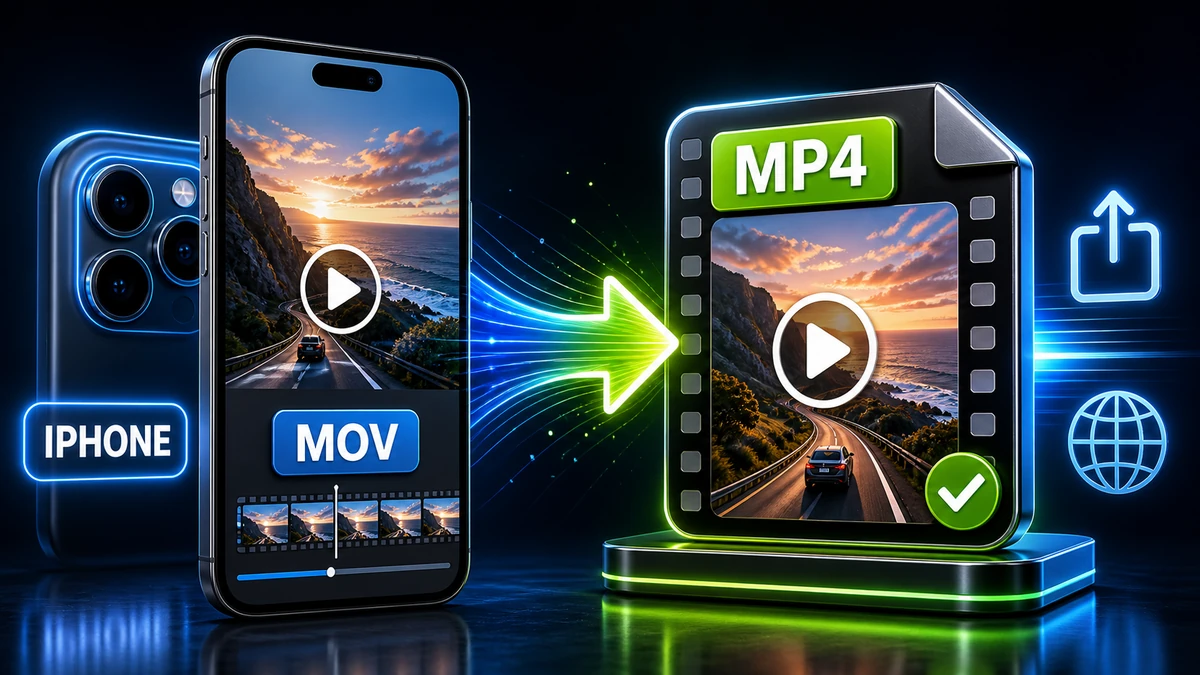
This is one of the most common frustrations for iPhone users. Apple uses MOV format by default, but the rest of the world mostly runs on MP4.
The good news? Converting MOV to MP4 is quick, easy, and doesn't have to hurt your video quality. This guide shows you exactly how to do it on any device.
Why Does iPhone Use MOV Instead of MP4?
Before we dive into conversion, let's understand why this problem exists in the first place.
A Brief History
MOV (QuickTime Movie) was developed by Apple in 1991. It was revolutionary at the time and became the foundation of modern digital video. Apple continues to use it because:
- Deep integration with macOS and iOS
- Excellent quality preservation
- Support for advanced features like multiple audio tracks
MP4 (MPEG-4 Part 14) came later and was designed as a universal standard. It's based on Apple's MOV format but with broader compatibility.
"Pro tip: MOV and MP4 are actually very similar technically. They can even use the same video codec (H.264 or H.265). The main difference is the container format—like putting the same contents in a different box."
The Compatibility Problem
Here's why MOV causes issues:
| Device/Platform | MOV Support | MP4 Support |
|---|---|---|
| iPhone/Mac | ✅ Perfect | ✅ Perfect |
| Android phones | ⚠️ Limited | ✅ Perfect |
| Windows PC | ⚠️ Needs codecs | ✅ Perfect |
| Web browsers | ⚠️ Inconsistent | ✅ Perfect |
| Social media | ⚠️ Some issues | ✅ Perfect |
| Smart TVs | ⚠️ Varies | ✅ Perfect |
The pattern is clear: MP4 works everywhere. MOV works mainly in Apple's ecosystem.
Understanding iPhone Video Settings
Before converting, it helps to know what you're working with. iPhones can record video in several formats:
Video Formats on iPhone
-
H.264 in MOV (Compatibility mode)
- Older compression standard
- Larger files, universal playback
- Best for sharing with non-Apple devices
-
H.265/HEVC in MOV (Default on newer iPhones)
- 50% smaller files than H.264
- Same quality
- Requires newer devices to play
-
ProRes (iPhone 13 Pro and later)
- Professional-grade quality
- Massive file sizes
- For video editing, not sharing
"Pro tip: You can change your iPhone's recording format in Settings → Camera → Formats. Choose 'Most Compatible' if you frequently share with non-Apple users."
Check Your Video Format
To see what format your iPhone video uses:
- Open the Photos app
- Select your video
- Tap the ⓘ info button
- Look for the format and codec information
Four Ways to Convert MOV to MP4
Here are the best methods, from simplest to most feature-rich.
Method 1: Online Converter (Fastest)
The quickest solution for most people. Works on any device with a web browser.
Using FreeFast Converter:
- Visit the video converter page
- Upload your MOV file (drag and drop or click to browse)
- Select MP4 as the output format
- Choose quality settings (keep original quality recommended)
- Click Convert
- Download your MP4 file
Pros:
- No software installation
- Works on iPhone, iPad, Mac, Windows, Android
- Fast processing
- Free for most file sizes
Cons:
- Requires internet connection
- Upload/download time for large files
"Pro tip: For the fastest results, connect to WiFi before uploading large video files. A 1GB video can take several minutes on mobile data."
Method 2: Using Mac (No Extra Software)
If you have a Mac, you can convert MOV to MP4 using tools already on your computer.
Option A: Using Finder (Quick Convert)
- Open Finder and locate your MOV file
- Right-click the file
- Select Encode Selected Video Files
- Choose your output settings
- Click Continue
This creates a compressed version, but it's fast and easy.
Option B: Using iMovie (More Control)
- Open iMovie (free from App Store)
- Create a new project
- Import your MOV video
- Go to File → Share → File
- Choose Quality and format settings
- Export as MP4
Option C: Using QuickTime Player
- Open the MOV file in QuickTime Player
- Go to File → Export As
- Choose quality level (1080p recommended for most uses)
- Save as MP4
Method 3: Using Windows PC
Windows doesn't natively handle MOV as smoothly, but several free options work great.
Option A: VLC Media Player (Free)
- Download and install VLC
- Open VLC and go to Media → Convert/Save
- Click Add and select your MOV file
- Click Convert/Save
- Choose Video - H.264 + MP3 (MP4) as the profile
- Select destination and click Start
Option B: HandBrake (Free, More Options)
- Download HandBrake
- Open HandBrake and drag your MOV file into it
- Select the MP4 preset that matches your needs
- Click Start Encode
"Pro tip: HandBrake's 'Fast 1080p30' preset works great for most iPhone videos. It balances quality and file size well."
Method 4: Converting on iPhone Directly
You can convert files right on your iPhone without a computer.
Using Shortcuts App:
- Open the Shortcuts app
- Create a new shortcut
- Add action: Encode Media
- Set output to MP4
- Save and run on your videos
Using Third-Party Apps:
Several iOS apps convert video formats:
- Video Converter (free with ads)
- Media Converter (one-time purchase)
- VCVT Video Converter (subscription)
Choosing the Right Quality Settings
When converting, you'll face quality choices. Here's how to decide:
Resolution Options
| Resolution | Best For | File Size (1 min) |
|---|---|---|
| 4K (2160p) | Large screens, archiving | ~350-500 MB |
| 1080p Full HD | Most uses, great balance | ~100-150 MB |
| 720p HD | Email, messaging, small screens | ~50-80 MB |
| 480p SD | Very small files needed | ~25-40 MB |
Quick Decision Guide:
- Keeping for yourself or editing later? → Keep original resolution
- Sharing on social media? → 1080p is perfect
- Sending via email or messaging? → 720p works well
- Uploading to YouTube? → Keep original (YouTube re-encodes anyway)
Codec Choices
| Codec | Quality | File Size | Compatibility |
|---|---|---|---|
| H.264 | Excellent | Larger | Universal |
| H.265/HEVC | Excellent | 50% smaller | Most modern devices |
Our recommendation: Use H.264 for maximum compatibility. Only use H.265 if you know the recipient can play it.
Common Problems and Solutions
Problem: Video Quality Looks Worse After Converting
Why it happens: You may have selected aggressive compression settings.
Solution:
- Use "High Quality" or "Same as Source" settings
- Keep the original resolution
- Use higher bitrate (15-20 Mbps for 1080p)
- Avoid multiple conversions (convert once from the original)
Problem: Audio is Missing or Out of Sync
Why it happens: Some converters handle audio tracks incorrectly.
Solution:
- Try a different converter
- Make sure you're selecting "Copy Audio" or "AAC" audio codec
- If audio is out of sync, check if the source file plays correctly first
Problem: File is Still Too Large
Why it happens: High-resolution, long videos are naturally large.
Solutions:
- Reduce resolution (4K → 1080p saves 75% space)
- Reduce bitrate moderately
- Trim unnecessary portions of the video
- Use H.265 codec if compatibility allows
Check out our video compression guide for more tips.
Problem: Colors Look Different
Why it happens: HDR and wide color gamut settings can cause color shifts.
Solution:
- Make sure the converter preserves HDR metadata
- Or convert to SDR for maximum compatibility
- iPhones record in HDR by default—some platforms handle this better than others
Batch Converting Multiple MOV Files
Have dozens of iPhone videos to convert? Don't do them one by one.
Online Batch Conversion
- Visit FreeFast Converter
- Upload multiple MOV files at once
- Convert all with the same settings
- Download individually or as a ZIP
Desktop Batch Conversion
Using HandBrake:
- Open HandBrake
- Go to File → Open Source and select a folder
- Click Add to Queue for each file
- Configure settings once
- Click Start Queue
"Pro tip: Create a dedicated folder for videos to convert, and another for converted files. This keeps everything organized and prevents confusion."
For detailed batch conversion instructions, see our complete batch conversion guide.
Frequently Asked Questions
Does converting MOV to MP4 lose quality?
It depends on your settings. If you use:
- Same resolution as the original
- High bitrate (15+ Mbps for 1080p)
- Quality-focused preset
...then quality loss is imperceptible. Converting from MOV to MP4 with the same codec (like H.264 to H.264) can even be done without any re-encoding.
Can I convert MOV to MP4 on iPhone without an app?
The built-in iOS tools are limited. You can use:
- The Shortcuts app with an encoding action
- iMovie (free) to export as MP4
- Web-based converters like FreeFast Converter
Why is my MOV file so large?
iPhone videos use high bitrates for quality. A 1-minute 4K video can be 400+ MB. This is normal for high-quality video. To reduce size, convert to 1080p or use compression.
What's the difference between MOV and MP4?
Both are container formats that hold video and audio. MOV is Apple's format; MP4 is the universal standard. They're technically similar and can hold the same video codecs—MP4 just works on more devices.
Should I delete the original MOV after converting?
Wait! Keep the original until you've verified the converted file plays correctly and looks good. MOV files are your master copies—once deleted, you can't get the original quality back.
Can I convert HEVC MOV to H.264 MP4?
Yes! This is a common conversion for maximum compatibility. The file will be larger (H.264 is less efficient than HEVC), but it will play on older devices and all web browsers.
Conclusion
Converting MOV to MP4 unlocks universal compatibility for your iPhone videos. Here's what to remember:
Key Points:
- MOV is Apple's format; MP4 works everywhere
- Quality settings matter—use high bitrate and original resolution when possible
- H.264 codec ensures maximum compatibility
- Keep original files until you verify the conversion
Quick Decision Guide:
- Need fastest solution? → Use FreeFast Online Converter
- Have a Mac? → Use QuickTime or iMovie (already installed)
- On Windows? → Use VLC or HandBrake (free)
- On iPhone? → Use Shortcuts app or online converter
Ready to convert your iPhone videos? Try our free MOV to MP4 converter for instant, high-quality results.
Related articles:
- How to Reduce Video Size for Email and Social Media
- Video Formats Explained: MP4, MKV, MOV, and More
- How to Compress Video Without Losing Quality
- MP4 to MP3: Extract Audio from Video
Related Topics
On This Page
Share Article
Our Tools
Stay Updated
Get the latest tips delivered to your inbox.