AVI to MP4: Convert Old Video Files That Won't Play
You found a folder of old home videos from a camcorder or an early digital camera, and every file ends in .avi. You drag one onto your phone to show your family, and it either refuses to open or plays with no sound. You try to upload it to Instagram or send it in a message, and that fails too. The footage is fine. The container around it is just thirty years out of date.
Converting those AVI files to MP4 fixes almost all of it: the clips become smaller, they play on basically any device, and they upload to social platforms and email without a fight. Here's why that happens and how to do it without losing the quality of the original recording.
What AVI actually is (and why it gives you trouble)
AVI stands for Audio Video Interleave. Microsoft introduced it in 1992 as part of Video for Windows. It's a container — a wrapper that holds a video stream, an audio stream, and some metadata. It is not a codec. That distinction is the whole reason AVI causes problems.
Because AVI dates back to the early 1990s, the files you have were often encoded with old or lightly compressed codecs: things like Cinepak, Indeo, MJPEG, DivX, or in some cases nearly raw, uncompressed video. Those codecs were normal for camcorders and early recording software, but they share two flaws today:
- The files are large. Older AVI encoding is far less efficient than modern compression. A few minutes of footage can run into hundreds of megabytes, sometimes gigabytes.
- The codec may not be installed. AVI assumes the playback device already has the right codec. Modern phones, browsers, and TVs simply don't ship with Indeo or Cinepak decoders, so the file won't play even though it's perfectly intact.
AVI also has weak native support for modern features like subtitle tracks, chapter markers, and the metadata streaming platforms expect.
Why MP4 is the format everything understands
MP4 (formally MPEG-4 Part 14) is also a container, but it's the one the entire modern ecosystem standardized on. When an MP4 holds video encoded with H.264 (also called AVC) and audio encoded with AAC, you get a file that:
- Plays natively on iOS, Android, Windows, macOS, smart TVs, and every major browser — no codec installation required.
- Is accepted everywhere you'd want to upload: YouTube, Instagram, TikTok, Facebook, WhatsApp, and email attachments.
- Is much smaller than the equivalent AVI, because H.264 compresses far more efficiently than the codecs typically found in old AVI files.
- Streams well. MP4 supports "faststart," where the file's index (the moov atom) sits at the front, so video begins playing before the whole file downloads.
H.264 is also hardware-accelerated on nearly every chip made in the last fifteen years, which means smooth playback and low battery drain. That combination of universal support, smaller size, and hardware decoding is exactly what AVI lacks.
AVI vs MP4 at a glance
| AVI (H.264 era predecessor) | MP4 (H.264 + AAC) | |
|---|---|---|
| Introduced | 1992 (Microsoft) | 2001 (MPEG) |
| Typical file size | Large | Significantly smaller |
| Plays on phones | Often not | Yes |
| Works on social/web | Rarely | Yes |
| Hardware-accelerated | Rarely | Almost always |
| Good for streaming | No | Yes |
| Subtitles/chapters | Limited | Supported |
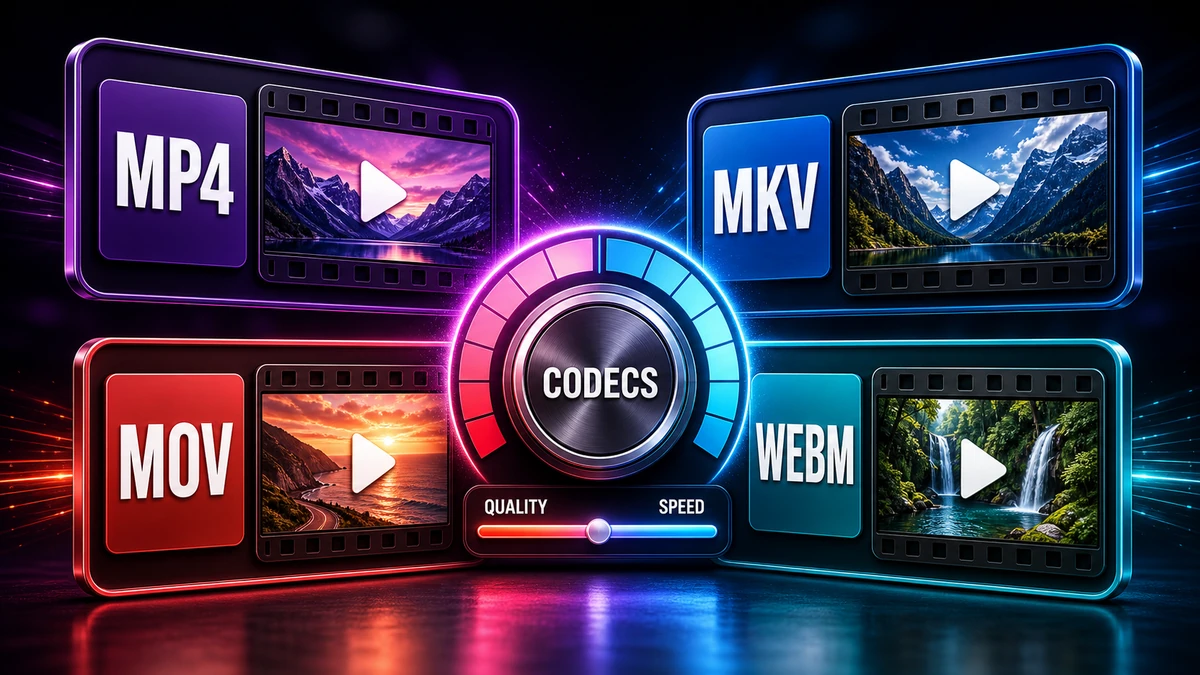
For a wider look at how MP4 stacks up against WebM, MOV, MKV, and others, see our video formats comparison guide.
How to convert AVI to MP4
You don't need to install anything. Use our AVI to MP4 converter and the process is short:
- Upload your AVI file. Drag it in or browse to select it.
- Start the conversion. The tool re-wraps your video into an MP4 container and, where needed, re-encodes the video to H.264 and the audio to AAC so it plays everywhere.
- Download the MP4. Check that it opens on your phone and that the audio is in sync.
That's the whole job for most files. The original AVI stays untouched, so you can keep it as a backup until you're happy with the result.
Will you lose quality?
This is the honest part. Going from AVI to MP4 usually involves re-encoding the video, and any lossy re-encode discards some data. In practice, the loss is rarely visible if the conversion uses a sensible bitrate, because H.264 is efficient enough to preserve detail while shrinking the file.
A few things that genuinely matter:
- You can't add quality back. If the source AVI is a blurry 480p camcorder clip, the MP4 will look like a blurry 480p clip. Conversion preserves what's there; it doesn't restore it.
- Don't convert repeatedly. Each lossy re-encode loses a little more. Convert once, keep the MP4, and work from that.
- Keep the original. Until you've confirmed the MP4 looks right, hang on to the AVI.
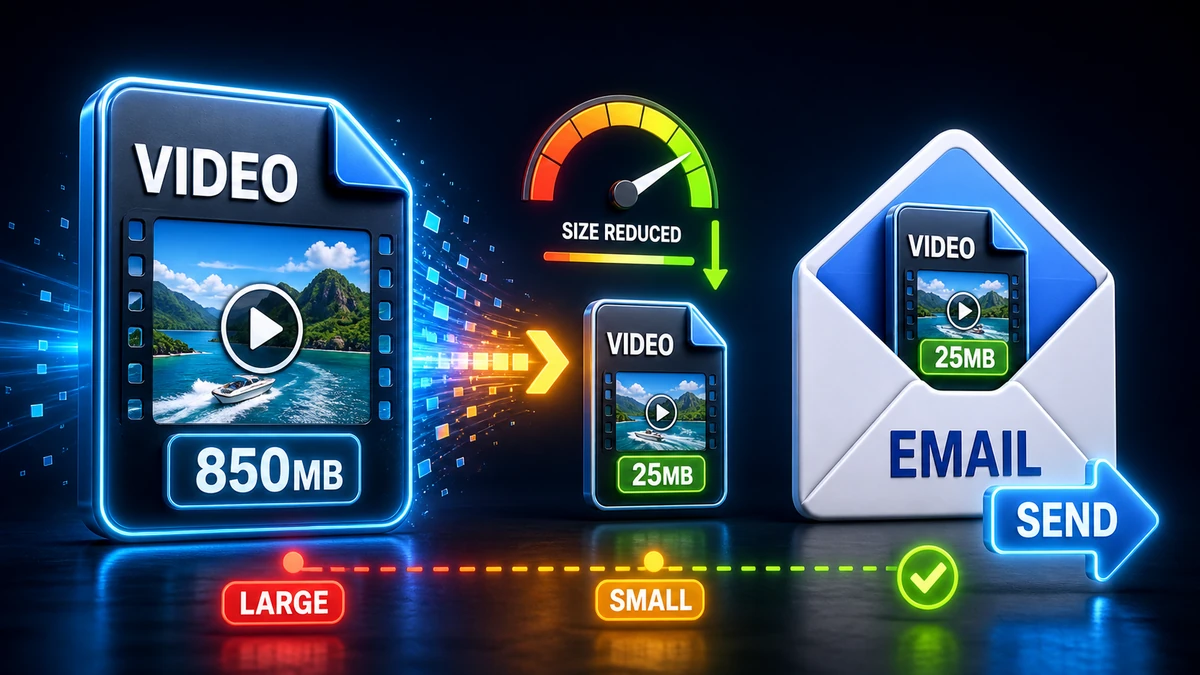
If your converted MP4 is still too big for email, that's a separate, fixable problem — our guide on how to reduce video size for email walks through trimming, resolution, and bitrate.
When NOT to convert (or when to think twice)
Converting AVI to MP4 is the right call the vast majority of the time, but a few cases deserve a pause:
- Archival masters. If an AVI is a high-bitrate or near-lossless master that you're keeping for long-term archival, re-encoding to a lossy MP4 throws away data permanently. Keep the master; make an MP4 copy for everyday use.
- Active editing projects. Some video editors handle certain intra-frame AVI codecs (like MJPEG) more smoothly for scrubbing than long-GOP H.264. If you're mid-edit, finish in the format your editor prefers and export to MP4 at the end.
- The file already plays fine everywhere you need it. If it works, you don't have to touch it.
For everything else — sharing, uploading, saving space, future-proofing — MP4 wins.
Frequently asked questions
Is MP4 better quality than AVI?
Not inherently. Quality depends on the codec and bitrate, not the container. An MP4 just stores the video far more efficiently, so you get a much smaller file at visually similar quality compared with a typical old AVI.
Why is my AVI file so much bigger than an MP4?
Because most AVI files use older, less efficient codecs (or nearly uncompressed video). H.264 inside MP4 compresses the same footage far more tightly, which is why a converted MP4 is often a fraction of the original size.
Will converting AVI to MP4 fix audio that won't play?
Often, yes. AVI files sometimes use audio codecs your device doesn't have. Re-encoding the audio to AAC inside an MP4 means modern devices can play it without needing extra codecs installed.
Can I convert AVI to MP4 without losing any quality at all?
Only if the tool can copy the existing stream without re-encoding, which is rare for old AVI codecs. In most real cases a small, usually invisible quality loss happens — and it's a fair trade for a file that actually plays.
Does converting change the resolution of my video?
No. Converting keeps the same resolution by default. If your AVI is 720x480, the MP4 stays 720x480 unless you deliberately choose to resize it.
The bottom line
AVI was built for a 1992 version of computing, and it shows: big files, missing codecs, and clips that won't open on the devices you actually use. MP4 with H.264 is the format your phone, browser, and every social platform already speak fluently. Converting is quick, keeps your original safe, and almost always leaves you with a smaller file that just works.
If you've got a folder of old camcorder footage waiting, drop it into our AVI to MP4 converter and bring those videos into a format the rest of your devices can actually play.
Related Topics
On This Page
Share Article
Try FreeFast Converter
Start with free daily conversions, then choose a plan if you need higher limits.
Start ConvertingOur Tools
Stay Updated
Get the latest tips delivered to your inbox.