How to Compress Video Without Losing Quality: The Ultimate Guide

You recorded an amazing video. Now you need to share it. But the file is massive—way too big for email, too slow to upload, taking up precious storage space.
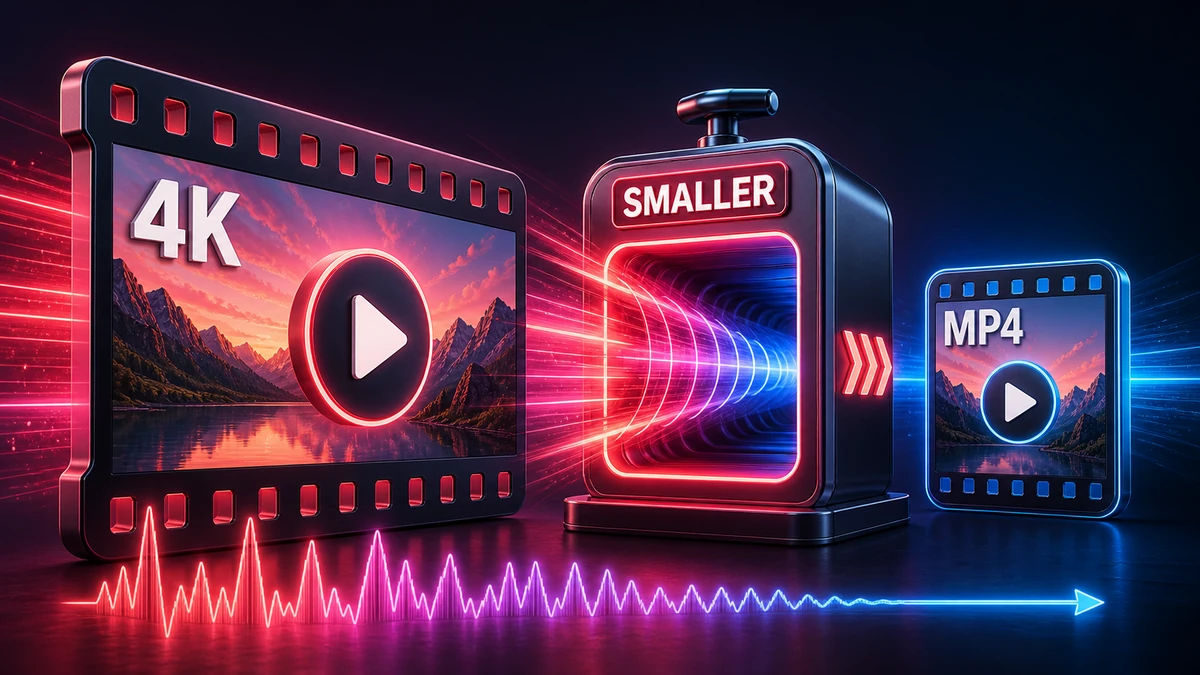
Video compression solves this problem. The challenge? Most people compress videos and end up with pixelated, blurry messes that look like they were filmed on a potato.
This guide shows you exactly how to compress video the right way—reducing file size dramatically while keeping your videos looking sharp.
Understanding Video Compression
Before we dive into the how-to, let's understand what we're actually doing when we compress video.
What Compression Does
Video files are huge because they store a lot of data—every frame, every color, every detail. Compression works by:
- Removing redundant data (like pixels that don't change between frames)
- Discarding imperceptible details (things human eyes can't notice)
- Using mathematical shortcuts (representing patterns instead of raw data)
The key insight: you can remove a lot of data without visibly affecting quality—if you do it right.
Lossy vs. Lossless Compression
| Type | What It Does | File Size | Quality |
|---|---|---|---|
| Lossy | Removes data permanently | Small (90%+ reduction) | Slight loss (often invisible) |
| Lossless | Compresses without data loss | Moderate (30-50% reduction) | Perfect |
For sharing videos, lossy compression is the way to go. Lossless is for archiving or editing.
"Pro tip: The human eye is remarkably tolerant of video compression artifacts. A well-compressed video at half the file size often looks identical to the original."
The Five Factors That Affect File Size
Understanding these factors helps you make smart compression decisions:
1. Resolution
Higher resolution = more pixels = larger file.
| Resolution | Name | Pixels | Relative Size |
|---|---|---|---|
| 3840 × 2160 | 4K | 8.3 million | 4x baseline |
| 1920 × 1080 | 1080p | 2 million | Baseline |
| 1280 × 720 | 720p | 0.9 million | ~45% of 1080p |
| 854 × 480 | 480p | 0.4 million | ~20% of 1080p |
Quick rule: Dropping from 4K to 1080p cuts file size by 75% with minimal visible difference on most screens.
2. Bitrate
Bitrate is how much data is used per second of video. Higher bitrate = better quality = larger file.
| Quality Level | 1080p Bitrate | File Size (1 min) |
|---|---|---|
| Low | 3-5 Mbps | ~25-40 MB |
| Medium | 8-12 Mbps | ~60-90 MB |
| High | 15-20 Mbps | ~110-150 MB |
| Very High | 30+ Mbps | ~225+ MB |
3. Frame Rate
More frames per second = more data.
- 60 fps → Twice the data of 30 fps
- 30 fps → Standard for most content
- 24 fps → Cinematic, slightly smaller files
4. Video Codec
Newer codecs compress more efficiently:
| Codec | Efficiency | Compatibility |
|---|---|---|
| H.264 | Good | Universal |
| H.265/HEVC | 50% better than H.264 | Most modern devices |
| VP9 | Similar to H.265 | Web browsers |
| AV1 | Best (30% better than H.265) | Limited |
5. Content Complexity
- Simple content (talking head, static shots) → Compresses very well
- Complex content (fast action, lots of movement) → Needs higher bitrate
How to Compress Videos: Step-by-Step Methods
Method 1: Online Compressor (Fastest)
Perfect for quick jobs without installing software.
Using FreeFast Video Compressor:
- Visit the video compressor page
- Upload your video file
- Choose compression level:
- Light (high quality, moderate reduction)
- Medium (balanced)
- Heavy (maximum compression)
- Click Compress
- Download your smaller file
Pros:
- No software installation
- Works on any device
- Quick and simple
Cons:
- Requires internet
- Upload/download time for large files
"Pro tip: Start with "Medium" compression. You can always go heavier if needed, but you can't restore quality once it's lost."
Method 2: HandBrake (Free Desktop Software)
HandBrake is the gold standard for free video compression.
Step-by-step:
- Download HandBrake (Windows, Mac, Linux)
- Open and drag your video onto the window
- Choose a preset:
- Fast 1080p30 for quick, good results
- HQ 1080p30 Surround for better quality
- Gmail or Discord for specific platforms
- Adjust settings if needed (see advanced section)
- Click Start Encode
Recommended settings for quality:
- Video Codec: H.264 or H.265
- Quality RF: 20-23 (lower = better quality, larger file)
- Encoder preset: Medium or Slow
Method 3: VLC Media Player
VLC includes a converter that works well for basic compression.
Step-by-step:
- Open VLC and go to Media → Convert/Save
- Click Add and select your video
- Click Convert/Save
- Choose profile: Video - H.264 + MP3 (MP4)
- Click the wrench to adjust settings
- Set destination and click Start
Method 4: Adobe Premiere Pro / Final Cut
For professional editors, export settings matter:
Premiere Pro optimal settings:
- Format: H.264
- Preset: Match Source - High Bitrate (then adjust)
- Bitrate Encoding: VBR, 2 Pass
- Target Bitrate: 10-15 Mbps for 1080p
Compression Settings by Use Case
For Email (Under 25 MB)
| Setting | Recommendation |
|---|---|
| Resolution | 720p |
| Bitrate | 1-2 Mbps |
| Codec | H.264 |
| Frame rate | 30 fps |
Result: 2-minute video ≈ 15-25 MB
For WhatsApp (Under 16 MB)
| Setting | Recommendation |
|---|---|
| Resolution | 480p-720p |
| Bitrate | 0.5-1 Mbps |
| Codec | H.264 |
| Audio | 96 kbps |
Result: 1-2 minute video ≈ 8-16 MB
For YouTube/Social Media
| Setting | Recommendation |
|---|---|
| Resolution | Original (up to 4K) |
| Bitrate | YouTube's recommended |
| Codec | H.264 |
| Frame rate | Original |
YouTube re-encodes everything, so don't over-compress before uploading.
For Storage/Archiving
| Setting | Recommendation |
|---|---|
| Resolution | Original |
| Bitrate | High (15-20+ Mbps for 1080p) |
| Codec | H.265 (if devices support it) |
| Quality | RF 18-20 in HandBrake |
Common Mistakes That Ruin Quality
Mistake #1: Compressing an Already Compressed Video
The problem: Taking a YouTube video and compressing it again.
The result: Quality degrades severely (generation loss).
The fix: Always compress from original source files when possible.
Mistake #2: Choosing Extreme Compression
The problem: Cranking compression to maximum to hit a size target.
The result: Blocky, pixelated video that looks terrible.
The fix: Reduce resolution first (1080p → 720p), then reduce bitrate moderately.
Mistake #3: Using Wrong Resolution for Platform
The problem: Uploading 4K video to a platform that will display it at 720p anyway.
The result: Wasted bandwidth, slow uploads, no quality benefit.
The fix: Match output resolution to viewing context.
Mistake #4: Not Using 2-Pass Encoding
The problem: Using 1-pass encoding for important videos.
The result: Inconsistent quality throughout the video.
The fix: Enable 2-pass VBR in encoding settings. Takes longer but produces better results.
"Pro tip: 2-pass encoding analyzes the entire video first, then encodes. This lets it allocate bitrate more intelligently to complex scenes."
Advanced Tips for Best Results
Use Variable Bitrate (VBR)
VBR adjusts compression based on what's happening in each scene:
- Simple scenes → Lower bitrate, smaller size
- Complex scenes → Higher bitrate, preserved quality
Result: Better quality at the same average file size.
Try CRF/RF Mode
Instead of targeting a specific bitrate, you specify a quality level:
- CRF 18-20 = Visually lossless
- CRF 21-23 = High quality
- CRF 24-28 = Good quality, smaller files
This is often the best approach for compression.
Consider H.265/HEVC
If your target devices support it, H.265 gives:
- 50% smaller files at same quality
- Or better quality at same size
- Trade-off: Slower encoding, less compatibility
Frequently Asked Questions
How much can I compress a video?
Typical reductions are 50-90%, depending on settings. A 1 GB video can often become 100-200 MB without visible quality loss.
Does compression always reduce quality?
Yes, lossy compression removes data. However, at proper settings, the difference is imperceptible to most viewers. The key is not being too aggressive.
What's the best codec for compression?
H.264 for maximum compatibility. H.265 for best efficiency on modern devices. Both produce excellent results.
Should I compress before uploading to YouTube?
Minimally. YouTube re-encodes everything. Export at high quality—let YouTube do its own compression. Over-compressing before upload can result in double quality loss.
How do I compress video on iPhone?
Options include:
- Online compressors like FreeFast Converter
- Apps like "Video Compress" from the App Store
- Export from iMovie at lower resolution
Why is my compressed video larger than the original?
This happens when you encode to a higher bitrate or less efficient format than the original. Check your settings and ensure your output bitrate is lower than the source.
Conclusion
Compressing video without losing quality is about making smart trade-offs:
Remember These Key Points:
- Resolution reduction has the biggest impact on file size
- Bitrate directly controls quality vs. size trade-off
- H.264 gives universal compatibility
- H.265 gives 50% better compression
- CRF 20-23 is the sweet spot for most videos
Quick Decision Guide:
- Need smallest file possible? → 720p, H.265, CRF 24
- Want balanced quality/size? → 1080p, H.264, CRF 22
- Want best quality? → Original resolution, H.265, CRF 18-20
- For email/messaging? → 720p, low bitrate, under 25 MB
Ready to compress your videos? Use our free video compressor for instant results.
Related articles:
- How to Reduce Video Size for Email and Social Media
- Video Formats Explained: MP4, MKV, MOV, and More
- MOV to MP4: Convert iPhone Videos
- Video Compression Without Quality Loss
Related Topics
On This Page
Share Article
Our Tools
Stay Updated
Get the latest tips delivered to your inbox.