Video Compression Without Quality Loss: A Complete Guide

You just shot the perfect video—crisp, clear, and exactly what you needed. Then you check the file size: 8.5 GB for a 10-minute clip. Uploading that to YouTube? Sharing it via email? Storing hundreds of these? Not happening.
This is where video compression becomes essential. But here's the million-dollar question: how do you shrink video files without making them look like a pixelated mess from 2005?
This comprehensive guide reveals the exact techniques professionals use to reduce video file sizes by 50-90% while maintaining stunning visual quality. Whether you're a content creator, business professional, or just someone with too many vacation videos, you'll learn how to compress videos like a pro.
Understanding Video Compression: The Basics
Before diving into tools and settings, let's understand what actually happens when you compress a video.
What Is Video Compression?
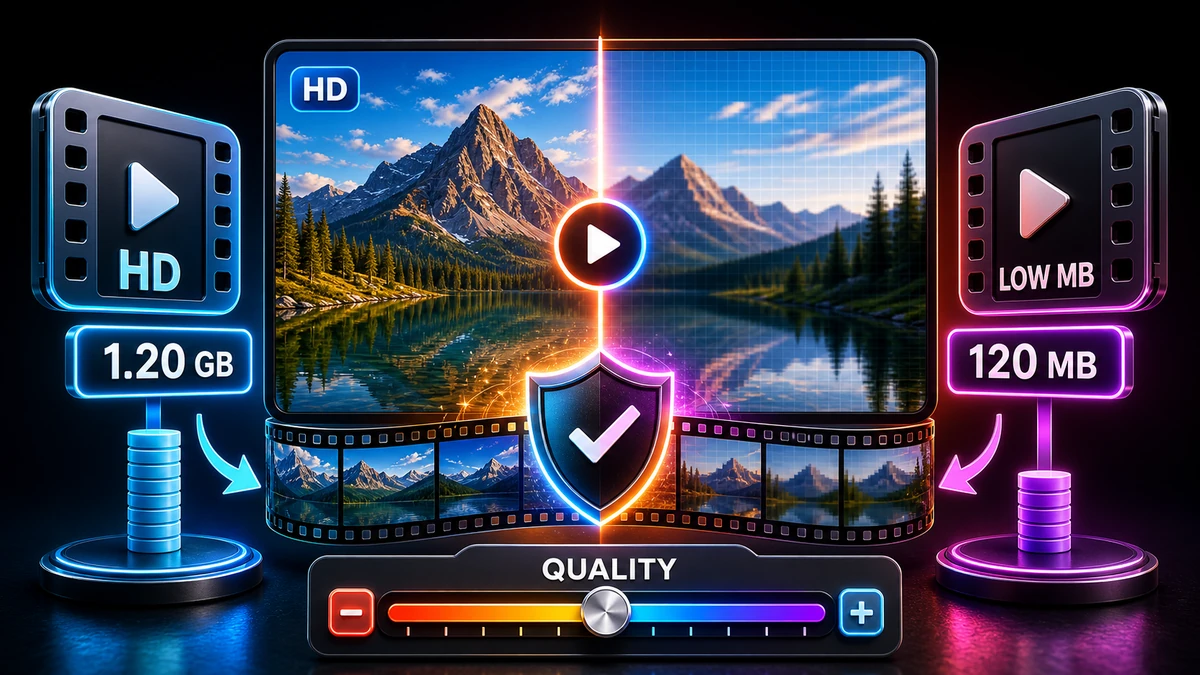
Video compression reduces file size by removing redundant or imperceptible data. Think of it like this:
Uncompressed Video:
- Stores every single frame in full detail
- 1-minute 1080p video = ~3-6 GB
- Perfect quality but impractical for most uses
Compressed Video:
- Removes redundant information between frames
- Same 1-minute video = 50-200 MB
- Visually similar quality at fraction of size
Why File Sizes Matter
| Scenario | Impact of Large Files | Benefit of Compression |
|---|---|---|
| Uploading | Hours of upload time | Minutes instead |
| Streaming | Buffering, playback issues | Smooth playback |
| Storage | Expensive cloud storage costs | 10x more videos stored |
| Sharing | Email size limits, failed transfers | Easy sharing anywhere |
| Editing | Slow performance, crashes | Faster editing workflow |
According to Cisco's Visual Networking Index, video accounts for 82% of all internet traffic. Proper compression isn't just convenient—it's essential.
The Complete Codec Comparison Guide
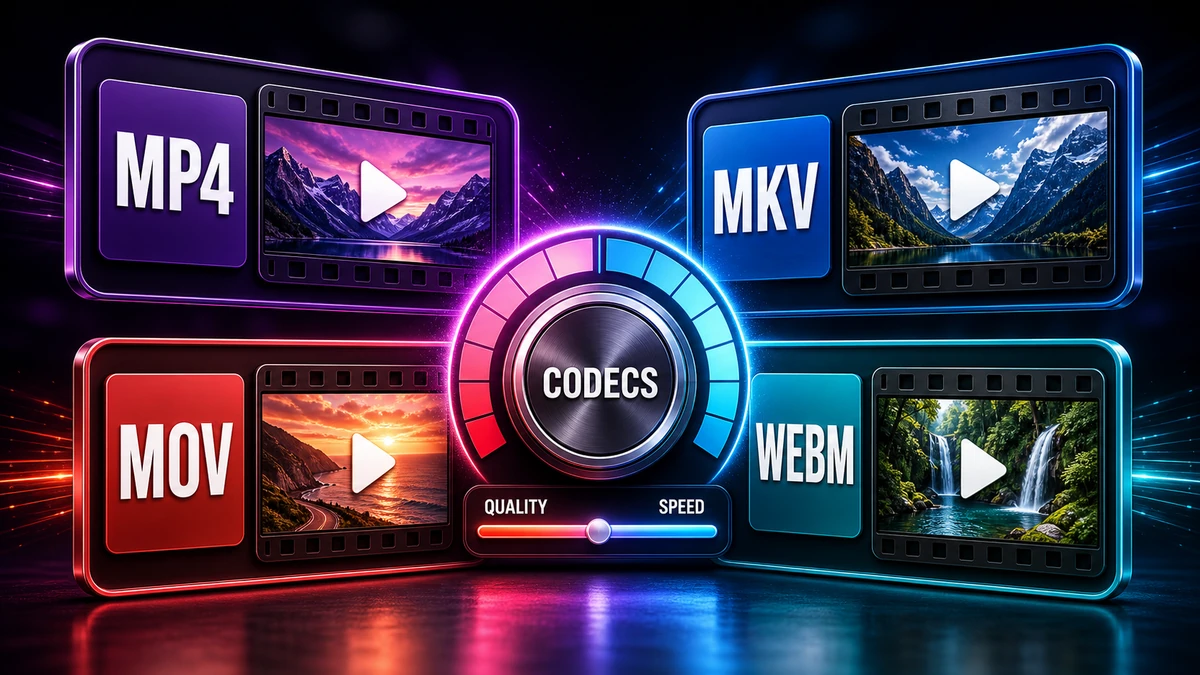
Your choice of codec (compression algorithm) determines the balance between file size, quality, and compatibility.
Modern Video Codecs Explained
| Codec | Compression Efficiency | Compatibility | Quality | Best Use Case |
|---|---|---|---|---|
| H.264 (AVC) | Good (baseline) | Excellent | Very Good | General purpose, maximum compatibility |
| H.265 (HEVC) | 50% better than H.264 | Good (improving) | Excellent | 4K video, archival, modern devices |
| VP9 | Similar to H.265 | Good (web) | Excellent | YouTube, web streaming |
| AV1 | 30% better than H.265 | Limited (growing) | Excellent | Future-proof, next-gen streaming |
| ProRes | Minimal | Limited (Apple) | Pristine | Professional editing |
| DNxHD | Minimal | Limited (Avid) | Pristine | Professional editing |
Codec Recommendations by Use Case
For Maximum Compatibility (Share Anywhere):
- Use: H.264 (MP4 container)
- Why: Plays on virtually every device and platform
- Trade-off: Slightly larger files than newer codecs
For Best Compression (Save Space):
- Use: H.265/HEVC or AV1
- Why: Smallest files with maintained quality
- Trade-off: Some older devices may not support
For Professional Editing:
- Use: ProRes (Mac) or DNxHD (Windows)
- Why: Minimal compression artifacts during editing
- Trade-off: Very large file sizes
For Web/YouTube:
- Use: H.264 or VP9
- Why: Optimized for streaming platforms
- Trade-off: Platform will re-encode anyway
The Quality Settings That Actually Matter
Understanding these key settings gives you precise control over compression results.
1. CRF (Constant Rate Factor) - The Quality Sweet Spot
CRF controls quality while letting file size vary. Lower numbers = better quality, larger files.
| CRF Value | Visual Quality | File Size | Recommended For |
|---|---|---|---|
| 15-17 | Visually lossless | Very large | Mastering, archival |
| 18-20 | Excellent | Large | High-quality distribution |
| 21-23 | Very good | Medium | Most videos (recommended) |
| 24-26 | Good | Small | Web, social media |
| 27-28 | Acceptable | Very small | Low-priority content |
| 29+ | Noticeable artifacts | Tiny | Not recommended |
Pro Tip: Start with CRF 23 for H.264 or CRF 28 for H.265. Most people can't tell the difference from the original, and file sizes are excellent.
2. Bitrate - Controlling Data Flow
Bitrate determines how much data is used per second of video.
Variable Bitrate (VBR) - Recommended
- Allocates more bits to complex scenes, fewer to simple ones
- More efficient than Constant Bitrate (CBR)
- Better quality at same file size
Recommended Bitrates for H.264
1080p (Full HD):
| Quality Level | Bitrate | Use Case |
|---|---|---|
| Low | 2-3 Mbps | Small file priority |
| Medium | 5-8 Mbps | Balanced (recommended) |
| High | 10-15 Mbps | Quality priority |
| Very High | 20-25 Mbps | Near-original quality |
4K (UHD):
| Quality Level | Bitrate | Use Case |
|---|---|---|
| Low | 15-20 Mbps | Acceptable |
| Medium | 35-45 Mbps | Balanced (recommended) |
| High | 50-80 Mbps | Quality priority |
| Very High | 100+ Mbps | Professional |
3. Resolution - When to Scale Down
Sometimes reducing resolution is the smartest compression choice:
When to Reduce Resolution:
- Original is 4K but final viewing will be on phones/tablets
- Uploading to platforms that will downscale anyway
- Storage space is extremely limited
- Content doesn't benefit from high resolution (e.g., talking head videos)
Safe Downscaling:
- 4K (3840×2160) → 1080p: ~75% file size reduction
- 1080p → 720p: ~50% file size reduction
- Keep aspect ratio to avoid stretching
4. Frame Rate Considerations
| Frame Rate | Best For | Compression Impact |
|---|---|---|
| 24 fps | Cinematic look | Smallest files |
| 30 fps | General video, vlogs | Balanced |
| 60 fps | Gaming, sports, action | Larger files |
| 120 fps | Slow-motion | Very large |
Tip: If your source is 60fps but doesn't have fast action, converting to 30fps can reduce file size by 30-40% with minimal visual impact.
Step-by-Step: Compressing Videos Without Quality Loss
Method 1: Online Compression (Easiest)
Our video converter tool makes high-quality compression simple:
Steps:
- Visit FreeFast Video Converter
- Upload your video file (no size limits)
- Select compression preset:
- High Quality: Minimal compression, best quality
- Balanced: Recommended for most users
- Maximum Compression: Smallest files
- Adjust advanced settings (optional):
- Resolution
- Quality/bitrate
- Format
- Click "Compress"
- Download compressed video
Advantages:
- No software installation
- Works on any device
- Optimized presets
- Secure processing
Method 2: Using FFmpeg (Advanced)
For ultimate control, use FFmpeg via command line:
H.264 with Optimal Quality:
\\\\bash ffmpeg -i input.mp4 -c:v libx264 -crf 23 -preset medium -c:a aac -b:a 128k output.mp4 \\\\\
H.265 for Maximum Compression:
\\\\bash ffmpeg -i input.mp4 -c:v libx265 -crf 28 -preset medium -c:a aac -b:a 128k output.mp4 \\\\\
Two-Pass for Best Results:
\\\\`bash
Pass 1
ffmpeg -i input.mp4 -c:v libx264 -b:v 5M -pass 1 -f mp4 /dev/null
Pass 2
ffmpeg -i input.mp4 -c:v libx264 -b:v 5M -pass 2 output.mp4
\\\\`
Method 3: Video Editing Software
Adobe Premiere Pro:
- File → Export → Media
- Format: H.264
- Preset: Match Source - High Bitrate
- Adjust bitrate settings under "Video" tab
- Use VBR, 2 pass for best quality
DaVinci Resolve (Free):
- Deliver page
- Format: MP4
- Codec: H.264 or H.265
- Quality: Set to "Automatic" or manual bitrate
- Render
Avoiding Common Compression Mistakes
Mistake #1: Compressing Already-Compressed Files
The Problem: Re-compressing a compressed video creates generation loss—cumulative quality degradation.
The Solution:
- Always work from original, highest-quality source
- If original is lost, minimal re-compression only
- Use lossless intermediate formats when editing
Mistake #2: Wrong Codec for the Job
The Problem: Using H.265 when you need H.264 compatibility, or using editing codecs for distribution.
The Solution:
- H.264 for maximum device compatibility
- H.265 when you need smaller files and viewers have modern devices
- Editing codecs (ProRes, DNxHD) for editing only, not final delivery
Mistake #3: Ignoring Audio Quality
The Problem: Compressing video heavily while keeping massive audio files, or vice versa.
The Solution:
- Audio bitrate of 128-192 kbps (AAC) is ideal for most content
- 96 kbps acceptable for voice-only content
- 256 kbps for music-heavy content
Mistake #4: Not Testing Before Batch Processing
The Problem: Compressing 100 videos with settings that produce poor results.
The Solution:
- Test compression on a short clip first
- View on the intended playback device
- Check file size reduction meets your needs
- Only then batch process
Real-World Compression Results
Let me show you what proper compression can achieve:
Case Study 1: YouTube Tutorial Video
Original:
- Format: MOV (iPhone recording)
- Resolution: 1080p @ 60fps
- Duration: 15 minutes
- File Size: 4.2 GB
- Codec: H.264 (high bitrate)
Compressed:
- Format: MP4
- Resolution: 1080p @ 30fps (reduced from 60fps)
- Codec: H.265 (HEVC)
- CRF: 28
- File Size: 180 MB (95.7% reduction!)
- Quality: Visually identical for this content type
Result: Upload time went from 45 minutes to 2 minutes on average internet.
Case Study 2: Business Presentation Recording
Original:
- Format: AVI (screen recording)
- Resolution: 1920×1080
- Duration: 45 minutes
- File Size: 12.8 GB
Compressed:
- Format: MP4
- Resolution: 1280×720 (sufficient for presentation content)
- Codec: H.264
- CRF: 24
- File Size: 425 MB (96.7% reduction!)
Result: Easily shareable via email and cloud storage, fast playback.
Platform-Specific Compression Guidelines
Different platforms have different requirements. Here's how to optimize:
YouTube
- Resolution: Keep original (YouTube recompresses anyway)
- Codec: H.264
- Recommended Bitrate: Follow YouTube's encoding specs
- Why: Platform will re-encode; start with high quality
Instagram/TikTok
- Resolution: 1080×1920 (vertical), 1080×1080 (square)
- Duration: Under 60 seconds for most formats
- Codec: H.264
- Bitrate: 5-8 Mbps at 1080p
- File Size Target: Under 100 MB
Email Attachments
- Maximum: 25 MB (Gmail/Outlook limit)
- Better Option: Upload to cloud storage and share link
- If Must Email: Heavy compression, 480p resolution
Professional Clients
- Codec: H.264 for compatibility or ProRes for editing
- Quality: CRF 18-20 or high bitrate
- Format: MP4 or MOV
- Include: Specifications document
Frequently Asked Questions
Q: Does compression always reduce quality?
A: Technically yes, but with proper settings (CRF 20-23 for H.264), the quality loss is imperceptible to human eyes. You'd need specialized equipment to detect the difference.
Q: What's the difference between file size and bitrate?
A: File size is total video size (MB or GB). Bitrate is data used per second (Mbps). Higher bitrate = larger file size and generally better quality.
Q: Can I compress a video multiple times?
A: You can, but shouldn't. Each compression cycle degrades quality further (generation loss). Always start from the highest quality source available.
Q: Why is my compressed video blocky/pixelated?
A: Either CRF is too high (use lower number like 20-23), bitrate is too low, or you're compressing an already-compressed file. Start from original source.
Q: Which is better: CRF or bitrate mode?
A: CRF is generally better for single-file compression (lets quality determine file size). Bitrate is better when you need predictable file sizes (e.g., fitting on specific media).
Q: How long does video compression take?
A: Depends on video length, resolution, and computer speed. Typically 2-10× the video duration. A 10-minute 1080p video might take 20-100 minutes to compress.
Q: Does higher resolution always mean larger file size?
A: Generally yes, but codec efficiency matters hugely. A 4K video in H.265 can be smaller than a 1080p video in an older codec.
Q: Should I compress before or after editing?
A: After! Edit in high quality or lossless formats, then compress final output for delivery/sharing.
The Bottom Line: Compress Smart, Not Hard
Video compression doesn't have to be a mystery. Follow these key principles:
Golden Rules:
- Start with the best source possible
- Use H.264 for compatibility, H.265 for efficiency
- CRF 21-23 (H.264) or CRF 26-28 (H.265) for most content
- Test first, batch process second
- Keep your originals until you're 100% satisfied
Quick Decision Tree:
- Need maximum compatibility? → H.264, CRF 23
- Need smallest file size? → H.265, CRF 28
- Sharing on social media? → Platform-specific guidelines above
- Professional delivery? → H.264, CRF 18-20
- Long-term archival? → H.265, CRF 20-22
Ready to compress your videos while maintaining stunning quality? Use our free video converter with optimized presets—no technical knowledge required. Your compressed videos will look identical to the originals, guaranteed.
For more video optimization tips, check out our guides on video formats and how to reduce video size.
Pro tip: Before deleting your originals, watch the compressed version on the device where it will actually be viewed. What looks fine on a phone might show issues on a 4K monitor, and vice versa.
Related Topics
On This Page
Share Article
Our Tools
Stay Updated
Get the latest tips delivered to your inbox.