MP4 to MP3: Extract Audio from Video Files
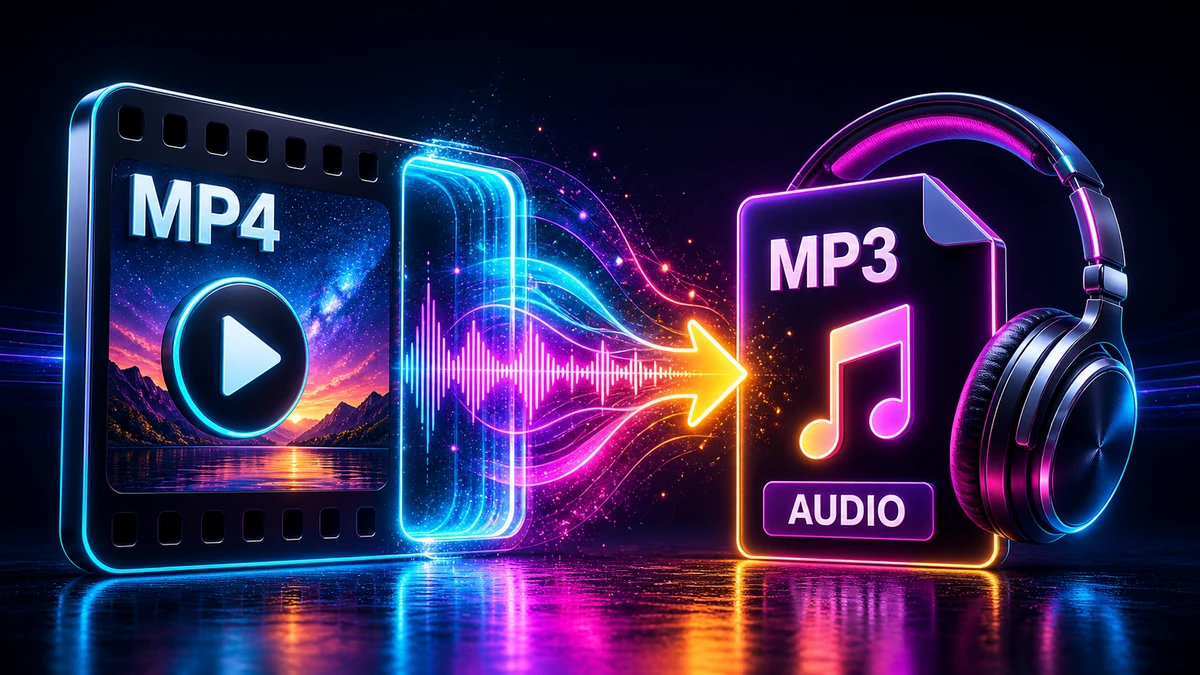
You found the reliable song in a video. Or you recorded a meeting and just need the audio. Or maybe you want to turn YouTube content into a podcast. Whatever the reason, you need to pull the audio out of a video file.
Converting MP4 to MP3 is one of the most common file conversions people do. The good news? It's quick, easy, and there are several free ways to do it.
This guide shows you exactly how to extract audio from video files, the best quality settings to use, and common mistakes to avoid.
Why Extract Audio from Video?
There are many practical reasons to convert video to audio:
- Save music from videos for your playlist
- Create podcasts from video content
- Extract meeting audio for easier sharing
- Listen to lectures on the go without video
- Reduce file size (audio-only is much smaller)
- Background listening while doing other things
"Pro tip: A 1-hour video might be 1 GB, but the audio track alone is only 50-80 MB. That's a 90%+ size reduction when you only need the sound."
How Video Files Store Audio
Before we extract audio, let's understand what we're working with.
Video Container Formats
Video files are "containers" that hold multiple streams:
| Stream Type | What It Contains | Typical Codec |
|---|---|---|
| Video | The visual content | H.264, H.265, VP9 |
| Audio | The sound | AAC, MP3, AC3 |
| Subtitles | Text captions | SRT, VTT |
| Metadata | Title, artist, etc. | Various |
When you convert MP4 to MP3, you're extracting just the audio stream and discarding everything else.
Audio Codecs in Video Files
Most MP4 videos use one of these audio codecs:
- AAC (most common in MP4)
- MP3 (some older videos)
- AC3/Dolby (movies)
- FLAC (high-quality videos)
The good news: You can convert any of these to MP3 easily.
Four Methods to Convert MP4 to MP3
Here are the best ways to extract audio, from simplest to most powerful.
Method 1: Online Converter (Fastest)
No software needed—just upload and convert.
Using FreeFast Converter:
- Visit the audio converter page
- Upload your MP4 file
- Select MP3 as output format
- Choose quality (320 kbps recommended)
- Click Convert
- Download your MP3 file
Pros:
- Works on any device with a browser
- No software installation
- Fast and simple
- Free for most files
Cons:
- Requires internet connection
- File size limits on some services
- Upload/download time for large files
"Pro tip: For fastest results, use WiFi when uploading large video files. A 1 GB video will take several minutes on mobile data."
Method 2: VLC Media Player (Free Desktop)
VLC is a free media player that can also convert files. It's available for Windows, Mac, and Linux.
Step-by-step:
- Open VLC Media Player
- Go to Media → Convert/Save (or press Ctrl+R)
- Click Add and select your MP4 file
- Click Convert/Save button
- In Profile, select Audio - MP3
- Click the wrench icon to adjust quality settings
- Choose destination file location
- Click Start
Pros:
- Completely free
- Works offline
- Already on many computers
- Good quality results
Cons:
- Interface isn't intuitive for conversion
- Limited batch processing
Method 3: Using iTunes/Apple Music (Mac/Windows)
If you have Apple software, you can convert directly.
For existing library items:
- Open iTunes (Windows) or Music (Mac)
- Go to Preferences → Files → Import Settings
- Change "Import Using" to MP3 Encoder
- Set quality to Higher Quality (256 kbps) or Custom (320 kbps)
- Close preferences
- Select your video in the library
- Go to File → Convert → Create MP3 Version
"Pro tip: iTunes/Music doesn't directly import MP4 videos. You may need to add the video to your library first, or use a different method."
Method 4: HandBrake + Audacity (Maximum Control)
For precise control over quality and editing capabilities.
Step 1: Extract with HandBrake
- Open HandBrake
- Open your MP4 file
- Go to the Audio tab
- Set codec to MP3 or AAC
- Enable Audio Passthru if available (preserves original quality)
- Export
Step 2: Edit with Audacity (optional)
- Open the extracted audio in Audacity
- Trim, edit, or enhance as needed
- Export as MP3
This method gives you complete control but requires more steps.
Choosing the Right Quality Settings
Quality settings determine both the audio quality and file size.
Bitrate Options
| Bitrate | Quality | File Size (per minute) | Best For |
|---|---|---|---|
| 128 kbps | Good | ~1 MB | Speech, podcasts |
| 192 kbps | Very Good | ~1.5 MB | General music |
| 256 kbps | Excellent | ~2 MB | Quality listening |
| 320 kbps | Maximum | ~2.4 MB | Best quality MP3 |
Quick Decision Guide:
- Extracting music? → Use 320 kbps
- Extracting speech/podcast? → Use 128-192 kbps
- File size is important? → Use 192 kbps (good balance)
- Want maximum quality? → Use 320 kbps
"Pro tip: The audio in most MP4 files is already compressed. Using 320 kbps won't improve quality beyond the original—it just preserves what's there. But it doesn't hurt, and the files aren't that much larger."
Common Mistakes to Avoid
Mistake #1: Using Too Low a Bitrate for Music
The problem: Choosing 64 kbps to save space when extracting music.
The result: Muddy, thin audio that sounds like it's playing through a wall.
The fix: Use 256-320 kbps for music. The extra space (about 1 MB per minute) is worth it.
Mistake #2: Re-Converting Already Compressed Audio
The problem: The source video already has low-quality audio, and you convert it again.
The result: Quality degrades further with each compression.
The fix: You can't improve quality that's not there. If the source is low quality, your MP3 will be too. Extract at the same or lower bitrate as the source.
Mistake #3: Ignoring Stereo vs. Mono
The problem: Extracting a podcast (single voice) in stereo when mono would work fine.
The result: Files are twice as large as necessary.
The fix: For single-voice content, convert to mono. You lose nothing for centered audio and cut file size in half.
Mistake #4: Not Checking the Result
The problem: Batch-converting files without listening to any of them.
The result: You might miss sync issues, glitches, or quality problems.
The fix: Always spot-check a portion of converted audio before deleting source files.
Special Situations
Extracting Audio from YouTube Videos
Many people want to extract audio from YouTube videos. Here's what to know:
Legal considerations:
- Downloading for personal use is generally okay in many regions
- Never re-upload or distribute copyrighted content
- Some content is explicitly blocked from downloading
- YouTube Music or Premium offers legal offline listening
Technical options:
- Various browser extensions and websites exist
- Quality is limited to what YouTube streams (usually 128 kbps AAC)
- Downloaded files may not be true 320 kbps even if labeled that way
"Pro tip: If you're trying to save music, streaming services like Spotify or Apple Music offer better quality and legal access for a monthly fee."
Extracting Multiple Audio Tracks
Some videos have multiple audio tracks (different languages, commentary).
To extract a specific track:
- Use VLC or HandBrake to select the specific audio track
- Most online converters only extract the primary audio stream
- Professional tools like FFmpeg give complete control
Batch Converting Multiple Videos
Have many videos to convert? Don't do them one at a time.
Batch conversion options:
- Online: FreeFast Converter supports multiple file uploads
- Desktop: HandBrake has a queue feature for multiple files
- Command line: FFmpeg can process entire folders
See our batch conversion guide for detailed instructions.
Advanced: Command Line Conversion
For power users, FFmpeg offers the fastest and most flexible conversion.
Basic MP4 to MP3 command:
ffmpeg -i input.mp4 -vn -acodec libmp3lame -b:a 320k output.mp3
What the options mean:
-i input.mp4: Input file-vn: No video (discard video stream)-acodec libmp3lame: Use MP3 encoder-b:a 320k: 320 kbps bitrateoutput.mp3: Output filename
Batch convert all MP4s in a folder:
for f in *.mp4; do ffmpeg -i "$f" -vn -acodec libmp3lame -b:a 320k "${f%.mp4}.mp3"; done
Frequently Asked Questions
Does converting MP4 to MP3 lose quality?
Converting always involves some quality change. However:
- If the source audio is high quality, 320 kbps MP3 preserves it well
- The extracted audio can never be better than the source
- Properly converted files sound indistinguishable from originals
What's the best MP3 bitrate for music?
320 kbps is the maximum standard MP3 bitrate and recommended for music. For podcasts and speech, 128-192 kbps is sufficient.
Can I convert MP4 to MP3 on iPhone?
Yes! Options include:
- Web converters like FreeFast Converter
- Apps like "Audio Converter" from the App Store
- Shortcuts app with media encoding actions
Why is my extracted audio out of sync?
This can happen due to:
- Variable frame rate in the source video
- Conversion software bugs
- Corrupted source file
Try a different converter, or use VLC which handles sync issues well.
Can I extract just part of the audio?
Yes, with tools that support trimming:
- First extract the full audio
- Then use an audio editor like Audacity to trim
- Or use FFmpeg with time parameters
What format is better than MP3 for audio extraction?
AAC (M4A) offers better quality at the same file size. FLAC offers lossless quality but larger files. For universal compatibility, MP3 is still the safest choice.
Conclusion
Extracting audio from video files is straightforward once you know the basics:
Remember These Key Points:
- Use 320 kbps for music, 128-192 kbps for speech
- Online converters are fastest for quick jobs
- VLC is great for offline conversion
- Mono is fine for single-voice content
- Check your results before deleting source files
Quick Decision Guide:
- Need a quick MP3? → Use FreeFast Online Converter
- Converting many files? → Use VLC or HandBrake with batch mode
- Want to edit the audio? → Extract first, then use Audacity
- Need maximum quality? → Use 320 kbps and AAC if possible
Ready to extract audio from your videos? Try our free MP4 to MP3 converter for instant results.
Related articles:
- WAV to MP3: Convert Audio Without Ruining Quality
- Audio Compression Explained
- MP3 vs WAV vs AAC: Which Format is Best?
- How to Batch Convert Multiple Files
Related Topics
On This Page
Share Article
Try FreeFast Converter
Start with free daily conversions, then choose a plan if you need higher limits.
Open MP4 to MP3Related converters
Stay Updated
Get the latest tips delivered to your inbox.