Audio Compression Explained: Reduce MP3 File Size | FreeFast Blog
Audio Conversion
Audio Compression Explained: Reduce MP3 File Size
FF
FreeFast Team
9 min read
You just finished recording a podcast episode, and the file is a whopping 200 MB. There's no way you can email that, upload it to your hosting platform quickly, or share it without eating up everyone's storage.
Audio compression is the solution. It shrinks your audio files down to manageable sizes while keeping them sounding good. But here's the catch: compress too much, and your audio sounds terrible. Compress too little, and you haven't really solved your problem.
This guide explains exactly how audio compression works and shows you the best ways to reduce audio file size without destroying the quality your listeners deserve.
What Is Audio Compression (File Size Version)?
Let's clear up some confusion first. "Audio compression" means two completely different things:
1. Dynamic Range Compression (The Recording Studio Kind)
This is what audio engineers talk about. It reduces the volume difference between loud and quiet parts of a recording. This type of compression doesn't reduce file size at all—it's about making audio sound more consistent.
2. Data Compression (What We're Talking About)
This removes data from audio files to make them smaller. It's the same concept as zipping a folder on your computer. This is what this guide focuses on.
When we say "compress audio files," we mean reducing the file size so it's easier to store, share, email, and stream.
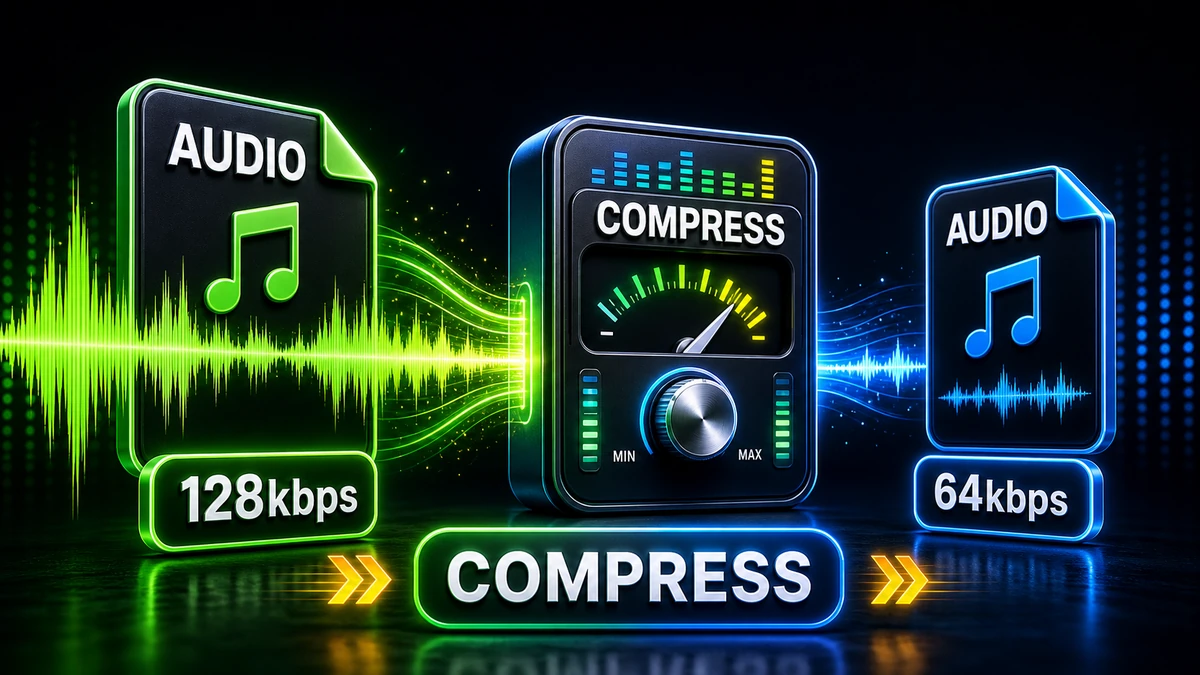
Select a lower bitrate (128 kbps instead of 320 kbps)
Save the file
Expected results:
320 kbps → 128 kbps = 60% smaller file
320 kbps → 96 kbps = 70% smaller file
Trade-off: Quality decreases as bitrate decreases.
Method 2: Convert Stereo to Mono
This is the most underrated trick for compressing voice recordings.
Most podcasts, voice memos, and audiobooks are recorded in stereo (two channels) even though the voice is centered. Converting to mono cuts the data requirement in half.
When to use mono:
Podcast episodes with one speaker
Voice recordings and memos
Audiobooks
Phone call recordings
When to keep stereo:
Music (spatial effects matter)
Podcasts with sound design
Nature recordings
Audio with intentional panning
Expected results: 50% file size reduction with zero quality loss for voice content.
Method 3: Choose a More Efficient Format
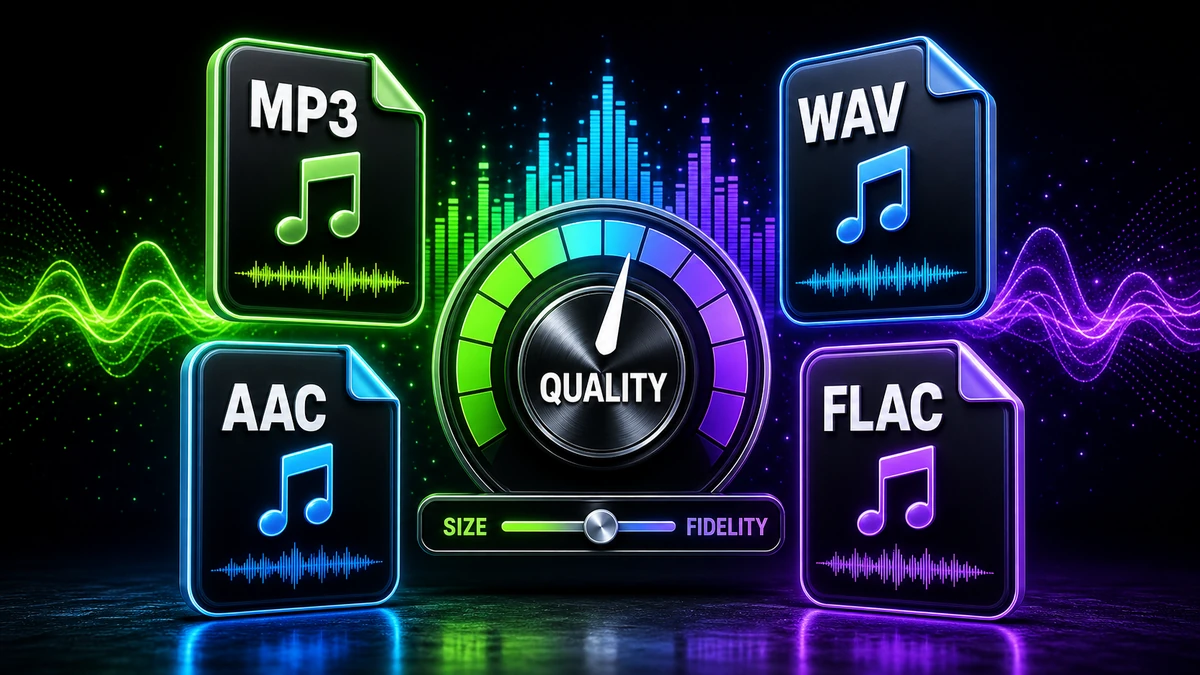
Not all audio formats compress equally. Modern formats are significantly more efficient than older ones.
Format efficiency comparison:
Format
Quality at 128 kbps
Compatibility
MP3
Good
Universal
AAC
Very Good
Very High (all modern devices)
OGG Vorbis
Very Good
High (web, Android)
Opus
Excellent
Medium (modern apps)
What this means: A 64 kbps Opus file sounds as good as a 128 kbps MP3. That's a 50% size reduction for the same quality.
Recommendation:
Use MP3 when you need broad compatibility
Use AAC for Apple devices and modern platforms
Use Opus for web applications and Discord/WhatsApp
Method 4: Reduce Sample Rate
Sample rate determines how many "snapshots" of audio are captured per second. CD quality is 44.1 kHz (44,100 snapshots per second).
Safe reductions:
44.1 kHz → 22.05 kHz: Reduces high frequencies, but often fine for voice
44.1 kHz → 16 kHz: Noticeable quality loss, only for extreme cases
Our recommendation: Don't reduce sample rate unless absolutely necessary. The file size savings are minimal compared to bitrate changes, and quality loss is more noticeable.
Method 5: Trim Silence and Unnecessary Content
Before compressing, edit your audio to remove:
Long silence at the beginning
Silence at the end
Long pauses mid-recording
Unnecessary sections
A 60-minute podcast with 5 minutes of silence is wasting 8% of your file size.
The problem: Taking an MP3 and compressing it again to a lower bitrate.
The result: Quality degrades quickly. Each compression pass removes more data.
The fix: Always start from the highest quality source (WAV or original recording) when compressing. Learn more in our WAV to MP3 guide.
Mistake #3: Using Stereo for Voice Content
The problem: Publishing a podcast in stereo at high bitrate when mono would work fine.
The result: Files are twice as large as they need to be.
The fix: Convert single-voice content to mono. There's literally no quality difference for centered audio.
Mistake #4: Not Listening to the Result
The problem: Batch-processing files without spot-checking quality.
The result: You might not notice that your settings are too aggressive until listeners complain.
The fix: Always listen to a sample of your compressed audio, especially the first time using new settings.
Recommended Settings for Different Content Types
Here's a quick reference for optimal compression settings:
Music (General Listening)
Setting
Recommendation
Format
MP3 or AAC
Bitrate
256-320 kbps
Channels
Stereo
Sample Rate
44.1 kHz
Podcasts (Interview/Talk)
Setting
Recommendation
Format
MP3
Bitrate
96-128 kbps
Channels
Mono
Sample Rate
44.1 kHz
Audiobooks
Setting
Recommendation
Format
MP3 or AAC
Bitrate
64 kbps
Channels
Mono
Sample Rate
44.1 kHz (or 22.05 kHz)
Voice Memos
Setting
Recommendation
Format
MP3
Bitrate
64-96 kbps
Channels
Mono
Sample Rate
22.05 kHz
Frequently Asked Questions
How much can I reduce an audio file?
Typical reductions are 70-90% depending on settings. A 100 MB file can often become 10-30 MB without significant quality loss.
Does compressing audio files reduce quality?
Yes, lossy compression (MP3, AAC) removes some audio data. However, at proper bitrates (128+ kbps), most people can't hear the difference. For zero quality loss, use lossless formats like FLAC.
What's the best format for small file sizes?
For broad compatibility: MP3 at 128 kbps. For best efficiency: AAC or Opus at the same bitrate will sound better while being smaller.
Should I compress audio for a podcast?
Absolutely. Most podcast hosting platforms and podcast apps expect MP3 files at reasonable sizes. Using 128 kbps mono is standard for talk-based podcasts.
Can I uncompress a compressed file?
No. Lossy compression permanently removes data. You cannot recover quality by converting MP3 to WAV—you just get a larger file with the same compressed audio. Always keep your original high-quality files.
What's the difference between MP3 and AAC compression?
AAC is more efficient than MP3—it sounds better at the same bitrate. A 128 kbps AAC file sounds roughly equivalent to a 160 kbps MP3. AAC is supported by all modern devices.