M4A to MP3: How to Convert Apple Audio Files

You just recorded a perfect voice memo on your iPhone. The audio is crystal clear, perfectly captured. Then you try to play it on your Windows computer or send it to a colleague with an Android phone, and... nothing. The file won't play. Welcome to the M4A compatibility nightmare.
M4A files are Apple's preferred audio format, used by iPhone Voice Memos, iTunes/Music app purchases, and GarageBand exports. While technically superior to MP3 in sound quality, M4A files face a harsh reality: most non-Apple devices and software refuse to play them.
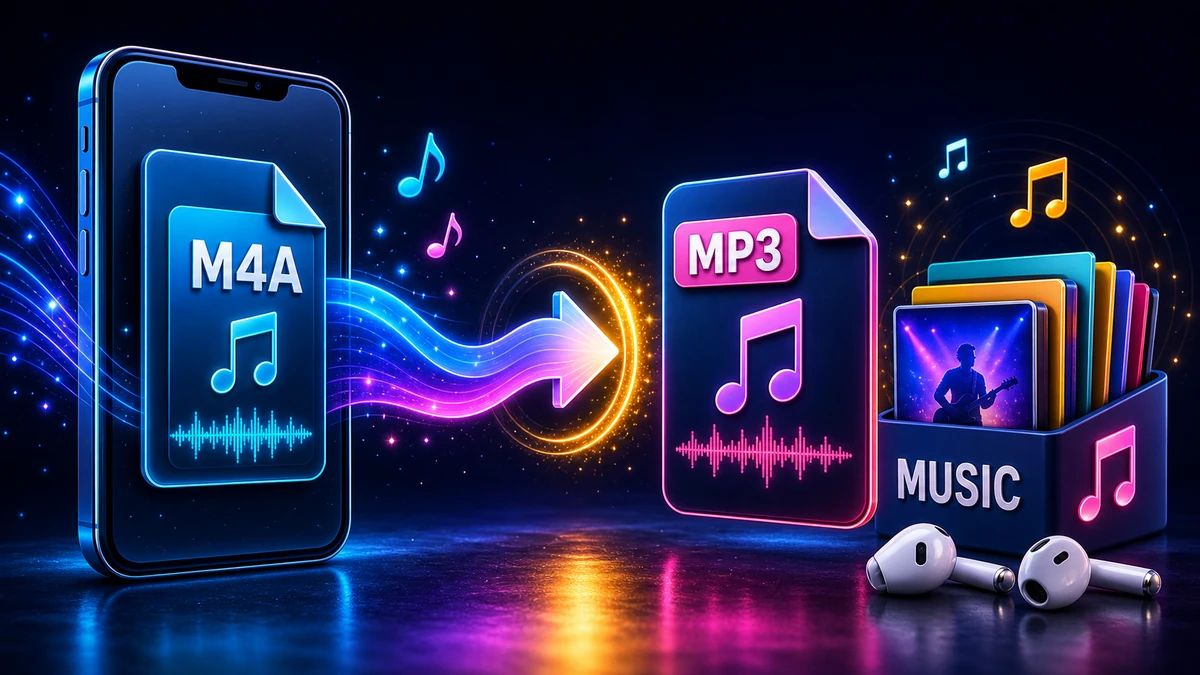
This guide shows you exactly how to convert M4A to MP3 without losing quality, using methods that work on Mac, Windows, and online. Whether you're dealing with voice memos, music files, or podcast recordings, you'll learn the fastest, most reliable conversion approaches.
Understanding M4A vs MP3: The Technical Differences
Before converting, let's understand what you're working with.
What is M4A?
M4A (MPEG-4 Audio) is a container format that typically holds AAC (Advanced Audio Coding) audio. Apple adopted it as their standard across all devices and services.
Key Characteristics:
- Codec: AAC (Advanced Audio Coding)
- Compression: Lossy, but more efficient than MP3
- Quality: Superior to MP3 at the same bitrate
- Compatibility: Excellent on Apple devices, poor elsewhere
- File Size: Smaller than MP3 for equivalent quality
- Metadata: Supports rich ID3 tags, album art, chapters
Common Sources of M4A Files:
- iPhone Voice Memos app
- Music/iTunes purchases and downloads
- GarageBand exports
- Logic Pro exports (when not using WAV)
- Apple Podcasts downloads
What is MP3?
MP3 (MPEG-1 Audio Layer III) is the universal audio format that plays on virtually every device made in the last 25 years.
Key Characteristics:
- Codec: MP3 (MPEG-1 Layer 3)
- Compression: Lossy, widely compatible algorithm
- Quality: Good at high bitrates (256-320 kbps)
- Compatibility: Universal — plays everywhere
- File Size: Larger than M4A for equivalent quality
- Metadata: Full ID3 tag support
The Comparison Table
| Feature | M4A (AAC) | MP3 |
|---|---|---|
| Sound Quality | Excellent (more efficient compression) | Good (at high bitrates) |
| File Size | Smaller (better compression) | Larger (less efficient) |
| Compatibility | Apple devices, modern apps | Universal — everything |
| Bitrate Efficiency | 256 kbps M4A ≈ 320 kbps MP3 | Requires higher bitrate |
| iPhone Voice Memos | Default format | Requires conversion |
| Windows Media Player | Often won't play | Plays natively |
| Car Stereos | Hit or miss | Always works |
| Android Devices | Depends on manufacturer | Always works |
| Streaming Services | Used by Apple Music, YouTube | Used by Spotify, SoundCloud |
The Bottom Line: M4A is technically superior, but MP3 is practically universal. For maximum compatibility, convert to MP3.
Method 1: Online M4A to MP3 Converter (Fastest & Easiest)
For quick, one-off conversions, our online converter is the fastest solution.
Using FreeFast Audio Converter
Steps:
- Visit FreeFast Audio Converter
- Click "Choose File" or drag-and-drop your M4A file
- Select MP3 as the output format
- Choose quality settings:
- 320 kbps (Highest Quality): For music and important recordings
- 256 kbps (High Quality): Balanced for most uses
- 192 kbps (Standard): Acceptable for voice memos
- Click "Convert"
- Download your converted MP3 file
Advantages:
- ✅ No software installation required
- ✅ Works on any device (Mac, Windows, Linux, mobile)
- ✅ Batch conversion supported (multiple files at once)
- ✅ Preserves metadata (artist, album, artwork)
- ✅ Secure processing (files auto-deleted after conversion)
- ✅ No file size limits
Perfect For:
- iPhone Voice Memos you AirDropped to your computer
- Quick conversions without installing software
- Converting files on shared/work computers
- Users who only occasionally need to convert
Quality Settings Recommendation:
- Voice Memos: 192-256 kbps
- Music Files: 320 kbps
- Podcasts/Audiobooks: 128-192 kbps
Method 2: iTunes / Apple Music App (Built-in on Mac & Windows)
If you have iTunes (Windows) or Music app (Mac), you already have a capable M4A to MP3 converter built-in.
Steps for Mac (Music App)
- Open the Music app
- Go to Music > Preferences (or press ⌘,)
- Click the Files tab
- Click Import Settings button
- Under "Import Using," select MP3 Encoder from dropdown
- Click Setting dropdown and choose:
- Higher Quality (192 kbps) — Good for most uses
- Custom... — For maximum quality settings
- If you selected Custom:
- Stereo Bit Rate: 320 kbps
- Sample Rate: Auto
- Channels: Auto
- Use Variable Bit Rate Encoding (VBR): Optional (check for smaller files)
- Smart Encoding Adjustments: Checked
- Click OK to save all settings
- Add your M4A file to Music library:
- Drag and drop the file into Music
- Or use File > Import
- Find the M4A file in your library
- Right-click (Control-click) the file
- Select Create MP3 Version
Result: The MP3 file appears in your library alongside the original M4A.
Steps for Windows (iTunes)
- Open iTunes
- Go to Edit > Preferences
- Click General tab
- Click Import Settings button (near bottom)
- Under "Import Using," select MP3 Encoder
- Click Setting and choose Custom...
- Set:
- Stereo Bit Rate: 320 kbps (maximum quality)
- Use Variable Bit Rate Encoding: Optional
- Sample Rate: Auto
- Channels: Auto
- Click OK on all dialogs to save
- Add M4A file to library (drag and drop or File > Add File to Library)
- Right-click the M4A file in library
- Select Create MP3 Version
Pros:
- Built-in tool, no additional downloads
- Preserves all metadata automatically
- Can convert entire playlists at once
Cons:
- Requires iTunes/Music app (bloated software if not already using)
- Settings menu is somewhat buried
- Slower than dedicated converters
Method 3: VLC Media Player (Free, Cross-Platform)
VLC isn't just a video player—it's also a powerful audio converter that works on Mac, Windows, and Linux.
Conversion Steps
- Download VLC Media Player (free) if you don't have it
- Open VLC
- Go to Media > Convert / Save (Windows) or File > Convert / Stream (Mac)
- Click Add button and select your M4A file(s)
- Click Convert / Save button at bottom
- In the Convert dialog:
- Profile: Select Audio - MP3 from dropdown
- Or click the wrench icon to customize settings:
- Codec: MP3
- Bitrate: 320 kb/s (for maximum quality)
- Channels: 2 (stereo) or 1 (mono for voice)
- Sample Rate: 44100 Hz
- Click Browse to choose destination folder and filename
- Make sure filename ends with .mp3
- Click Start to begin conversion
For Batch Conversion:
- Add multiple M4A files in step 4
- VLC will convert them sequentially
Pros:
- Completely free and open source
- Works on all operating systems
- Can handle batch conversions
- No installation bloat (lightweight app)
Cons:
- Interface isn't super intuitive for conversion
- Metadata sometimes gets stripped (may need manual re-adding)
Method 4: FFmpeg Command Line (Advanced, Most Control)
For power users, developers, or anyone needing to automate conversions, FFmpeg is unbeatable.
Installing FFmpeg
Mac:
\\\\bash brew install ffmpeg \\\\\
Windows:
- Download from ffmpeg.org
- Extract to C:\\ffmpeg
- Add to system PATH
Linux:
\\\\bash sudo apt install ffmpeg \\\\\
Basic Conversion (320 kbps)
\\\\bash ffmpeg -i input.m4a -codec:a libmp3lame -b:a 320k output.mp3 \\\\\
Preserve Metadata
\\\\bash ffmpeg -i input.m4a -codec:a libmp3lame -b:a 320k -map_metadata 0 output.mp3 \\\\\
Variable Bitrate (Smaller File Size)
\\\\bash ffmpeg -i input.m4a -codec:a libmp3lame -q:a 0 output.mp3 \\\\\
Note: -q:a 0 is highest quality VBR, -q:a 9 is lowest
Batch Convert All M4A Files in Folder
Mac/Linux:
\\\\bash for file in *.m4a; do ffmpeg -i "\\$file" -codec:a libmp3lame -b:a 320k "\\${file%.m4a}.mp3" done \\\\\
Windows PowerShell:
\\\\powershell Get-ChildItem *.m4a | ForEach-Object { ffmpeg -i \\$_.Name -codec:a libmp3lame -b:a 320k (\\$_.BaseName + ".mp3") } \\\\\
Pros:
- Maximum control over quality and settings
- Extremely fast processing
- Perfect for batch automation
- Can be integrated into scripts and workflows
Cons:
- Command-line only (no GUI)
- Steeper learning curve for beginners
- Requires installation and PATH configuration
Quality Preservation: How to Minimize Audio Degradation
Converting from M4A (AAC) to MP3 is called transcoding—converting from one lossy format to another. This inherently causes some quality loss, but you can minimize it.
Rule #1: Always Use 320 kbps for Music
M4A files from Apple Music or iTunes are typically 256 kbps AAC. To preserve as much quality as possible:
Don't use: 128 kbps or 192 kbps MP3
Use: 320 kbps MP3 (maximum bitrate)
At 320 kbps, the quality degradation is minimal and imperceptible for most listeners.
Rule #2: Voice Memos Can Use Lower Bitrates
iPhone Voice Memos typically use 64-96 kbps AAC (optimized for voice). For these:
Recommended: 128-192 kbps MP3
Why: Voice doesn't need high fidelity; 128 kbps MP3 is perfectly clear for speech
Rule #3: Never Convert Back to M4A
Never do this:
M4A → MP3 → M4A
Each conversion degrades quality. Once you've converted to MP3, keep the original M4A as your "master" if you still have it.
Rule #4: Preserve Metadata
Ensure your conversion tool preserves:
- Artist, Album, Title — Track information
- Album Artwork — Cover image
- Genre, Year — Organization tags
- Comments — Any notes or lyrics
Most modern converters (including ours) preserve metadata automatically.
Common Use Cases: When and Why to Convert
Use Case 1: iPhone Voice Memos for Sharing
Problem: You recorded a voice memo on iPhone and need to email it to someone with a Windows PC.
Solution: Convert M4A to MP3 using our online converter
Settings: 128-192 kbps (voice quality, smaller file size for email)
Use Case 2: Apple Music Downloads for Car Stereo
Problem: You downloaded songs from Apple Music (M4A) but your car's USB player only recognizes MP3.
Solution: Use iTunes/Music app to batch convert your playlist
Settings: 320 kbps CBR (maximum quality for music)
Note: Be aware of DRM. Apple Music files may have FairPlay protection. This only applies to subscription streaming; purchases should convert fine.
Use Case 3: Podcast Distribution
Problem: You produced a podcast in GarageBand (exported as M4A) but need MP3 for maximum platform compatibility.
Solution: Use FFmpeg for batch processing or VLC for individual episodes
Settings: 192 kbps (standard podcast quality, balance of size and clarity)
Use Case 4: Android Phone Compatibility
Problem: Someone AirDropped you an M4A file but your Android phone's music player won't play it.
Solution: Quick online conversion to MP3
Settings: Match original quality (256 kbps if from Apple Music, 320 kbps for maximum compatibility)
Troubleshooting Common Issues
Issue 1: Converted MP3 Sounds Distorted or Muffled
Cause: Bitrate too low (probably 128 kbps or less) for music content
Fix: Re-convert using 256-320 kbps bitrate
Issue 2: File Size Much Larger Than Original
Cause: M4A at 256 kbps AAC is more efficient than 320 kbps MP3
Fix: This is normal. MP3 requires higher bitrate to match M4A quality. Use VBR (Variable Bitrate) to reduce size slightly while maintaining quality.
Issue 3: Metadata (Album Art, Artist) Missing
Cause: Conversion tool didn't preserve metadata
Fix: Use a tool with metadata preservation (our converter, iTunes, or FFmpeg with -map_metadata 0 flag). Or re-add manually with MP3Tag software.
Issue 4: Can't Convert Apple Music Downloads
Cause: Files are DRM-protected (FairPlay encryption) from Apple Music subscription
Fix: DRM-protected files cannot be converted. Options:
- Use Apple's authorized devices only
- Purchase tracks outright (removes DRM)
- Record output using audio capture (quality loss)
Issue 5: Conversion Takes Forever
Cause: Large file or slow converter
Fix: Use FFmpeg (fastest) or our optimized online converter. Avoid online tools that queue conversions slowly.
Frequently Asked Questions
Q: Does converting M4A to MP3 reduce quality?
A: Yes, technically. Since both are lossy formats, transcoding causes generational quality loss. However, at 320 kbps MP3, the degradation is minimal and imperceptible to most listeners in normal conditions.
Q: What's the best bitrate for M4A to MP3 conversion?
A: For music: 320 kbps. For voice memos/podcasts: 128-192 kbps. For maximum compatibility with older devices: 320 kbps CBR (Constant Bitrate).
Q: Can I convert protected Apple Music files?
A: No. DRM-protected files from Apple Music subscriptions cannot be converted. Only DRM-free purchases or files you created yourself (Voice Memos, GarageBand projects) can be converted.
Q: Will the converted MP3 play on all devices?
A: Yes. MP3 is the most universally compatible audio format, supported by virtually every device, car stereo, media player, and operating system made since 2000.
Q: Should I delete the original M4A after converting?
A: No! Keep the M4A as your "master" file. It has better quality than the MP3. Only use the MP3 for sharing and compatibility purposes.
Q: Can I convert MP3 back to M4A for better quality?
A: You can convert the format, but it won't improve quality. The lost data from the MP3 compression cannot be recovered. Always keep original M4A files.
Q: Why won't my M4A file play on Windows?
A: Windows Media Player doesn't natively support M4A (AAC) in many versions. Convert to MP3 for universal Windows compatibility, or install VLC Media Player which plays M4A natively.
Q: How much smaller is M4A than MP3?
A: M4A (AAC) is roughly 30-40% more efficient. A 256 kbps M4A file sounds similar to a 320 kbps MP3, meaning the M4A is about 20% smaller for equivalent quality.
The Bottom Line: M4A to MP3 Conversion Done Right
Apple's M4A format delivers excellent audio quality in smaller file sizes, but compatibility issues make MP3 conversion essential for universal access.
Quick Decision Guide:
Need fast conversion for 1-5 files?
→ Use our free online converter — no installation, works immediately
Already use iTunes/Music app?
→ Use built-in conversion feature — preserves metadata perfectly
Need batch conversion of many files?
→ Use VLC (GUI) or FFmpeg (command line) — efficient bulk processing
Maximum quality for music?
→ Convert at 320 kbps CBR — minimal quality loss
Voice memos for sharing?
→ Convert at 128-192 kbps — smaller files, perfect clarity for speech
Golden Rules:
- Keep original M4A files as masters
- Use 320 kbps for music, 128-192 kbps for voice
- Preserve metadata during conversion
- Never transcode multiple times (M4A→MP3→M4A)
Ready to make your iPhone Voice Memos and Apple audio files universally compatible? Start converting with our M4A to MP3 converter—fast, free, and preserves your audio quality.
For more audio conversion guides, check out WAV to MP3 and audio compression explained.
Related Topics
On This Page
Share Article
Our Tools
Stay Updated
Get the latest tips delivered to your inbox.