WAV to MP3: How to Convert Audio Without Ruining Quality

You have a WAV file that's way too big to share. Maybe it's a podcast recording, a voice memo, or a music track. The problem? WAV files are massive. A simple 5-minute recording can be 47 MB or more.
Converting WAV to MP3 solves this problem instantly. You can shrink that 47 MB file down to about 5-7 MB while keeping the audio sounding nearly identical to the original.
But here's what most people get wrong: they use the wrong settings and end up with audio that sounds muddy, thin, or just plain bad.
In this guide, you'll learn exactly how to convert WAV to MP3 the right way. We'll cover the best settings to use, common mistakes to avoid, and free methods that actually work.
What's the Difference Between WAV and MP3?
Before we dive into conversion, let's understand what makes these formats different. This knowledge helps you make better decisions about your audio.
WAV Files: The Full Picture
WAV stands for Waveform Audio File Format. It was developed by Microsoft and IBM back in 1991, and it's still the standard for high-quality audio.
Key characteristics of WAV:
- Uncompressed audio: Every sound in the original recording is preserved
- Perfect quality: No information is lost or removed
- Large file size: About 10 MB per minute of stereo audio
- Professional standard: Used in studios, film, and broadcast
Think of WAV like a raw photo file. It contains all the original data, which makes it perfect for editing but impractical for sharing.
MP3 Files: Smart Compression
MP3 uses "lossy compression" to dramatically reduce file size. It analyzes the audio and removes sounds that most humans can't hear anyway.
Key characteristics of MP3:
- Compressed audio: File size is reduced by 70-90%
- Near-perfect quality: At high bitrates, most people can't tell the difference
- Universal compatibility: Plays on every device and platform
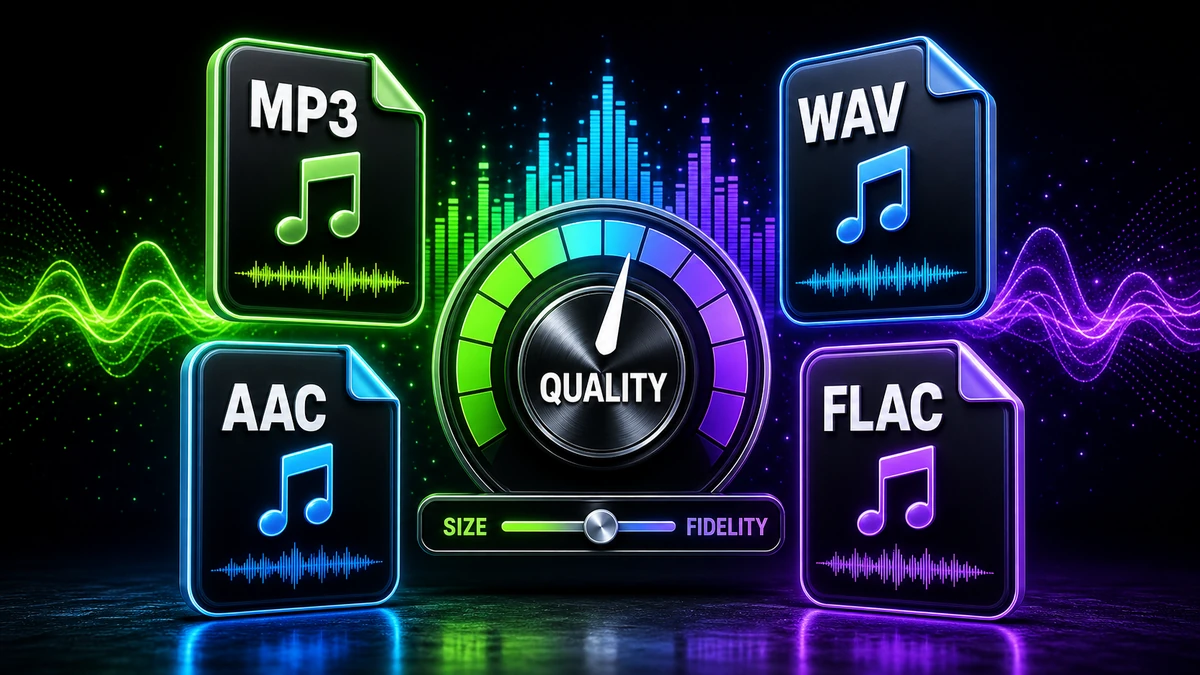
- Adjustable quality: You choose the balance between size and quality
The magic of MP3 is in its psychoacoustic model. It knows that humans can't hear very quiet sounds that play at the same time as loud sounds. So it removes those inaudible parts.
Size Comparison: WAV vs MP3
Here's a real-world example of how much space you can save:
| Audio Length | WAV Size | MP3 (320 kbps) | MP3 (128 kbps) | Space Saved |
|---|---|---|---|---|
| 1 minute | 10.5 MB | 2.4 MB | 0.96 MB | 77-91% |
| 3 minutes | 31.5 MB | 7.2 MB | 2.9 MB | 77-91% |
| 5 minutes | 52.5 MB | 12 MB | 4.8 MB | 77-91% |
| 60 minutes | 630 MB | 144 MB | 57.6 MB | 77-91% |
That's a massive difference, especially when you're emailing files or storing large music collections.
Choosing the Right Bitrate: The Most Important Decision
Bitrate determines how much audio data is preserved during conversion. It's measured in kilobits per second (kbps).
Higher bitrate = better quality = larger file size.
Here's the honest breakdown of what each bitrate actually sounds like:
128 kbps: Acceptable for Speech
At 128 kbps, music starts to sound "compressed." You'll notice:
- Cymbals sound "swishy" or harsh
- Vocals lose some clarity
- Bass can sound muddy
Best for: Podcasts, audiobooks, voice recordings, background music
192 kbps: Good for Casual Listening
This is a solid middle ground. Most casual listeners won't notice quality loss.
Best for: General music listening, YouTube uploads, social media
256 kbps: Very Good Quality
At this bitrate, even audio enthusiasts have trouble distinguishing from the original WAV.
Best for: Music sharing, professional podcasts, archiving
320 kbps: The Gold Standard
This is the highest standard MP3 bitrate. For all practical purposes, it's indistinguishable from WAV to human ears.
Best for: Music distribution, professional audio, when quality matters
| Bitrate | Quality Level | File Size (per minute) | Best Use Case |
|---|---|---|---|
| 128 kbps | Fair | ~1 MB | Voice recordings, podcasts |
| 192 kbps | Good | ~1.5 MB | Casual music listening |
| 256 kbps | Very Good | ~2 MB | Music sharing |
| 320 kbps | Excellent | ~2.4 MB | Professional audio, music distribution |
Our recommendation: Use 320 kbps for music and anything where quality matters. Only go lower if file size is a serious constraint.
How to Convert WAV to MP3: Step-by-Step Methods
There are several ways to convert your audio files. Here are the best options, from simplest to most feature-rich.
Method 1: Online Converter (Fastest)
Online converters are perfect when you need to convert a few files quickly. No software installation required.
Using FreeFast Converter:
- Visit the audio converter page
- Click or drag to upload your WAV file
- Select MP3 as the output format
- Choose your preferred bitrate (we recommend 320 kbps)
- Click "Convert"
- Download your converted MP3 file
Pros:
- Works on any device with a browser
- No software to install
- Fast processing
- Free for most uses
Cons:
- Requires internet connection
- File size limits on some services
- Privacy concerns for sensitive audio
Method 2: Audacity (Free Desktop Software)
Audacity is a free, open-source audio editor that works on Windows, Mac, and Linux. It's great for batch conversions and more control.
Step-by-step process:
- Download and install Audacity from audacityteam.org
- Open Audacity and go to File → Open
- Select your WAV file
- Go to File → Export → Export as MP3
- Choose your bitrate (320 kbps recommended)
- Click Save and add metadata if desired
For batch conversion:
- Go to File → Macro → Select "MP3 Conversion" macro
- Apply to multiple files at once
Pros:
- Completely free
- Works offline
- Powerful editing features
- Batch conversion capability
Cons:
- Steeper learning curve
- Requires installation
- Overkill for simple conversions
Method 3: VLC Media Player
VLC is primarily a media player, but it includes a capable converter that most people don't know about.
Step-by-step process:
- Open VLC Media Player
- Go to Media → Convert/Save (or press Ctrl+R)
- Click "Add" and select your WAV file
- Click "Convert/Save" at the bottom
- Choose "Audio - MP3" as the profile
- Click the wrench icon to adjust bitrate settings
- Choose destination file and click "Start"
Pros:
- Free and widely available
- Works offline
- You might already have it installed
Cons:
- Interface isn't intuitive for conversion
- Limited batch options
- Can't preview audio before export
Method 4: iTunes/Apple Music (Mac/Windows)
Apple's media software includes built-in audio conversion.
Step-by-step process:
- Open iTunes (Windows) or Music (Mac)
- Go to Preferences → Files → Import Settings
- Change "Import Using" to "MP3 Encoder"
- Set quality to "Higher Quality (320 kbps)"
- Add your WAV file to your library
- Right-click the song and select "Create MP3 Version"
Pros:
- Already installed on many computers
- Good quality output
- Easy to use once configured
Cons:
- Setup is confusing
- Adds files to music library
- Limited format options
Common Mistakes That Ruin Your Audio
Avoid these errors that beginners commonly make when converting WAV to MP3.
Mistake #1: Using Too Low a Bitrate for Music
The problem: Choosing 128 kbps or lower to save space on music files.
The result: Music sounds thin, harsh, and compressed. You lose the warmth and detail that makes music enjoyable.
The fix: Always use 320 kbps for music. The extra file size is worth it.
Mistake #2: Converting MP3 Back to WAV for "Better Quality"
The problem: Someone sends you an MP3, and you convert it to WAV thinking you'll get better quality.
The result: You get a much larger file with no quality improvement. The lost audio data can never be recovered.
The fix: Keep MP3 files as MP3. Only work from original WAV masters.
Mistake #3: Re-encoding MP3 Files Multiple Times
The problem: Converting an MP3 to WAV, editing it, then converting back to MP3. Or converting an MP3 to a different bitrate.
The result: Each conversion degrades quality further. This is called "generation loss."
The fix: Always start from the original WAV file when possible. Make all your edits before the final MP3 conversion.
Mistake #4: Ignoring Clipping and Levels
The problem: Your WAV file has audio that peaks above 0 dB (clipping), and you convert it without fixing it.
The result: The distortion gets baked into your MP3 permanently.
The fix: Normalize or limit your audio before converting. Peaks should stay below 0 dB.
Mistake #5: Not Checking the Result
The problem: Converting files and assuming they're fine without listening.
The result: You might miss conversion errors, glitches, or quality problems.
The fix: Always listen to a portion of your converted file before deleting the original or sending it out.
When to Use WAV vs MP3
Different situations call for different formats. Here's a simple decision guide:
Use WAV When:
- Recording audio originally (always capture in WAV)
- Editing audio in your DAW or audio software
- Archiving master recordings
- Burning audio CDs
- Working on professional productions
Use MP3 When:
- Sharing audio via email or messaging
- Uploading to websites or social media
- Storing large music collections
- Creating podcasts for distribution
- Sending files for review or approval
The Professional Workflow
Professional audio engineers follow this workflow:
- Record in WAV (or higher quality format)
- Edit the WAV file
- Keep the WAV as your master copy
- Export to MP3 only for distribution
- Never delete the original WAV
This approach gives you the best of both worlds: maximum quality for editing and reasonable file sizes for sharing.
Advanced Tips for Better Conversions
Want to get the absolute best results? Here are some pro tips:
Tip 1: Use Variable Bit Rate (VBR) When Available
VBR adjusts the bitrate throughout the file based on complexity. Quiet passages get less data; complex passages get more.
Benefit: Better quality at similar file sizes compared to constant bitrate.
When to use: Most situations where compatibility isn't a concern.
Tip 2: Check Your Source Audio First
Before converting, make sure your WAV file is actually good quality:
- Proper sample rate (44.1 kHz for music, 48 kHz for video)
- Appropriate bit depth (16-bit or 24-bit)
- No clipping or distortion
- Clean recording without background noise
Converting bad audio to MP3 just gives you smaller bad audio.
Tip 3: Add Proper Metadata
Good metadata makes your audio files more useful:
- Title: Song or episode name
- Artist: Creator or band name
- Album: Collection or podcast name
- Year: Release date
- Genre: Category for organization
Most conversion tools let you add this information during export.
Tip 4: Consider Batch Converting
If you have many files to convert, look for batch conversion features:
- FreeFast Converter supports multiple uploads
- Audacity has a macro system for automation
- Command-line tools like FFmpeg can process hundreds of files
Check out our batch conversion guide for detailed instructions.
Frequently Asked Questions
Does converting WAV to MP3 lose quality?
Yes, MP3 is a lossy format that removes some audio data. However, at 320 kbps, the quality loss is imperceptible to most people. The removed sounds are ones humans typically can't hear anyway.
What's the best bitrate for converting WAV to MP3?
For music and high-quality audio, use 320 kbps. For voice recordings and podcasts, 192 kbps is usually sufficient. Never go below 128 kbps unless file size is extremely critical.
Can I convert MP3 back to WAV to restore quality?
No. Converting MP3 to WAV just makes a larger file—the lost audio data cannot be recovered. Always keep your original WAV files as master copies.
Is there a free WAV to MP3 converter?
Yes! Several free options work great:
- FreeFast Converter (online, no installation)
- Audacity (free desktop software)
- VLC Media Player (free and widely available)
How do I convert multiple WAV files to MP3 at once?
Use batch conversion features in tools like FreeFast Converter, Audacity (with macros), or the desktop version of Switch Audio Converter. See our batch conversion guide for step-by-step instructions.
Why is my converted MP3 much smaller than the original?
This is expected! MP3 compression typically reduces file size by 70-90% compared to WAV. A 52 MB WAV file becoming a 12 MB MP3 is completely normal.
Should I use MP3 or AAC format?
AAC generally offers better quality than MP3 at the same bitrate, but MP3 has broader compatibility. For maximum compatibility, use MP3. For Apple devices and modern applications, AAC is slightly better. Learn more in our audio formats comparison.
Conclusion
Converting WAV to MP3 is straightforward once you understand the basics. Here's what to remember:
- Use 320 kbps for music and important audio
- Keep your original WAV files as master copies
- Never re-encode MP3 files—start fresh from WAV
- Check your converted files before deleting originals
Ready to convert your audio? Use our free WAV to MP3 converter for fast, high-quality conversions that preserve your sound.
Related articles:
- MP3 vs WAV vs AAC: Which Audio Format is Best?
- M4A to MP3: How to Convert Apple Audio Files
- Audio Compression Explained
- How to Batch Convert Multiple Files
Related Topics
On This Page
Share Article
Our Tools
Stay Updated
Get the latest tips delivered to your inbox.