Batch Convert Multiple Files at Once | FreeFast Blog
Tips & Tricks
Batch Convert Multiple Files at Once
FF
FreeFast Team
12 min read
You have 500 wedding photos from a photo shoot. They are all in RAW format, but your client needs JPEGs for their website. Converting them one by one would take hours of clicking and waiting. Or maybe you just downloaded an entire folder of PDF documents that you need in Word format to make edits. Converting each file individually? That is a time-consuming nightmare nobody wants.
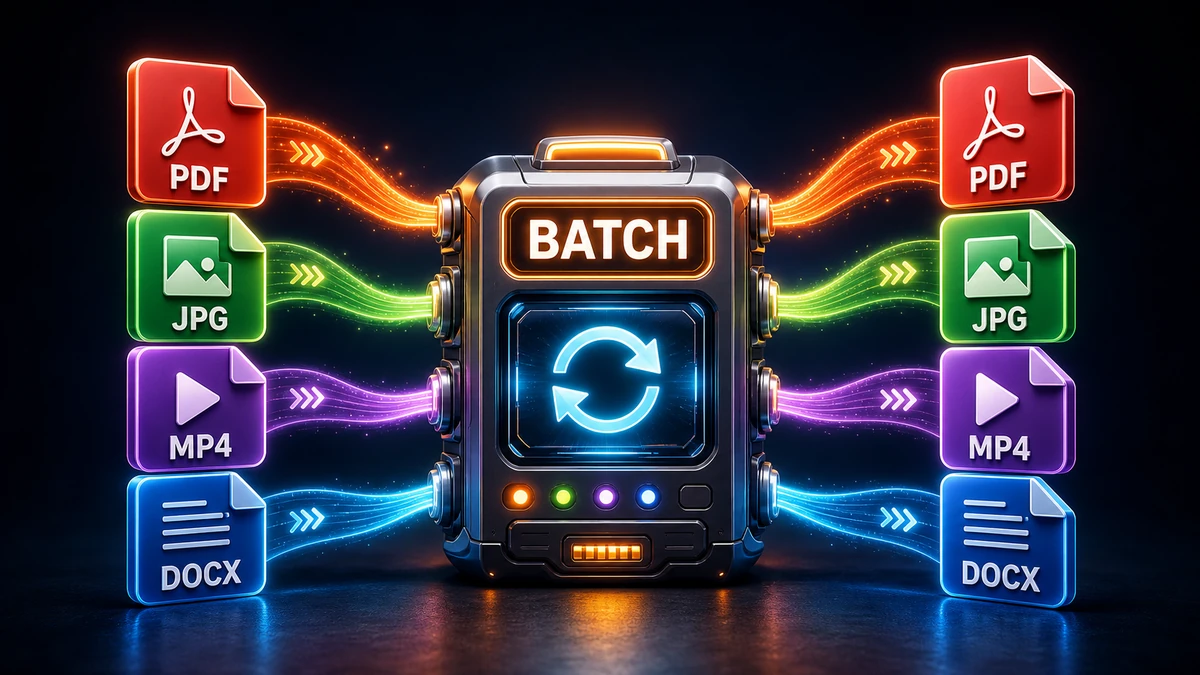
There is a much better solution. Batch file conversion transforms dozens, hundreds, or even thousands of files simultaneously—saving you hours of repetitive work and eliminating the tedious process of clicking convert over and over again.
In this complete guide, you will learn exactly how to batch convert files efficiently and avoid common mistakes that waste time.
What Is Batch File Conversion?
Batch file conversion is the process of converting multiple files from one format to another simultaneously rather than processing them one at a time.
Think of it like cooking: Instead of making one pancake at a time on a small pan, you use a griddle to cook a dozen pancakes simultaneously.
According to Wikipedia, batch processing has been essential to computing efficiency since the 1950s, enabling systems to handle large volumes of repetitive tasks automatically.
The Real Cost of Single-File Conversion
Let us calculate exactly how much time you waste with manual one-by-one conversion:
Adobe Acrobat Pro (Paid, Windows/Mac) - industry standard for PDFs
Able2Extract (Paid, Windows/Mac/Linux) - versatile PDF converter
Audio and Video:
HandBrake (Free, all platforms) - excellent for video conversion
Audacity (Free, all platforms) - supports batch processing via macros
VLC Media Player (Free, all platforms) - basic conversion capabilities
Advantages of Desktop Software:
Works completely offline without internet
Handles larger file batches (hundreds to thousands)
Often faster for very large files
More advanced customization options
Advanced Batch Conversion Tips
File Naming Strategies
Most batch converters allow you to customize output file names using patterns:
Examples:
original-name plus converted.jpg (adds suffix to original names)
client-name plus date plus number.pdf (organized by client and date)
project-number plus optimized.png (structured naming for projects)
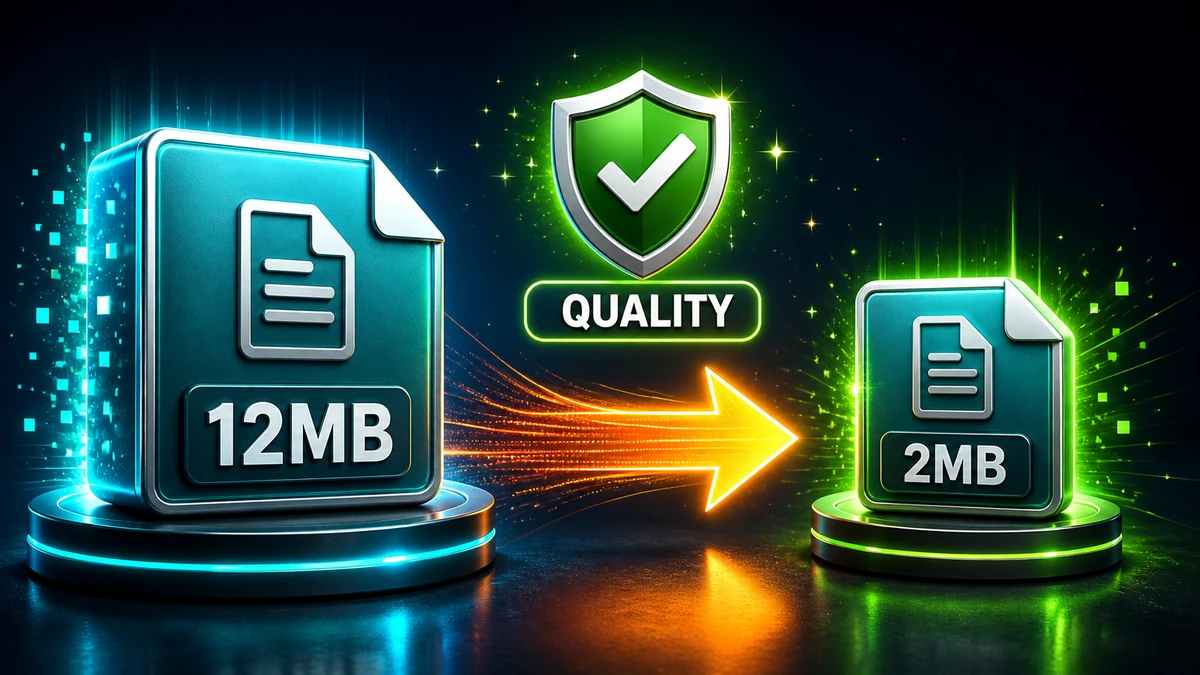
Quality vs File Size Trade-offs
Understanding compression helps you make informed decisions:
Use Case
File Type
Quality Setting
Expected File Size Reduction
Web images
JPG
80-85 percent
60-70 percent smaller
Social media
JPG
75-80 percent
70-80 percent smaller
Email attachments
JPG
70-75 percent
80-85 percent smaller
Print photography
JPG or TIFF
95-100 percent
20-30 percent smaller
Music files
MP3 320 kbps
High quality
85-90 percent smaller than WAV
Podcast audio
MP3 128 kbps
Medium quality
95 percent smaller than WAV
YouTube videos
MP4 H.264 1080p
Good quality
40-60 percent smaller than original
Troubleshooting Common Problems
Problem: Some Files Failed to Convert
Possible Causes:
Files are corrupted or damaged
Unsupported file format variant
Files exceed maximum size limits
Solutions:
Test failed files individually in their native application
Check if files are actually in the format their extension suggests
Split extremely large files or reduce batch size
Problem: Converted Files Look Blurry or Low Quality
Possible Causes:
Quality settings set too low
Resolution accidentally reduced
Multiple lossy conversions applied
Solutions:
Increase quality settings to 90-95 percent minimum
Verify resolution settings match your requirements
Always convert from original source files, never from previously compressed versions
Problem: Conversion Taking Extremely Long
Possible Causes:
Too many files in single batch
Very large file sizes
Server experiencing high demand
Solutions:
Split large batches into groups of 20-50 files
Use desktop software for very large batches
Try converting during off-peak hours
Problem: Output File Names are Confusing
Possible Causes:
Automatic renaming by converter
Special characters in original filenames
Solutions:
Use converter's custom naming options if available
Remove special characters from source files before converting
Use bulk rename tools after conversion if needed
Real-World Success Stories
Case Study 1: Wedding Photographer
Challenge: Convert 1200 RAW photos to high-quality JPEGs for client album and website.
Solution:
Used Adobe Lightroom with predefined export preset
Settings: 90 percent quality JPG, 2000 pixels wide, sRGB color space
Processed all files overnight while sleeping
Time Saved: 8 hours compared to individual exports. Delivered client files next morning instead of spending entire day on conversions.
Case Study 2: E-Commerce Marketing Team
Challenge: Optimize 300 product images for faster website loading with quality checks.
Solution:
Batch converted all PNG files to WebP format
Resized to maximum 1500 pixels wide
Achieved 70 percent average file size reduction
Result: Website page load time decreased from 8 seconds to 3 seconds. Bounce rate dropped by 25 percent, conversions increased by 15 percent.
Case Study 3: Corporate Office
Challenge: Standardize 500 mixed-format documents (DOCX, XLSX, PPTX) to PDF for archival.
Solution:
Used Adobe Acrobat batch processing feature
Applied consistent PDF settings across all documents
Automated process completed in one session
Time Saved: 15 hours of manual work. Employee could focus on higher-value tasks instead of repetitive conversion.
Frequently Asked Questions
Q: How many files can I convert at once?
A: Online converters typically support 20-100 files per batch. Desktop software can handle thousands. For very large batches, split into manageable groups of 50-100 files each.
Q: Will batch conversion reduce my file quality?
A: Quality reduction only occurs if you use lossy formats (JPG, MP3) or set quality below 85 percent. Using lossless formats (PNG, FLAC, TIFF) or quality settings above 90 percent preserves original quality.
Q: Can I undo a batch conversion if something goes wrong?
A: No, conversions are permanent. This is why keeping backup copies of original files is absolutely essential before any batch conversion.
Q: What is the fastest method for batch converting images?
A: For speed, desktop software like XnConvert or Adobe Lightroom is fastest. Online tools are convenient but slower for large batches due to upload and download times.
Q: Can I convert different file types together in one batch?
A: No. You must group files by source type. You cannot mix images and documents in the same batch conversion.
Q: Are online batch converters safe for confidential files?
A: Reputable converters like FreeFast Converter use secure connections and automatically delete files after processing. For highly sensitive documents, consider using desktop software instead.
Q: How do I batch convert files regularly without repeating steps?
A: Desktop software often allows saving presets or profiles. Some advanced users also automate conversions using scripts or scheduled tasks.
Q: What happens if my batch conversion stops halfway?
A: Most converters show which files completed successfully. You can then convert only the remaining files in a new batch.
Conclusion: Transform Your Workflow with Batch Conversion
Batch file conversion is one of those essential digital skills that dramatically improves productivity. Whether you process photos professionally, manage documents for work, or optimize media files for personal projects, mastering batch conversion saves countless hours.
Remember These Key Points:
Always create backups before batch converting
Organize files properly before starting
Choose quality settings appropriate for your intended use
Verify results by spot-checking a few random files
Use desktop software for very large batches or offline work