Optimize Images for Websites: Improve Page Speed | FreeFast Blog
Image Conversion
Optimize Images for Websites: Improve Page Speed
FF
FreeFast Team
8 min read
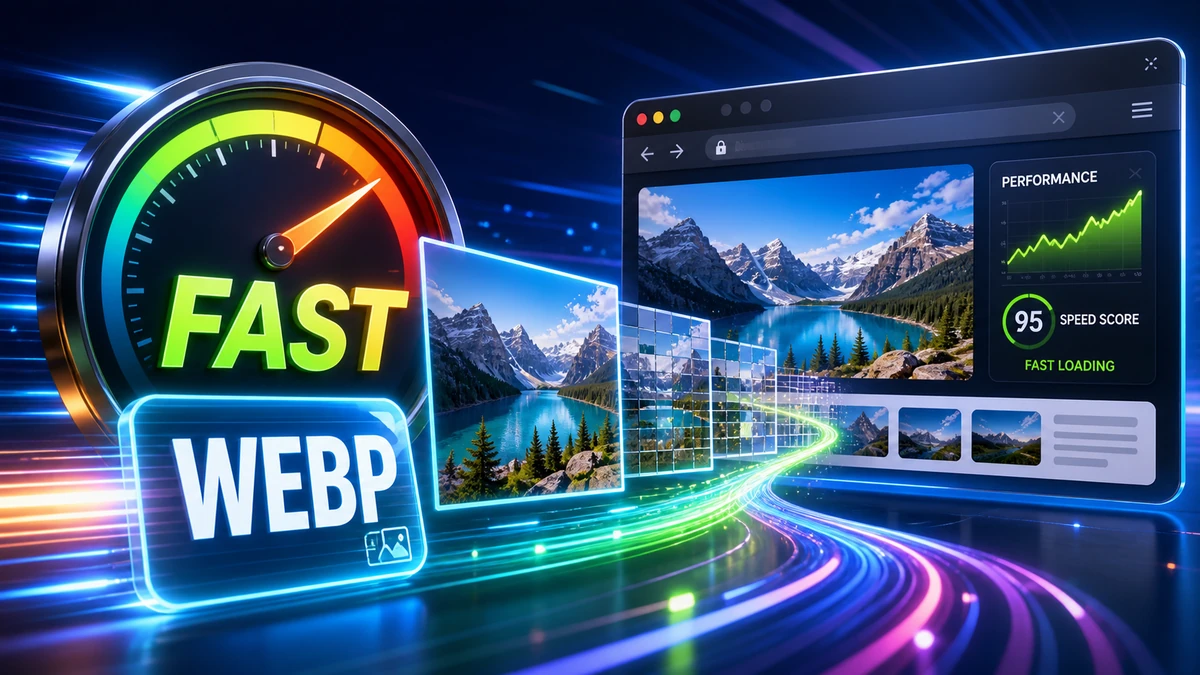
Your website is slow. Users are leaving. Google is ranking you lower. The culprit? Often it's your images.
Images typically account for 50-75% of a webpage's total size. Unoptimized images can turn a fast website into a frustrating experience. But here's the good news: optimizing images is one of the quickest wins for website performance.
This guide shows you exactly how to optimize images for the web—the right formats, sizes, and techniques that make sites lightning-fast.
Why Image Optimization Matters
Before we dive into the how, let's understand the why.
"Pro tip: Google's research shows that 53% of mobile users abandon sites that take longer than 3 seconds to load. Every second of delay costs you visitors."
SEO Benefits
Google uses page speed as a ranking factor. Faster sites rank higher. Image optimization directly improves:
Core Web Vitals (LCP, CLS)
Mobile rankings (speed matters even more on mobile)
Crawl efficiency (Google can index more pages)
User experience signals
The Five Pillars of Image Optimization
Effective image optimization involves five key areas:
Right format for each image type
Right size (dimensions) for display
Right compression level
Lazy loading for below-fold images
Responsive images for different screens
Let's cover each in detail.
Pillar 1: Choose the Right Format
Different images need different formats. Here's the decision tree:
Quick Decision Guide:
Photograph or complex image? → WebP (with JPG fallback)
Simple graphic, logo, or icon? → SVG or PNG
Need transparency? → WebP or PNG
Scalable icon/logo? → SVG (always)
Format Comparison
Format
Best For
Typical Savings
WebP
Photos, graphics
25-35% smaller than JPG
JPG
Photos (fallback)
Baseline
PNG
Graphics with transparency
Larger, but lossless
SVG
Icons, logos
Tiny files, infinite scaling
AVIF
Future-forward sites
50% smaller than WebP
"Pro tip: In 2024, WebP is supported by 97%+ of web browsers. Make it your default format for web images, with JPG fallback for the remaining 3%."
Create 2 sizes: mobile (600px) and desktop (1200px)
Use CSS media queries to swap them
Step-by-Step Optimization Workflow
Here's a practical workflow for optimizing website images:
For Each New Image:
Choose format (WebP for photos, SVG for icons)
Resize to maximum display width (plus 2x for Retina if needed)
Compress at 80-85% quality
Add lazy loading attribute if below fold
Write descriptive alt text (for SEO and accessibility)
For Existing Websites:
Audit current images (check sizes and formats)
Identify biggest files (sort by file size)
Convert to WebP with fallbacks
Resize oversized images
Add lazy loading to below-fold images
Test page speed before and after
"Pro tip: Tools like Google PageSpeed Insights and GTmetrix specifically flag image optimization opportunities. Run your site through them to find quick wins."
Gulp/Webpack plugins - Integration with build pipelines
Common Mistakes to Avoid
Mistake #1: Uploading Full-Resolution Camera Photos
The problem: A 5000x3000px, 8 MB photo uploaded directly from your camera.
The impact: Massive files, slow loading, wasted bandwidth.
The fix: Resize before uploading. A 1200px wide image is plenty for most web uses.
Mistake #2: Using PNG for Everything
The problem: PNG used for photographs instead of WebP/JPG.
The impact: Files 3-5x larger than necessary.
The fix: PNG for graphics and transparency only. WebP/JPG for photos.
Mistake #3: Forgetting Alt Text
The problem: Images with empty or missing alt attributes.
The impact: Poor SEO, accessibility issues.
The fix: Every image needs descriptive alt text explaining what it shows.
Mistake #4: Not Testing on Mobile
The problem: Images look fine on desktop but destroy mobile performance.
The impact: Slow mobile experience, poor Google rankings.
The fix: Test with Chrome DevTools mobile simulation and real devices.
Frequently Asked Questions
What's the ideal file size for web images?
Aim for:
Hero images: Under 200 KB
Content images: Under 100 KB
Thumbnails: Under 30 KB
Total page images: Under 1 MB
Should I use WebP or keep JPG?
Use WebP as your primary format in 2024. It's supported by 97%+ of browsers and provides 25-35% smaller files. Provide JPG fallback for broad compatibility.
With proper settings, optimization is invisible to users. Use 80-85% quality for JPG/WebP—the difference from full is imperceptible.
How do I check my current image sizes?
Browser DevTools → Network tab → sort by size
PageSpeed Insights → Image opportunities
GTmetrix → Waterfall chart
What about CDN for images?
CDNs (Content Delivery Networks) serve images from servers closer to users, reducing latency. Combine CDN with optimization for best results. Popular options: Cloudflare, Imgix, Cloudinary.
Conclusion
Image optimization is one of the highest-impact improvements you can make to website performance. Remember:
The Five Pillars:
Right format (WebP for photos, SVG for icons)
Right size (match display dimensions)
Right compression (80-85% quality)
Lazy loading (for below-fold images)
Responsive images (different sizes for different screens)
Quick Wins:
Convert images to WebP → 25-35% smaller
Resize to actual display size → Often 80%+ smaller
Add lazy loading → Faster initial load
Compress at 80% quality → Invisible quality loss
Ready to optimize? Use our free image converter to resize, compress, and convert your images for web.
PNG to JPG: When to Convert (and When You Shouldn't)
PNG to JPG can shrink an image by 70% or more — but only for the right files. Here's exactly when to convert, when to keep your PNG, and how to do it without losing quality.