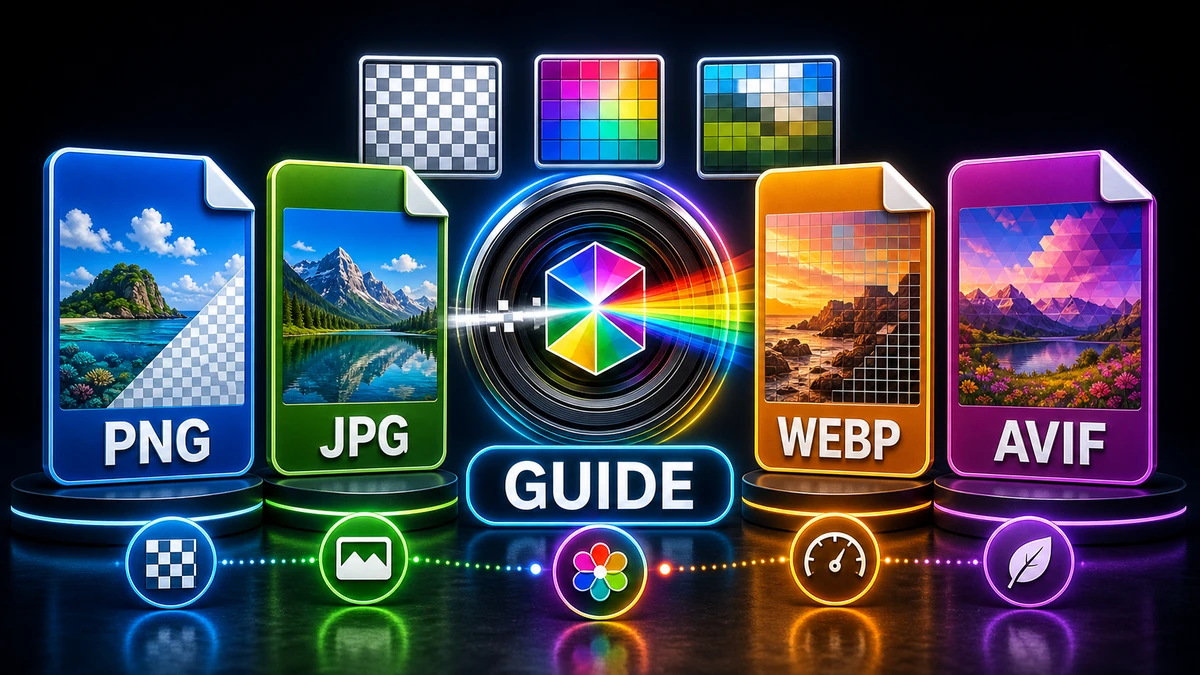
Image Formats Guide: When to Use PNG, JPG, WebP, and More
Image Conversion
Image Formats Guide: When to Use PNG, JPG, WebP, and More
FF
FreeFast Team
8 min read
Choosing the wrong image format is like putting diesel in a gas car—it might work, but you're going to have problems. Pick the right format, and your images look sharp, load fast, and work everywhere.
This guide cuts through the confusion. You'll learn exactly when to use each format so your images always look their best.
Why Image Format Matters
Every image format has trade-offs. The right choice depends on:
What's in the image (photos, graphics, text)
Where it will be used (web, print, social media)
Quality vs. file size priorities
Whether you need transparency
"Pro tip: The wrong format can make your images 10x larger than necessary, or make crisp graphics look blurry. Five minutes learning formats saves hours of frustration."
Quick Decision Guide: Which Format Should I Use?
Here's the fast answer for common situations:
What type of image do you have?
Photograph or realistic image? → Use JPG or WebP
Logo, icon, or graphic with few colors? → Use PNG or SVG
Need transparency (see-through background)? → Use PNG or WebP
Best for: Photographs, realistic images, anything with lots of colors and gradients
How JPG Works
JPG uses lossy compression—it permanently removes some image data to shrink file size. For photographs, this works brilliantly because the removed details are often imperceptible.
JPG Strengths
Small file sizes for photos (10-20x smaller than uncompressed)
reliable for photographs with smooth color transitions
JPG Weaknesses
No transparency support (no see-through backgrounds)
Lossy compression degrades quality slightly
Bad for text and sharp edges (creates visible artifacts)
Re-saving degrades quality further
When to Use JPG
✅ Use JPG for:
Photos from cameras
Social media images
Website hero images
Email attachments (keeping file size small)
❌ Don't use JPG for:
Logos and icons
Screenshots with text
Graphics that need transparency
Images you'll edit multiple times
"Pro tip: Save JPG at 80-85% quality. This gives you excellent visual quality with significant size savings. Going above 90% increases file size dramatically with barely visible improvement."
PNG: The Quality Preservationist
Full name: Portable Network Graphics
Best for: Logos, graphics, screenshots, anything needing transparency or sharp edges
How PNG Works
PNG uses lossless compression—it reduces file size without losing any image data. Every pixel stays exactly as you created it.
Large file sizes for photographs (often 5-10x larger than JPG)
Overkill for photos that don't need reliable quality
No animation support (use APNG or WebP for that)
PNG Variants
Type
Colors
Best For
PNG-8
256 colors
Simple graphics, tiny files
PNG-24
16 million colors
Full-color graphics
PNG-32
16 million + alpha
Graphics with transparency
When to Use PNG
✅ Use PNG for:
Logos and brand assets
Icons and UI elements
Screenshots (especially with text)
Images with transparency
Graphics with text or sharp lines
❌ Don't use PNG for:
Photographs (use JPG or WebP)
Large website images (file size too big)
WebP: The Modern Standard
Developed by: Google (2010)
Best for: Web images where you want the best balance of quality and size
How WebP Works
WebP offers both lossy and lossless compression. It uses more advanced algorithms than JPG and PNG to achieve smaller files at the same quality.
WebP Strengths
25-35% smaller than JPG at same quality
26% smaller than PNG with lossless
Supports transparency (like PNG)
Supports animation (like GIF, but much smaller)
One format for everything web-related
WebP Weaknesses
Older browsers may not support it (IE11, old Safari)
Not ideal for print workflows
Some image editors don't open WebP natively
Browser Support (2024)
Browser
WebP Support
Chrome
✅ Full
Firefox
✅ Full
Safari
✅ Full (14.1+)
Edge
✅ Full
IE11
❌ None
Bottom line: WebP works for 97%+ of web users today.
When to Use WebP
✅ Use WebP for:
All website images
Progressive web apps
Performance-focused sites
Images that would be JPG or PNG
❌ Don't use WebP for:
Print materials
Sharing with people who might have old software
Archives where long-term format stability matters
"Pro tip: Modern websites should use WebP as the primary format with JPG/PNG fallbacks for older browsers. This gives you smaller files for 97% of visitors while still supporting everyone."
Best for: Simple animations, memes, very simple graphics
How GIF Works
GIF uses lossless compression but is limited to 256 colors. It supports simple animation by storing multiple frames in one file.
GIF Strengths
Animation support (the original animated format)
Universal support everywhere
Works in email (unlike video)
reliable for simple graphics with few colors
GIF Weaknesses
Only 256 colors (photographs look terrible)
Large file sizes for animations
No audio support
Binary transparency only (no partial transparency)
When to Use GIF
✅ Use GIF for:
Simple animated graphics
Email animations (where video won't work)
Legacy system compatibility
Memes and reaction images
❌ Don't use GIF for:
Photographs (colors are limited)
High-quality animations (use WebP or video)
Large animations (file sizes explode)
"Pro tip: For website animations, use WebP instead of GIF. You'll get 50-80% smaller files with better quality and more colors."
SVG: The Infinitely Scalable
Full name: Scalable Vector Graphics
Best for: Logos, icons, illustrations that need to scale to any size
How SVG Works
Unlike other formats that store pixels, SVG stores mathematical descriptions of shapes. This means you can scale it infinitely with quality checks.
SVG Strengths
Infinite scalability (sharp at any size)
Tiny file sizes for simple graphics
Editable with code (CSS, JavaScript)
reliable for responsive design
Searchable text inside the image
SVG Weaknesses
Not for photographs (only vectors, not pixels)
Complex images = large files (lots of paths = bigger SVG)
Security considerations (can contain scripts)
When to Use SVG
✅ Use SVG for:
Logos
Icons
Simple illustrations
Charts and graphs
Anything that needs to scale clearly
❌ Don't use SVG for:
Photographs
Complex artwork with many colors
Detailed illustrations
TIFF: The Professional's Choice
Full name: Tagged Image File Format
Best for: Print, professional photography, archiving
TIFF Strengths
Lossless quality preservation
Supports layers (like Photoshop)
High bit depth (16-bit per channel)
Print industry standard
TIFF Weaknesses
Very large file sizes
No web browser support (not for websites)
Overkill for casual use
When to Use TIFF
✅ Use TIFF for:
Print production
Professional photo editing
Archiving important images
Scanning documents
❌ Don't use TIFF for:
Websites
Social media
Email
Format Comparison Table
Format
Compression
Transparency
Animation
Best For
File Size
JPG
Lossy
❌
❌
Photos
Small
PNG
Lossless
✅
❌
Graphics
Medium-Large
WebP
Both
✅
✅
Web images
Smallest
GIF
Lossless
✅ (binary)
✅
Simple animations
Large
SVG
N/A
✅
✅
Vector graphics
Tiny
TIFF
Both
✅
❌
Print/Archive
Very Large
Frequently Asked Questions
What's the difference between JPG and JPEG?
Nothing! They're the same format. JPG is just the three-letter version (from when Windows only allowed three-letter extensions). Use whichever you prefer.
Which format has the smallest file size?
For photos: WebP is smallest, then JPG, then PNG.
For graphics: SVG is smallest (if applicable), then WebP, then PNG.
Can I convert between formats with quality checks?
Converting to lossless formats (PNG, TIFF) preserves quality. Converting to lossy formats (JPG) always loses some data. Converting to WebP can be either, depending on settings.
PNG to JPG: When to Convert (and When You Shouldn't)
PNG to JPG can shrink an image by 70% or more — but only for the right files. Here's exactly when to convert, when to keep your PNG, and how to do it without losing quality.