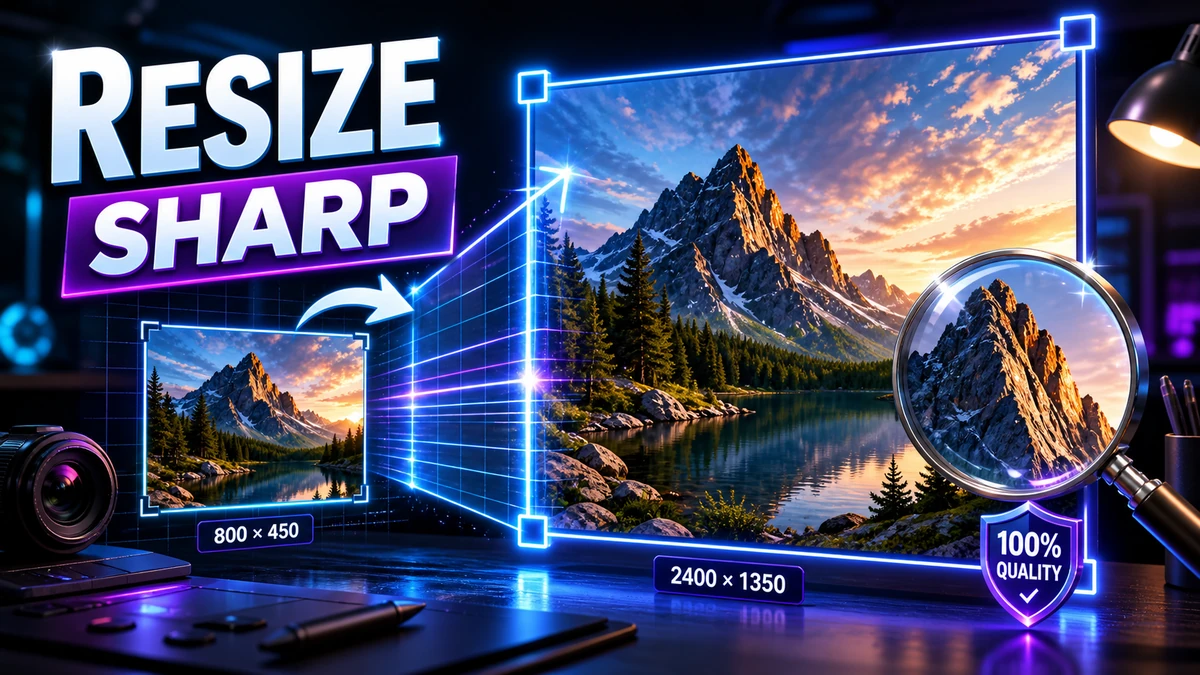
How to Resize Images Without Losing Quality: Complete Guide

You need to make an image bigger—or smaller—but you're worried about quality. Will resizing make it blurry? Pixelated? Will it look terrible?
The answer depends on how you resize and which direction you're going. This guide explains exactly how to resize images while preserving maximum quality, whether you're scaling up, scaling down, or changing dimensions for specific purposes.
Understanding Image Resolution
Before resizing, understand what you're working with.
What Is Resolution?
Resolution is the number of pixels in an image, expressed as width × height:
- 1920 × 1080 = 2,073,600 pixels (about 2 megapixels)
- 4000 × 3000 = 12,000,000 pixels (12 megapixels)
More pixels = more detail = larger file size
DPI vs. Pixels
| Term | Meaning | When It Matters |
|---|---|---|
| Pixels | Actual image dimensions | Always |
| DPI (Dots Per Inch) | Print density | Only for printing |
For digital display (web, screens), only pixels matter. DPI only matters when printing.
"Pro tip: A 72 DPI image and a 300 DPI image that are both 1000 × 1000 pixels look identical on screen. DPI only affects print size."
The Fundamental Rule of Resizing
Here's the truth about image resizing:
Scaling DOWN preserves quality. You're discarding pixels—there's plenty of data to work with.
Scaling UP degrades quality. You're creating pixels that don't exist—the software must "guess" new data.
Scaling Down (Easy)
| Original | Resized | Quality |
|---|---|---|
| 4000 × 3000 | 2000 × 1500 | Perfect—no loss |
| 4000 × 3000 | 1000 × 750 | Perfect—no loss |
| 4000 × 3000 | 100 × 75 | Perfect (but very small) |
Scaling Up (Challenging)
| Original | Resized | Quality |
|---|---|---|
| 500 × 400 | 600 × 480 | Usually fine |
| 500 × 400 | 1000 × 800 | Noticeable softening |
| 500 × 400 | 2000 × 1600 | Significant blur/pixelation |
Method 1: Online Image Resizer (Quick)
The fastest approach for most people.
Using FreeFast Converter
- Visit our image converter
- Upload your image
- Enter new dimensions (width and/or height)
- Enable "Maintain aspect ratio" to avoid distortion
- Download resized image
Pros:
- No software needed
- Works on any device
- Quick and simple
Cons:
- Requires internet
- Limited advanced options
Method 2: Built-in Tools
Most operating systems have basic resize capabilities.
Windows (Photos App)
- Open image in Photos app
- Click ... (three dots) → Resize
- Choose preset or custom size
- Save
Mac (Preview)
- Open image in Preview
- Go to Tools → Adjust Size
- Enter new dimensions
- Make sure Resample image is checked
- Save
iPhone
- Use Shortcuts app to create resize shortcut
- Or use third-party apps like Image Size
Android
- Use Google Photos → Edit → Crop (for cropping)
- For resizing, use apps like Photo Resizer
Method 3: Professional Software
For maximum quality and control.
Photoshop
- Open image
- Go to Image → Image Size
- Enter new dimensions
- Choose Resample method:
- Preserve Details 2.0 — Best for upscaling
- Bicubic Smoother — Good for upscaling
- Bicubic Sharper — Best for downscaling
- Click OK
GIMP (Free)
- Open image
- Go to Image → Scale Image
- Enter new dimensions
- Choose interpolation:
- NoHalo or LoHalo — Best quality
- Cubic — Good balance
- Click Scale
"Pro tip: In both Photoshop and GIMP, use the highest-quality interpolation method when upscaling. It makes a significant difference."
Resampling Methods Explained
When resizing, software must recalculate pixels. The method used affects quality.
Downscaling Methods
| Method | Quality | Speed | Best For |
|---|---|---|---|
| Bilinear | Good | Fast | Quick previews |
| Bicubic | Very Good | Medium | General use |
| Lanczos | Excellent | Slow | Maximum quality |
Upscaling Methods
| Method | Quality | Best For |
|---|---|---|
| Nearest Neighbor | Pixelated | Pixel art (intentional) |
| Bilinear | Soft/blurry | Quick upscales |
| Bicubic Smoother | Better | General upscaling |
| Preserve Details | Best (Photoshop) | Photo enlargement |
AI Upscaling (Newest Approach)
Modern AI-powered tools can upscale images with remarkably good results:
- Topaz Gigapixel AI — Paid, excellent results
- Waifu2x — Free, great for anime/illustrations
- Bigjpg — Free online option
AI upscaling analyzes the image and adds intelligent detail—far better than traditional interpolation.
Resizing for Specific Purposes
Different uses require different approaches.
For Web/Email
Goal: Small file size, fast loading
| Purpose | Recommended Size |
|---|---|
| Full-width hero | 1920px wide |
| Blog content image | 800-1200px wide |
| Thumbnail | 300-400px wide |
| Email attachment | 600-800px wide |
Settings:
- Resize to appropriate dimensions
- Save as WebP or JPG at 80-85% quality
- Keep file under 200 KB for web images
For Social Media
Each platform has optimal sizes:
| Platform | Recommended Size |
|---|---|
| Instagram Square | 1080 × 1080 |
| Instagram Portrait | 1080 × 1350 |
| Facebook Post | 1200 × 630 |
| Twitter/X | 1200 × 675 |
| 1200 × 627 |
For Printing
Remember: For print, you need enough pixels at the desired DPI.
Formula: Print size (inches) × DPI = Required pixels
| Print Size | At 300 DPI |
|---|---|
| 4 × 6" | 1200 × 1800 pixels |
| 8 × 10" | 2400 × 3000 pixels |
| 11 × 14" | 3300 × 4200 pixels |
| 16 × 20" | 4800 × 6000 pixels |
"Pro tip: Always resize for your largest needed size first. You can always go smaller later without quality loss."
Maintaining Aspect Ratio
Aspect ratio is the proportional relationship between width and height.
Common Aspect Ratios
| Ratio | Common Uses |
|---|---|
| 4:3 | Standard photos, older TVs |
| 3:2 | DSLR photos |
| 16:9 | Widescreen, video |
| 1:1 | Instagram square, profile pics |
| 9:16 | Stories, vertical video |
Why It Matters
If you change dimensions without maintaining aspect ratio, your image gets stretched or squashed:
- Square image → Rectangle = Distorted
- Widescreen → Square = Cropped or stretched
How to Maintain Ratio
Most tools offer a "lock" or "chain link" icon:
- Locked: Change one dimension, other adjusts proportionally
- Unlocked: Change dimensions independently (causes distortion)
Recommendation: Always keep aspect ratio locked unless you specifically need to distort/stretch.
Troubleshooting Quality Issues
Problem: Upscaled Image Is Blurry
Why: Not enough original pixel data to enlarge without degradation.
Fixes:
- Try AI upscaling tools (Topaz, Waifu2x)
- Accept the maximum size that looks acceptable
- Find a higher-resolution source image
Problem: Resized Image Looks Pixelated
Why: Scaling up too aggressively, or using Nearest Neighbor interpolation.
Fixes:
- Use Bicubic or better interpolation
- Apply slight blur after upscaling, then sharpen
- Don't exceed 200% enlargement with traditional methods
Problem: Colors Changed After Resizing
Why: Color profile issues during conversion.
Fixes:
- Ensure color profile is preserved
- Use "Convert to sRGB" for web images
- Check your software's color management settings
Problem: File Size Increased After "Reducing" Size
Why: Saved in higher-quality format or uncompressed.
Fixes:
- Use appropriate compression (JPG at 80-85%)
- Convert to WebP for smallest files
- Don't accidentally convert to PNG if file was JPG
Best Practices Summary
For Best Quality When Resizing Down
- Start with the highest-quality source
- Use high-quality resampling (Bicubic or Lanczos)
- Resize once to final dimensions (avoid multiple resizes)
- Sharpen slightly after resizing (optional)
For Best Quality When Resizing Up
- Keep enlargement to under 200% when possible
- Use AI upscaling for significant enlargement
- Use Bicubic Smoother or Preserve Details
- Accept that some quality loss is inevitable
Frequently Asked Questions
Can I make a small image bigger without losing quality?
Traditional methods will always lose some quality when enlarging. AI upscaling tools can do remarkably well, but even they can't add detail that wasn't originally captured.
What's the best format for resized images?
- For web: WebP or JPG (small size, good quality)
- For editing: PNG or TIFF (lossless, for continued work)
- For print: TIFF or high-quality JPG
How do I resize multiple images at once?
Batch resizing options:
- Photoshop's Image Processor
- GIMP's batch processing
- Online batch tools
- Command-line tools like ImageMagick
What size should I resize photos for email?
600-800 pixels wide is usually sufficient for viewing. Keep file size under 1-2 MB per image. JPG at 80% quality works well.
Does resizing affect EXIF data?
Resizing may alter some EXIF data. Most tools preserve basic metadata, but some may strip it during processing.
Conclusion
Resizing images while maintaining quality is straightforward once you understand the principles:
Key Points to Remember:
- Scaling down is easy—quality is preserved
- Scaling up is challenging—use AI tools for best results
- Maintain aspect ratio to avoid distortion
- Use good interpolation (Bicubic, Lanczos)
- Resize once to final size—avoid repeated resizing
Quick Decision Guide:
- Need smaller image? → Any tool, quality preserved
- Need larger image (modest)? → Bicubic Smoother, up to 200%
- Need significantly larger? → AI upscaling tools
- For web? → WebP or JPG, 80-85% quality
Ready to resize? Try our free image converter for quick results.
Related articles:
- Image Compression Explained
- Complete Guide to Image Formats
- Image Optimization for Websites
- WebP vs PNG vs JPG
Related Topics
On This Page
Share Article
Our Tools
Stay Updated
Get the latest tips delivered to your inbox.