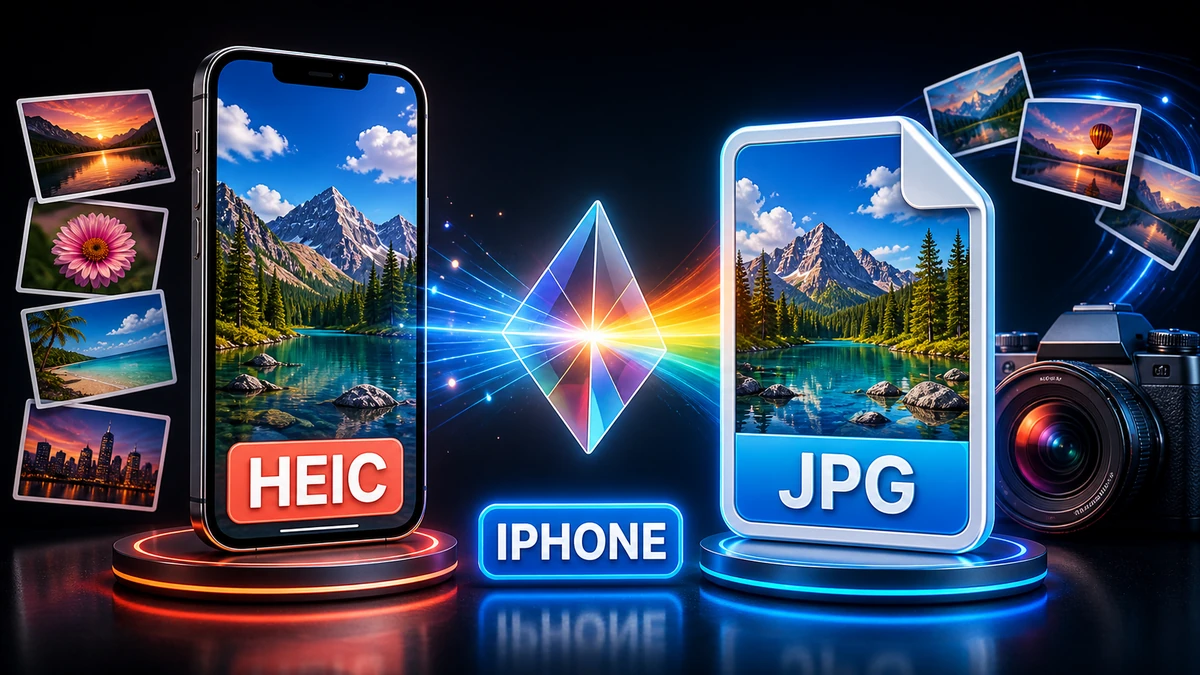
Convert iPhone HEIC Photos to JPG Quickly | FreeFast Blog
Image Conversion
Convert iPhone HEIC Photos to JPG Quickly
FF
FreeFast Team
4 min read
Have you ever tried to share iPhone photos with friends or coworkers, only to have them say "I can't open this file"? You're not alone. Since iOS 11, Apple's default HEIC format has been saving iPhone users storage space while creating compatibility headaches for everyone else.
The good news? Converting HEIC to JPG is quick and easy when you know how. This comprehensive guide will show you exactly how to convert iPhone photos to JPG, whether you have one photo or thousands.
What is HEIC? (And Why Does Apple Use It?)
HEIC stands for High Efficiency Image Container. It's part of the HEIF (High Efficiency Image Format) standard developed by the Moving Picture Experts Group (MPEG).
Apple adopted HEIC as the default photo format starting with iOS 11 in 2017. Why? Because it's genuinely impressive technology.
If you take 100 photos, HEIC saves you about 120 MB of storage. Over a year with thousands of photos, that's gigabytes of space saved!
The HEIC Compatibility Problem
So if HEIC is so great, why convert to JPG? Simple: compatibility.
Who Can't Open HEIC Files?
Windows Users (Pre-2018)
Windows 10 versions before the April 2018 Update
All versions of Windows 7 and Windows 8
Older image editing software
Android Users
Many Android devices (though support is improving)
Older Android versions lack native support
Web Users
Older web browsers
Some social media platforms
Email clients (especially corporate ones)
Online photo services
Professional Use
Some printing services
Stock photo websites
Client deliverables
Presentation software
According to StatCounter, about 30% of desktop users still can't natively open HEIC files. That's nearly 1 in 3 people who'll have trouble viewing your iPhone photos!
Many people worry about losing quality when converting HEIC to JPG. Here's the truth:
Will You Lose Quality?
Short answer: Minimal to no noticeable loss with proper settings.
Long answer: HEIC uses more efficient compression than JPG. When converting, you're moving from a highly efficient format to a less efficient one. However:
Quality Setting
Visual Difference
File Size
Recommendation
full
Indistinguishable
Very large
Overkill for most uses
95%
Imperceptible
Large
Professional photography
90%
Imperceptible
Moderate
Recommended for most
85%
Barely noticeable
Small
Social media, web
80%
Slightly noticeable
Very small
Not recommended
Best Practice: Use 90% quality for JPG conversion. You'll maintain excellent visual quality while keeping file sizes reasonable.
EXIF Data Preservation
When converting HEIC to JPG, ensure your converter preserves EXIF metadata:
Camera settings
GPS location (if enabled)
Date and time
Device information
Our image converter automatically preserves all EXIF data during conversion.
Common HEIC to JPG Conversion Problems (Solved)
Problem 1: "File Won't Convert"
Causes:
Corrupted HEIC file
Unusual file extension (.heif instead of .heic)
File locked or in use
Solutions:
Try opening the file on your iPhone to verify it's not corrupted
Rename file extension to .heic
Make sure no other app is accessing the file
Problem 2: "Converted JPG Looks Wrong"
Causes:
Quality setting too low
Color profile issues
Converter stripped HDR data
Solutions:
Increase quality setting to 90%+
Use a converter that preserves color profiles
Check if original was HDR (may look different in standard JPG)
Problem 3: "Photos Lost Their Dates"
Cause: Converter didn't preserve EXIF metadata
Solution: Use a converter that maintains EXIF data (like FreeFast Converter)
Problem 4: "Can't Upload Converted Photos"
Causes:
File size too large
Website doesn't support JPG progressive encoding
Solutions:
Reduce JPG quality slightly (to 85%)
Use "baseline" JPEG encoding instead of progressive
HEIC vs JPG: When to Use Each Format
Not sure whether to stick with HEIC or convert everything to JPG? Here's a decision guide:
Keep Using HEIC When:
✅ You're fully in the Apple ecosystem (iPhone, iPad, Mac)
✅ Storage space is precious on your device
✅ You want the best quality-to-size ratio
✅ You use iCloud Photos exclusively
✅ You shoot HDR or Live Photos frequently
Convert to JPG When:
✅ Sharing photos with non-Apple users
✅ Uploading to websites or social media
✅ Sending photos to Windows users
✅ Using professional printing services
✅ Submitting photos for work/school
✅ broad compatibility is priority
Professional Tips for iPhone Photographers
Tip 1: Shoot HEIC, Export JPG
Keep the best of both worlds:
Shoot in HEIC for storage efficiency
Convert to JPG only when sharing
Maintain HEIC originals as master files
Tip 2: Create a Conversion Workflow
For regular sharing:
Take photos in HEIC (settings default)
Select photos to share
Batch convert to JPG
Share JPG versions
Keep HEIC originals in iCloud
Tip 3: Context-Specific Settings
Vacation photos: Keep as HEIC until you're home (saves iCloud storage)
Work photos: Shoot in JPG for immediate compatibility
Personal archives: Keep in HEIC for long-term storage efficiency
Frequently Asked Questions
Q: Does converting HEIC to JPG reduce quality?
A: With quality settings of 90% or higher, any quality loss is imperceptible to the human eye.
Q: Can I convert JPG back to HEIC?
A: Technically yes, but you won't regain the original file size benefits. It's a one-way conversion in practical terms.
Q: Will converting delete my original HEIC files?
A: No! Conversion creates new JPG files while leaving originals intact (unless you specifically choose to delete them).
Q: How many photos can I convert at once?
A: With our batch converter, you can convert hundreds or even thousands of photos simultaneously.
Q: Are online HEIC converters safe?
A: Yes, reputable converters like FreeFast Converter process files securely and don't store your photos permanently.
Q: Do I need to pay for HEIC to JPG conversion?
A: No! Our converter is completely free with no limits on file size or number of conversions.
Q: Will the converted JPG have the same dimensions?
A: Yes, conversions maintain the original resolution and aspect ratio of your photos.
Q: Can Android phones open HEIC files?
A: Some newer Android devices can, but many cannot. JPG remains the safer choice for Android compatibility.
The Bottom Line: HEIC to JPG Made Simple
Converting HEIC to JPG doesn't have to be complicated. Whether you have one photo or a thousand, our free image converter makes the process fast, easy, and reliable.
Quick Recap:
For one-time conversions: Use our online converter
For ongoing compatibility: Change iPhone camera settings to JPG
For PC transfers: Enable automatic conversion in iPhone settings
For batch processing: Use our bulk converter tool
Remember: Keep quality at 90% for the best balance of file size and visual quality. Your converted photos will look identical to the originals while being compatible with virtually every device and platform.
Ready to convert your iPhone photos? Head to our image converter and convert HEIC to JPG in seconds—no software installation required!
PNG to JPG: When to Convert (and When You Shouldn't)
PNG to JPG can shrink an image by 70% or more — but only for the right files. Here's exactly when to convert, when to keep your PNG, and how to do it without losing quality.