Convert PDF to Word While Preserving Formatting | FreeFast Blog
Document Conversion
Convert PDF to Word While Preserving Formatting
FF
FreeFast Team
10 min read
You need to edit a PDF. Maybe it's a contract template, a resume, or a report with outdated information. The logical solution: convert it to Word, make your changes, and save.
But when you try it, disaster. The formatting is a mess. Tables are broken. Text flows into strange places. Fonts are wrong. What was a professional document now looks like it was put together by a toddler.
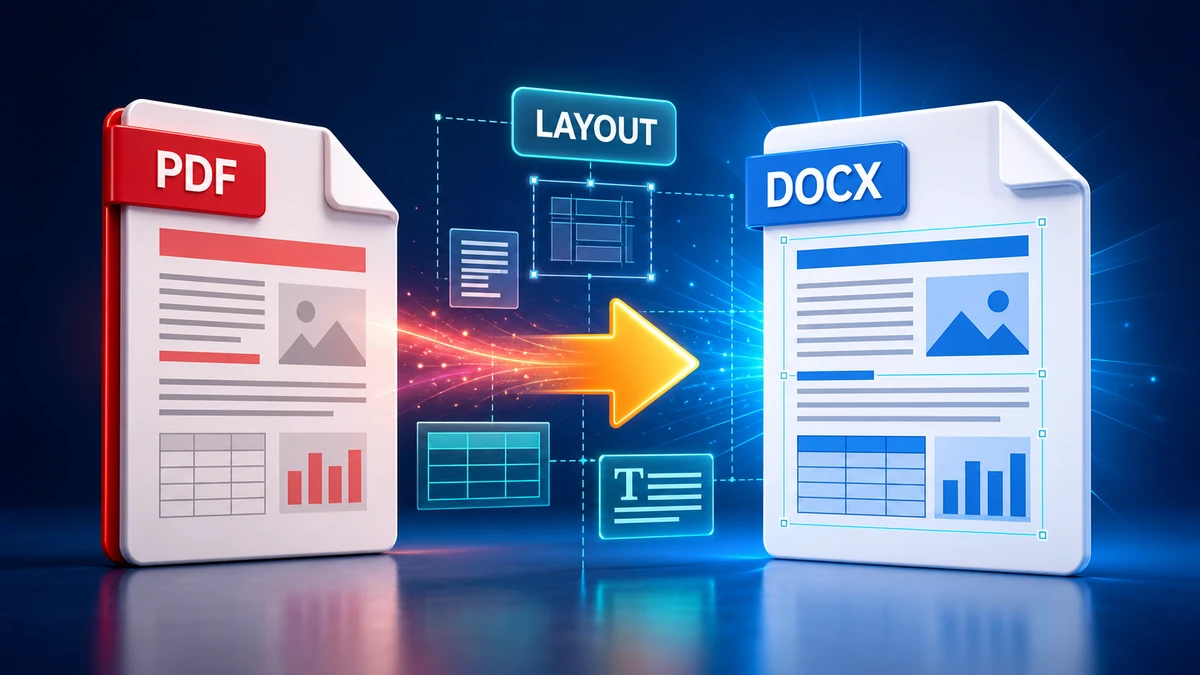
PDF to Word conversion doesn't have to be this way. This guide shows you exactly how to convert PDFs to Word while keeping your formatting intact.
Why PDF to Word Conversion Is Tricky
Understanding why formatting breaks helps you avoid or fix problems.
PDFs are designed to look the same everywhere. Word documents are designed to be editable. Converting between them means translating between two very different philosophies.
"Pro tip: The better the original PDF quality, the better your conversion will be. PDFs created directly from Word convert much better than scanned documents."
Types of PDFs and Their Conversion Quality
Not all PDFs are created equal. The way a PDF was made determines how well it converts.
Native PDFs (Best Results)
These are PDFs exported directly from digital documents (Word, Excel, Google Docs, etc.).
Characteristics:
Text is selectable
Copy-paste works
Usually has "hidden" structure
Conversion quality: Excellent. Most formatting preserves well.
Scanned PDFs (Challenging)
These are PDFs created by scanning paper documents.
Characteristics:
Text is not selectable (it's an image)
Requires OCR to extract text
No underlying structure
Conversion quality: Depends on OCR quality and scan clarity.
Mixed PDFs (Variable)
Some areas are native, others are scanned images.
Conversion quality: Native portions convert well; scanned sections need OCR.
Quick Test: What Type Is Your PDF?
Open the PDF
Try to select text by clicking and dragging
If text highlights: Native → Good conversion expected
"Pro tip: If first result isn't great, try a different converter. Different tools use different algorithms—one might handle your specific PDF better."
Method 2: Microsoft Word (Built-in)
Word 2013 and later can open PDFs directly.
Step-by-Step Instructions
Open Microsoft Word
Go to File → Open
Browse to your PDF file
Click Open
Word warns about converting—click OK
Wait for conversion
Review and edit
Pros:
No extra software needed
Works offline
Good for text-heavy documents
Free if you have Office
Cons:
Complex layouts often break
Tables may need fixing
Scanned PDFs need additional OCR
When Word Conversion Works Well
✅ Good candidates:
Text-heavy documents
Simple layouts
Documents with basic formatting
PDFs originally created from Word
❌ Problematic candidates:
Complex multi-column layouts
PDFs with many images
Scanned documents
Forms with precise field placement
Method 3: Adobe Acrobat Pro (Professional)
Adobe created PDF, so their tools handle conversion best.
Step-by-Step Instructions
Open PDF in Adobe Acrobat Pro
Click Export PDF in the right panel
Select Microsoft Word
Choose DOCX format
Click Export
Save and open in Word
Pros:
Best accuracy and formatting
Excellent OCR for scanned documents
Handles complex layouts
Can export specific pages
Cons:
Expensive subscription
May be overkill for simple documents
"Pro tip: Adobe's free "Export PDF" service at adobe.com/acrobat/online lets you convert a few PDFs free. Great for occasional use without subscription."
Method 4: Google Docs (Free Alternative)
Google Docs can open PDFs and convert to Word format.
Step-by-Step Instructions
Upload PDF to Google Drive
Right-click the file
Select Open with → Google Docs
Wait for conversion
Go to File → Download → Microsoft Word (.docx)
Pros:
Completely free
Works on any device
Easy to use
Built-in OCR for images
Cons:
Often loses complex formatting
Not great for tables
Requires Google account
Fixing Common Formatting Issues
Even the best conversions may need cleanup. Here's how to fix common problems:
Problem: Tables Are Broken
Tables often convert as separate text boxes instead of proper tables.
Fix:
Select the messy table content
Delete it
Insert a new table (Insert → Table)
Copy-paste data into cells, or
Recreate manually if simple
Prevention: For tables, sometimes converting to RTF first, then opening in Word, gives better results.
Problem: Fonts Look Wrong
If the PDF used fonts not on your system, Word substitutes others.
Fix:
Select all text (Ctrl+A)
Change to a common font (Arial, Calibri, Times New Roman)
Adjust sizing as needed
Prevention: Before creating original PDF, use widely-available fonts.
Problem: Text in Wrong Places
When layout breaks, text may flow into unexpected positions.
Fix:
Switch to Draft view (easier to edit)
Cut and paste sections to correct locations
Remove extra text boxes
Fix line breaks
Problem: Images Are Missing or Misplaced
Images may not survive conversion intact.
Fix:
Note where images should go
Find original images if possible
Insert fresh copies
Resize and position correctly
Problem: Blank Spaces or Page Breaks
Conversion may add extra spacing.
Fix:
Show formatting marks (Ctrl+Shift+8 or ⌘+8)
Delete unnecessary paragraph marks
Remove extra page breaks
Best Practices for Clean Conversions
Before Converting
Check PDF type (native vs. scanned)
Enable OCR if scanned
Use the right tool for your PDF type
Back up original before any changes
After Converting
Review thoroughly before using
Check tables and forms carefully
Verify page count matches original
Proofread text if OCR was used
Compare to original side-by-side
What to Accept
Some formatting changes may be acceptable:
Slight font differences (if readable)
Minor spacing changes
Image repositioning
What to Fix
Some issues must be corrected:
Missing content
Broken tables with data
Misaligned form fields
OCR errors in important text
"Pro tip: For important documents, print the original PDF and your Word version side by side. This catches differences your eye might miss on screen."
When NOT to Convert PDF to Word
Sometimes conversion isn't the answer:
For signatures: Edit PDFs directly or use e-signature tools
For minor text edits: Use PDF editors (even free ones)
For form filling: Use PDF form features
For archiving: Keep as PDF
If you only need to edit a few words, tools like PDF-XChange or even Preview (Mac) can edit PDFs directly without conversion.
Frequently Asked Questions
Why does my converted document look so different?
PDFs use absolute positioning (everything placed exactly). Word uses flowing layout (text moves based on page size, fonts). This fundamental difference causes most formatting issues.
Can I convert scanned PDFs to editable Word?
Yes, with OCR (Optical Character Recognition). Most modern tools include OCR. Quality depends on scan quality—300 DPI or higher works best.
Some tools let you select specific pages. In Adobe Acrobat, you can choose page ranges. Otherwise, extract pages to a new PDF first, then convert.
Will my converted document look exactly like the PDF?
Rarely exact, but good tools get close. Native (non-scanned) PDFs with simple layouts convert best. For PDF at full fidelity, consider editing the PDF directly instead.
Can I convert password-protected PDFs?
You'll need the password first. Enter it to open the PDF, then convert. If you don't have the password, you cannot legally convert it.
Conclusion
Converting PDF to Word while keeping formatting requires the right approach:
Key Points to Remember:
Native PDFs convert much better than scanned ones
Enable OCR for scanned documents
Always review and fix after conversion
Tables and complex layouts often need manual cleanup
Use Adobe Acrobat for best results on complex documents
Quick Decision Guide:
Simple text document? → Word's built-in converter or Google Docs
Complex layout? → Adobe Acrobat or premium online tool
Scanned document? → Tool with good OCR (Adobe, FreeFast)
Just need small edits? → Consider editing PDF directly instead