PDF Compression: How to Reduce PDF File Size Without Quality Loss

Your PDF is too large. It won't attach to an email. It takes forever to upload. It's eating up your storage. Sound familiar?
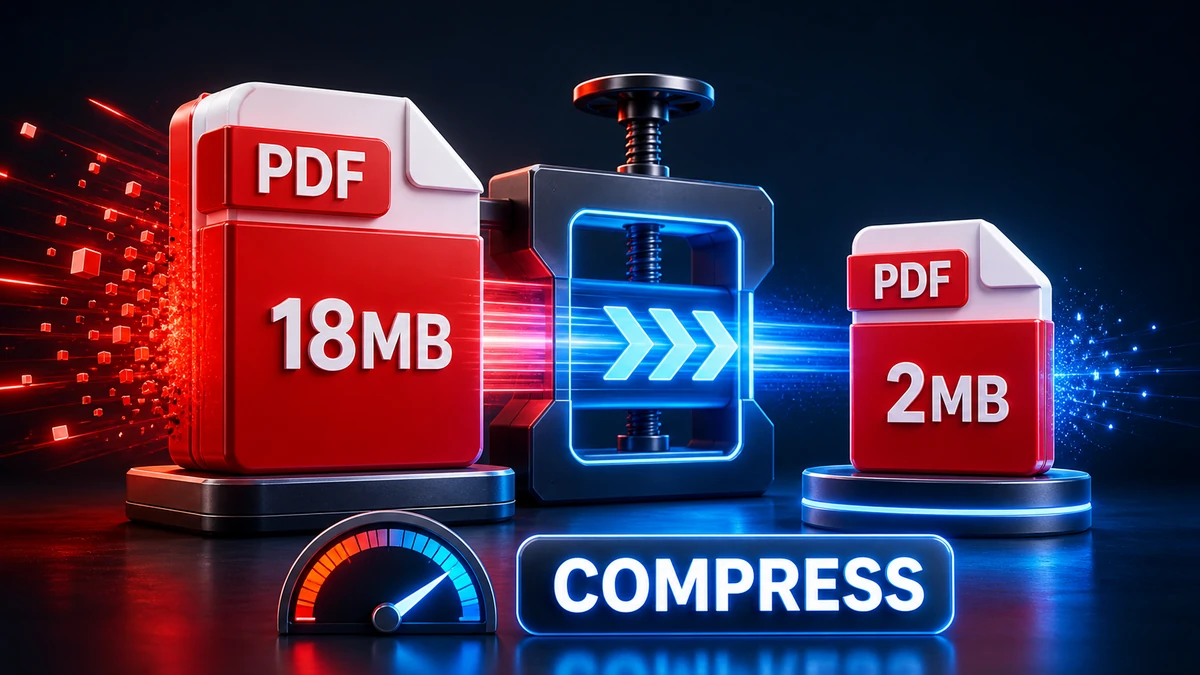
PDF compression solves this problem—but done wrong, it turns your crisp document into an unreadable mess. Done right, you can shrink files by 50-90% while keeping everything sharp and readable.
This guide shows you exactly how to compress PDFs properly, whether they're text documents, image-heavy reports, or scanned paperwork.
Why Are PDFs So Large?
Understanding what makes PDFs big helps you compress them smarter.
Common Causes of Large PDFs
| Cause | Impact | How to Check |
|---|---|---|
| High-res images | Massive impact | Look for embedded photos |
| Scanned pages | Large impact | Check if text is selectable |
| Embedded fonts | Moderate impact | Many font varieties used |
| Multiple pages | Linear impact | More pages = bigger file |
| Hidden content | Variable | Layers, previous versions |
"Pro tip: A single high-resolution photo embedded in a PDF can be 10x larger than all the text content combined. Images are usually the culprit."
Method 1: Online PDF Compressor (Fastest)
The quickest way to compress a PDF—no software needed.
Using FreeFast Compressor
- Visit our document converter
- Upload your PDF file
- Select compression level:
- Light (best quality, moderate reduction)
- Medium (balanced)
- Heavy (smallest file, some quality loss)
- Click Compress
- Download your smaller PDF
Pros:
- No installation required
- Works on any device
- Fast processing
- Usually free for reasonable sizes
Cons:
- Requires internet
- Privacy considerations for sensitive docs
- File size limits on some services
Other Reliable Online Options
| Tool | Notes |
|---|---|
| SmallPDF | Simple, reliable, 2 free tasks/day |
| iLovePDF | Wide feature set |
| Compress PDF | Unlimited, basic |
Method 2: Adobe Acrobat (Best Quality)
Adobe's tools offer the most control and best results.
Using Acrobat Pro
- Open PDF in Adobe Acrobat Pro
- Go to File → Save as Other → Reduced Size PDF
- Or for more control: File → Save as Other → Optimized PDF
- Choose settings (see optimization section below)
- Save the compressed file
Optimized PDF Options
| Setting | Effect |
|---|---|
| Image Settings | Downsample and compress images |
| Fonts | Unembed fonts, subset fonts |
| Discard Objects | Remove hidden layers, metadata |
| User Data | Remove comments, form data |
| Clean Up | Remove unused elements |
"Pro tip: In Acrobat's Optimized PDF dialog, click 'Audit space usage' to see exactly what's making your PDF large. Target the biggest culprits first."
Adobe's Free Online Tool
Don't have Acrobat? Adobe offers free online compression at adobe.com/acrobat/online.
Method 3: Preview on Mac (Built-in)
Mac users have compression built right in.
Step-by-Step Instructions
- Open PDF in Preview
- Go to File → Export
- Click Quartz Filter dropdown
- Select Reduce File Size
- Save with new name
Important: Mac's default compression is aggressive with images. For documents with important visuals, consider other methods.
Better Quality Option
- Create custom Quartz filter via ColorSync Utility
- Set image quality to higher values
- Apply that custom filter instead
Method 4: Free Desktop Software
For offline work or batch processing.
PDF24 (Windows)
- Download PDF24 from pdf24.org
- Open and select Compress PDF
- Add files and choose quality
- Compress and save
LibreOffice (Cross-Platform)
- Open PDF in LibreOffice Draw
- File → Export as PDF
- Reduce quality settings in options
- Export
Compression Settings Guide
Different PDFs need different approaches.
For Text-Heavy Documents
| Setting | Recommendation |
|---|---|
| Image compression | Aggressive (text dominates) |
| Font subsetting | Yes |
| Resolution | 150 DPI (if images present) |
Expected compression: 20-40%
For Image-Heavy Documents
| Setting | Recommendation |
|---|---|
| Image compression | Medium (JPEG quality 70-80) |
| Resolution | 150-200 DPI |
| Color conversion | Keep original |
Expected compression: 50-80%
For Scanned Documents
| Setting | Recommendation |
|---|---|
| Image quality | Medium to High |
| Resolution | 200 DPI minimum |
| Color | Grayscale if possible |
Expected compression: 30-60%
"Pro tip: For scanned documents, converting color scans to grayscale often cuts file size in half without losing important information."
How Much Compression to Expect
Realistic expectations based on PDF type:
| PDF Type | Typical Compression | Quality Notes |
|---|---|---|
| Text only | 10-20% | Minimal impact |
| Text + few images | 30-50% | Good results |
| Many high-res images | 60-90% | Depends on settings |
| Scanned document | 40-70% | May affect readability |
| Already compressed | 5-15% | Limited gains |
Troubleshooting Common Issues
Problem: Output Is Blurry
Cause: Compression too aggressive for images.
Fix:
- Use higher quality setting
- Increase minimum DPI (200+)
- Choose "Reduce File Size" instead of maximum compression
Problem: File Isn't Much Smaller
Cause: PDF was already well-optimized, or contains mostly text.
Fix:
- Check what's actually making the PDF large
- Convert images to grayscale
- Remove unnecessary pages
- Accept that some PDFs can't compress much
Problem: Text Is Harder to Read
Cause: Font embedding changed or image compression affected text scans.
Fix:
- Keep fonts embedded
- For scanned text: use OCR and higher quality settings
- Try different compression tool
Problem: Some Pages Look Worse Than Others
Cause: Inconsistent image quality in source.
Fix:
- Compress pages separately
- Use uniform quality settings
- Re-scan low-quality pages at higher resolution
Best Practices for Smaller PDFs
Before Creating the PDF
- Resize images before inserting into documents
- Use appropriate resolution (72-150 DPI for screen, 300 for print)
- Choose efficient formats (JPEG for photos in docs)
- Limit font variety (fewer fonts = smaller file)
When Creating the PDF
- Use "Standard" or "Minimum Size" preset when exporting
- Don't embed fonts unnecessarily
- Compress images during PDF creation
- Remove hidden elements before export
After Creating the PDF
- Run through compressor as a final step
- Remove metadata if not needed
- Flatten forms and layers
- Delete unused pages
Batch Compressing Multiple PDFs
Have many files to compress?
Using PDF24 (Windows)
- Open PDF24 Creator
- Select Compress PDF
- Add multiple files
- Choose uniform settings
- Compress all at once
Using Command Line
With Ghostscript:
gs -sDEVICE=pdfwrite -dCompatibilityLevel=1.4 -dPDFSETTINGS=/screen -dNOPAUSE -dQUIET -dBATCH -sOutputFile=output.pdf input.pdf
Settings options:
/screen: 72 DPI, smallest files/ebook: 150 DPI, moderate quality/printer: 300 DPI, high quality/prepress: Maximum quality
Quick Decision Guide
What type of PDF do you have?
- Mostly text? → Light compression, any tool
- Photos and graphics? → Medium compression, watch quality
- Scanned documents? → Consider grayscale, 200 DPI
- Already compressed? → May not reduce much more
How will it be used?
- Email attachment? → Compress aggressively to under 10 MB
- Online viewing? → 150 DPI images, medium quality
- Printing? → Keep 300 DPI, minimal compression
- Archiving? → Moderate compression, prioritize quality
Frequently Asked Questions
How much can I compress a PDF?
Typical reductions range from 20-90%, depending on content. Image-heavy PDFs compress most; text-heavy PDFs compress least.
Will compression affect text quality?
Generally no—text vectors remain sharp. However, scanned documents (which are images of text) can become blurry if over-compressed.
Is there a free way to compress PDFs?
Yes! Options include:
- Online tools (SmallPDF, iLovePDF, FreeFast)
- Mac Preview (built-in)
- PDF24 (free Windows software)
- Web browsers (print to PDF with settings)
Can I compress password-protected PDFs?
You'll need to know the password. Protected PDFs must be unlocked before compression.
What DPI should I use for compressed PDFs?
- Screen only: 72-100 DPI
- Email/web viewing: 150 DPI
- Printing at home: 200-300 DPI
- Professional printing: 300 DPI (don't compress for print)
Will compressed PDFs open on all devices?
Yes—compressed PDFs are still standard PDFs. They open in any PDF reader.
Conclusion
Compressing PDFs effectively requires matching your approach to your content:
Key Points to Remember:
- Images are usually the biggest space hog
- 150 DPI is plenty for screen viewing
- Text stays sharp even with heavy compression
- Scanned documents need careful handling
- Already-compressed PDFs may not shrink much more
Quick Decision:
- Quick online compression? → FreeFast Converter
- Maximum quality control? → Adobe Acrobat Pro
- Mac user? → Preview (built-in)
- Batch processing? → PDF24 or Ghostscript
Ready to shrink your PDFs? Try our free PDF compressor for instant results.
Related articles:
- How to Merge PDF Files
- PDF to Word: Best Practices
- Word to PDF: Complete Conversion Guide
- How to Reduce File Size Without Losing Quality
Related Topics
On This Page
Share Article
Our Tools
Stay Updated
Get the latest tips delivered to your inbox.