How to Convert PDF to JPG: Turn Pages into Shareable Images (Without Wrecking the Text)
You've got a one-page PDF flyer, and the group chat won't preview it — it just shows up as a gray attachment nobody taps. Or you want to drop a page of a report into an Instagram story, a slide, or a forum post that flatly refuses to accept a PDF. In both cases you don't need the PDF; you need a picture of the PDF. That's exactly what converting PDF to JPG does.
This guide covers what actually happens when you convert, the one setting that decides whether your image looks crisp or smudgy, and the cases where you should reach for a different format entirely.
What "PDF to JPG" really does
A PDF is a document container. It can hold text, vector shapes, fonts, and images, all laid out on pages. A JPG (also written .jpeg) is a single flat raster image — a grid of pixels, nothing more.
So when you convert, the tool renders each page and flattens everything on it into one image. The most important consequence:
- Each page becomes its own separate JPG file. A 5-page PDF gives you 5 images, not one long strip. If you only need page 1, you'll still get all 5 unless you trim the PDF first.
- The text stops being text. After conversion, words are just pixels. You can't select, search, or copy them anymore.
That second point is the whole reason this conversion is so useful — and so easy to misuse. Keep it in mind and you'll always pick the right tool.
The fastest way to do it is a browser-based tool like the PDF to JPG converter: upload your file, and it hands back one image per page.
When to convert PDF to JPG (and when not to)
JPG is the right call when the page just needs to be seen, somewhere that doesn't handle PDFs gracefully.
Good reasons to convert:
- Posting to social media. Instagram, X, Facebook, and most chat apps display images inline but treat PDFs as downloads.
- Embedding a page into a slide deck, a Word doc, an email signature, or a website where an image just shows up.
- Generating a thumbnail or preview — a cover image so people see what a document is before opening it.
- Sharing where PDFs are awkward, like a marketplace listing, a wiki, or a help-desk reply.
When NOT to convert to JPG:
- You need to edit the words. Once it's a JPG, the text is baked in. To get editable text back out, convert PDF to Word instead — our PDF to Word best practices guide walks through getting a clean, editable result.
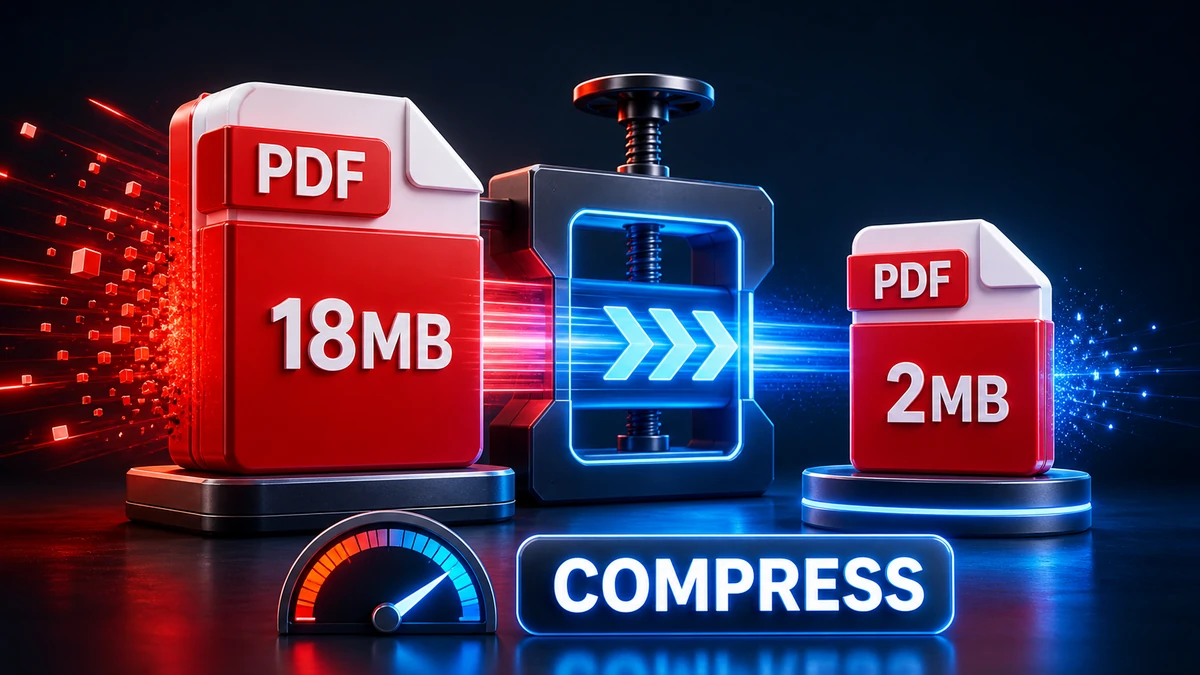
- You're sending a multi-page document. Ten loose JPGs are clumsier than one PDF. If size is the problem, don't flatten it — shrink it. Our compress PDF guide keeps the document intact while cutting the file size.
- The page is mostly small text. JPG is lossy and tends to blur fine type. More on that next.
The setting that matters most: DPI / resolution
This is where most people get a disappointing result and blame the tool. The fix is one number: DPI (dots per inch), sometimes shown as a resolution or quality slider.
DPI controls how many pixels the page is rendered at. A standard US Letter page is 8.5 × 11 inches, so:
| DPI | Pixel size (Letter) | Best for | Trade-off |
|---|---|---|---|
| 72–96 | ~640 × 825 to 816 × 1056 | Quick on-screen previews, thumbnails | Soft if zoomed; text can look fuzzy |
| 150 | ~1275 × 1650 | Social posts, embedding, general sharing | Good balance — a sensible default |
| 300 | ~2550 × 3300 | Print, archiving, zoomable detail | Larger files (several MB per page) |
The rule is simple: higher DPI = sharper image but bigger file. A page at 300 DPI can easily be 3–5× the file size of the same page at 150 DPI. There's no point exporting a 300 DPI image for a chat thumbnail, and no point exporting 72 DPI for something you'll print.
If your tool doesn't expose DPI directly, it's choosing one for you — usually around 150, which is fine for most sharing. When you do have the control, 150 DPI is the safe default and 300 DPI is worth it only when the image will be printed or magnified.
JPG vs. PNG: the crisp-text question
Here's the honest caveat. JPG uses lossy compression — it throws away data to shrink the file, and it does that by smoothing out fine detail. Photos look great because their detail is already soft and gradual. Sharp edges — like black text on white — are exactly what JPG handles worst. Around small letters you can get faint gray fuzz called compression artifacts.
So for a text-heavy page, PNG is often the better choice. PNG is lossless: every pixel is preserved, edges stay clean, and small type stays readable. The cost is a bigger file.
| JPG | PNG | |
|---|---|---|
| Compression | Lossy | Lossless |
| Best for | Photos, scans, full-color pages | Crisp text, screenshots, line art, logos |
| Text sharpness | Can look soft/fuzzy | Stays crisp |
| File size | Smaller | Larger |
| Transparency | No | Yes |
A practical way to decide: if the page is mostly a photo, image, or colorful design, use JPG. If it's mostly text, charts, or a screenshot you need legible, use PNG. When you can't choose, bump the DPI to 200–300 and JPG usually holds up fine — the extra pixels give the compression more room to keep edges clean.
Step by step
- Trim first if needed. If you only want certain pages, split or delete the rest in your PDF before converting, so you don't get a pile of images you'll just throw away.
- Open the PDF to JPG converter and upload your file.
- Set the DPI if the option is available — 150 for sharing, 300 for print.
- Convert. You'll get one JPG per page.
- Download — usually individually or as a single zip if there are several pages.
- Check the result at full size. If text looks fuzzy, either redo it at a higher DPI or switch to PNG.
Frequently asked questions
Why did I get multiple files instead of one? Because each PDF page becomes its own separate JPG — that's how the conversion works. A 3-page PDF produces 3 images. If you wanted a single file, either convert a one-page PDF or keep the document as a PDF and compress it instead.
My text looks blurry. How do I fix it? Two levers. First, raise the DPI — go from 150 to 300 so the page renders with more pixels. Second, if it's a text-heavy page, switch to PNG, which is lossless and keeps letter edges crisp. JPG's lossy compression is the usual culprit behind fuzzy small text.
Can I get the text back out of a JPG so I can edit it? Not directly — once it's a JPG, the text is just pixels. You'd need OCR (optical character recognition) to re-detect the words, and the result is rarely perfect. If editing the text is your real goal, convert the original PDF to Word instead. See our PDF to Word best practices.
Is JPG or PNG better for a scanned document? A scan that's mostly a photographed page can go either way, but if it contains small printed text you want to stay readable, PNG is safer. For a color photo or graphic-heavy scan, JPG keeps the file smaller with no visible downside.
Does converting reduce the quality of my PDF? It doesn't touch your original PDF at all — you keep that file. The JPG is a new, separate raster snapshot. Its quality depends entirely on the DPI and format you choose, not on the source.
The bottom line
Converting PDF to JPG is the right move when you need a picture of a page — to post, embed, preview, or share somewhere PDFs don't behave. It is the wrong move when you need to edit the words (convert to Word) or keep a multi-page document together (compress it instead).
Two settings decide your result: DPI (150 for sharing, 300 for print) and format (JPG for photos and color, PNG when crisp text matters). Get those right and the output looks exactly the way you intended.
Ready to turn your pages into images? Use the PDF to JPG converter — upload, pick your resolution, and download one clean image per page.
Related Topics
On This Page
Share Article
Try FreeFast Converter
Start with free daily conversions, then choose a plan if you need higher limits.
Start ConvertingOur Tools
Stay Updated
Get the latest tips delivered to your inbox.