PDF to Word: Best Practices for Reliable Conversions | FreeFast Blog
Document Conversion
PDF to Word: Best Practices for Reliable Conversions
FF
FreeFast Team
6 min read
Converting PDF files to Word documents is something millions of people do every day. Whether you need to edit a contract, update your resume, or make changes to a report, knowing how to convert PDF to Word properly saves you hours of frustration.
But here's the thing most people don't realize: not all PDF to Word conversions are created equal. The difference between a good conversion and a messy one comes down to using the right techniques.
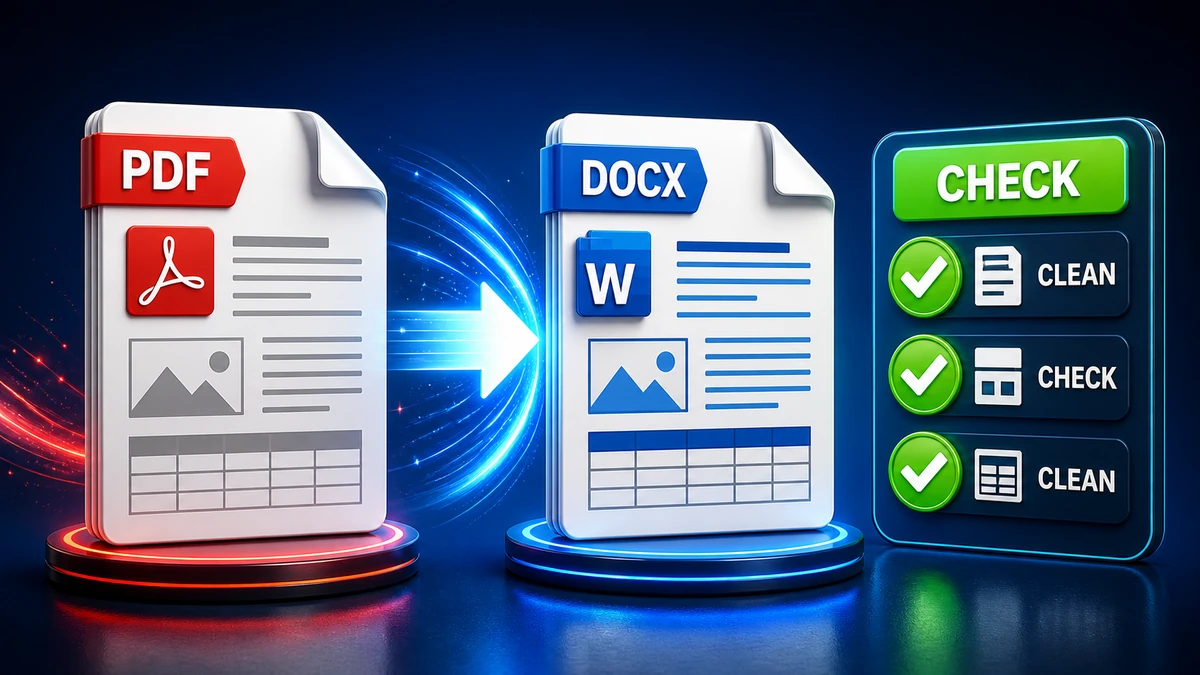
In this guide, you'll learn exactly how to convert PDF to Word without losing formatting. We'll cover free methods, common problems, and the best practices that professionals use to get clean, editable documents every time.
Why Convert PDF to Word?
PDF files are great for sharing documents because they look the same on every device. But that's also their biggest limitation. PDFs are designed to be viewed, not edited.
When you need to make changes to a PDF document, converting it to Word format is usually the best option. Here's when you should consider converting:
Common Reasons for PDF to Word Conversion
Editing text content: Fix typos, update information, or rewrite sections
Updating forms and templates: Modify contract templates or application forms
Extracting content: Pull text or tables from a PDF for use in other documents
Collaboration: Share a document that others can edit and comment on
Reformatting: Change layouts, fonts, or styling
The key is understanding that some PDFs convert better than others. Let's look at what affects conversion quality.
Not all PDF files are the same. The way a PDF was created determines how well it will convert to Word.
Native PDFs (Text-Based)
These are PDFs created directly from digital documents, like when you save a Word file as PDF or export from Google Docs. They contain actual text data that converters can extract easily.
Conversion quality: Excellent. Text, tables, and basic formatting usually transfer cleanly.
Scanned PDFs (Image-Based)
These are PDFs made by scanning paper documents. They contain images of text, not actual text data. Your computer sees them as pictures.
Conversion quality: Requires OCR (Optical Character Recognition) technology. Quality depends on scan quality and the OCR engine used.
Hybrid PDFs
Some PDFs contain both text layers and images. These might have searchable text in some areas and scanned images in others.
Conversion quality: Mixed results. The text portions convert well, but image portions need OCR.
PDF Type
How It's Made
Conversion Quality
Special Needs
Native PDF
Saved from Word, created digitally
Excellent
None
Scanned PDF
Scanned from paper
Variable
OCR required
Hybrid PDF
Mix of digital and scanned
Mixed
OCR for scanned parts
How to Convert PDF to Word: Step-by-Step Methods
There are several ways to convert PDF files to Word format. Each method has its strengths, and the best choice depends on your specific needs.
Method 1: Online PDF to Word Converters
Online converters are the fastest option for most people. You don't need to install anything, and they work on any device with a web browser.
Upload your PDF file by clicking or dragging into the upload area
Select DOCX as your output format
Click "Convert" and wait for processing
Download your converted Word document
Pros:
No software installation needed
Works on any device
Usually free for basic use
Fast processing
Cons:
Requires internet connection
File size limits on free versions
Privacy concerns with sensitive documents
Method 2: Microsoft Word Direct Import
If you have Microsoft Word 2013 or later, you can open PDF files directly in Word. The software automatically converts them.
Step-by-step process:
Open Microsoft Word
Click File → Open
Browse to your PDF file and select it
Word will show a message about converting the PDF
Click OK to proceed
The document opens as an editable Word file
Pros:
Built into software you may already own
Works offline
Good formatting preservation
Cons:
Requires Microsoft 365 subscription
Complex layouts may not convert clearly
Large files can be slow
Method 3: Google Docs
Google Docs offers a free way to convert PDFs, though it works best for simple documents.
Step-by-step process:
Upload your PDF to Google Drive
Right-click the file and select "Open with" → "Google Docs"
Google converts and opens the document
Go to File → Download → Microsoft Word to save as DOCX
Pros:
Completely free
Works on any device
Easy collaboration
Cons:
Formatting often gets lost
Not ideal for complex layouts
Requires Google account
Method 4: Adobe Acrobat
Adobe Acrobat Pro offers work-ready PDF to Word conversion with the best accuracy.
Step-by-step process:
Open your PDF in Adobe Acrobat Pro
Click "Export PDF" in the right panel
Select Microsoft Word as the format
Choose DOCX or DOC
Click "Export" and save your file
Pros:
Best accuracy and formatting preservation
Excellent OCR for scanned documents
Handles complex layouts well
Cons:
Expensive subscription required
Overkill for simple conversions
Slow for large files
Best Practices for reliable PDF to Word Conversions
Follow these proven tips to get the best results when converting PDF documents to Word format.
1. Start with High-Quality Source Files
The quality of your conversion depends entirely on the source PDF. Blurry scans, low-resolution images, and corrupted files lead to poor results.
What to check before converting:
Is the PDF text searchable? Try selecting text with your cursor
Are the images clear and sharp?
Is the file complete without missing pages?
2. Choose the Right Output Format
When converting to Word, you typically have two format options: DOCX and DOC.
DOCX (recommended):
Modern format used by Word 2007 and later
Smaller file size
Better formatting support
Works with most current software
DOC:
Legacy format for older Word versions
Larger file size
Some formatting limitations
Use only if required for compatibility
3. Check and Clean Up After Conversion
No conversion is reliable. Always review the converted document for issues.
Common things to check:
Font changes or missing fonts
Table alignment and cell spacing
Image placement and sizing
Page breaks and margins
Header and footer content
Bullet points and numbered lists
4. Handle Tables Carefully
Tables are often the trickiest part of PDF to Word conversion. Here's how to deal with them:
Simple tables usually convert well
Complex tables with merged cells may need manual adjustment
If tables break badly, try converting to RTF format first
Recreate severely damaged tables from scratch
5. Enable OCR for Scanned Documents
If your PDF was scanned from paper, you need OCR to get editable text. Most good converters include OCR options.
Tips for better OCR results:
Use high-resolution scans (300 DPI minimum)
Ensure good contrast between text and background
Straighten crooked scans before converting
Check the result carefully for errors
Common PDF to Word Conversion Problems and Solutions
Even with the best tools, you'll sometimes encounter issues. Here's how to solve the most common problems.
Problem: Fonts Look Different
Why it happens: The fonts used in the PDF aren't installed on your computer, so Word substitutes similar fonts.
Solutions:
Install the original fonts if available
Accept similar font substitutions for most uses
For exact matches, embed fonts before creating the PDF
Problem: Tables Are Broken or Misaligned
Why it happens: Complex table structures don't always translate well between formats.
Solutions:
Try converting to RTF format first, then open in Word
Use the converter's "table recovery" option if available
Manually rebuild tables in Word
Consider using Excel to PDF workflow for complex data tables
Problem: Images Are in Wrong Positions
Why it happens: PDF and Word handle image positioning differently.
Solutions:
Manually drag images to correct positions
Set image wrapping to "In line with text" for easier positioning
Re-insert images from original sources if available
Problem: Text Appears as Image
Why it happens: The PDF was scanned or created as image-only.
Solutions:
Enable OCR during conversion
Use a converter with good OCR capabilities
For handwritten text, use specialized handwriting recognition
Problem: Blank Pages or Missing Content
Why it happens: The PDF has elements the converter doesn't recognize, or the file is corrupted.
Solutions:
Try a different converter tool
Check if the original PDF displays correctly
Look for hidden layers in the PDF
Contact the document creator for a new version
Choosing the Right PDF to Word Converter
With so many options available, how do you choose the right tool for your needs?
For Personal Use
If you occasionally need to convert PDFs for personal projects, a free online converter is usually enough. Look for:
No registration required for basic use
Good privacy practices
File size limits that meet your needs
For Business Use
Regular business users need more reliable tools. Consider:
Faster processing for multiple files
Batch conversion capabilities
Better security for confidential documents
Integration with other software
For Professional Publishing
Publishers and designers need the highest accuracy. Adobe Acrobat Pro is the standard, offering:
Best formatting preservation
Professional OCR
Advanced editing capabilities
Industry-standard workflows
Frequently Asked Questions
Can I convert PDF to Word for free?
Yes! There are many free options including online converters like FreeFast Converter, Google Docs, and Microsoft Word's built-in feature. Free tools work well for basic documents.
Will converting PDF to Word keep my formatting?
It depends on the PDF and the converter. Simple documents with basic formatting usually convert well. Complex layouts with multiple columns, custom fonts, and intricate tables may need cleanup after conversion.
Is it safe to convert PDFs online?
Reputable online converters delete your files after conversion and use encryption during transfer. For highly sensitive documents, use offline tools like Microsoft Word or Adobe Acrobat instead.
Can I convert a scanned PDF to editable Word?
Yes, using OCR (Optical Character Recognition) technology. Most modern converters include OCR. Quality depends on the scan quality and the OCR engine. Learn more about document conversion options.
What's the difference between PDF to Word and PDF to RTF?
Word format (DOCX) preserves more formatting and works with Microsoft Word. RTF is more universal and sometimes handles tables better. Try both if one doesn't give good results.
How do I convert multiple PDFs to Word at once?
Use a batch converter or a tool like FreeFast Converter that supports multiple file uploads. This saves time when you have many documents to process. See our batch conversion guide for detailed instructions.
Conclusion
Converting PDF to Word doesn't have to be frustrating. With the right approach and tools, you can get clean, editable documents that preserve your original formatting.
Remember these key points:
Know your PDF type: Native PDFs convert better than scanned ones
Choose the right tool: Match the converter to your needs and document complexity
Always review results: Check for formatting issues after conversion
Use OCR when needed: Enable it for scanned or image-based PDFs