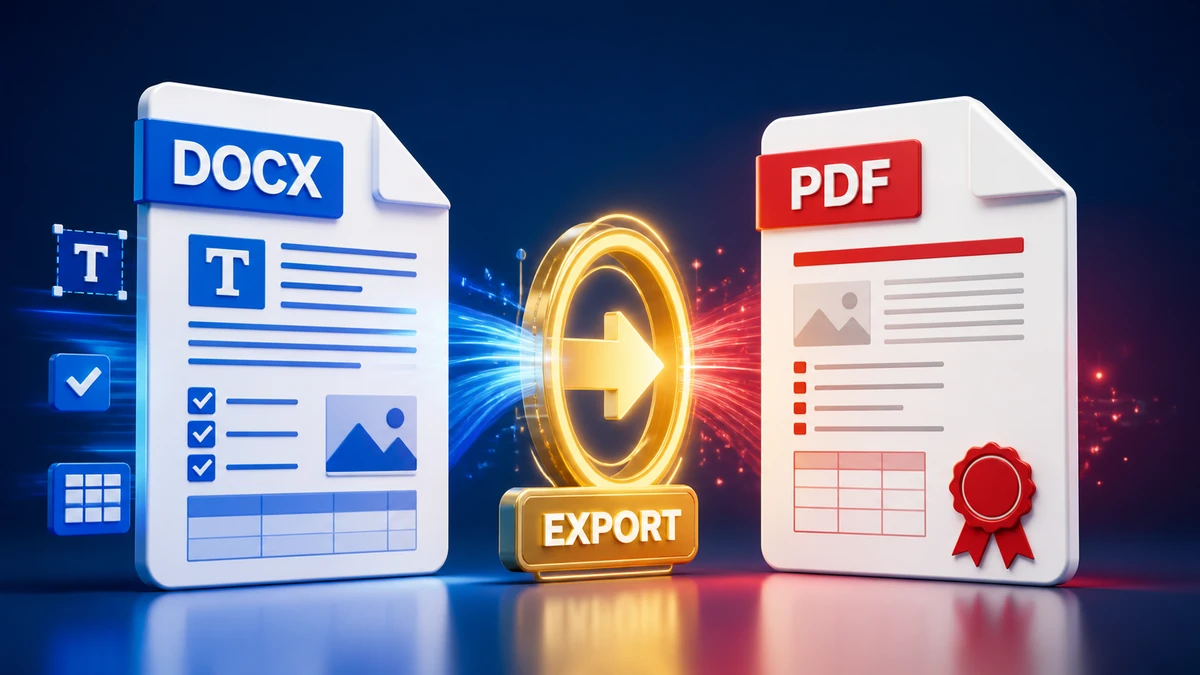
Word to PDF: Conversion Guide for Reliable Results | FreeFast Blog
Document Conversion
Word to PDF: Conversion Guide for Reliable Results
FF
FreeFast Team
9 min read
Converting Word documents to PDF should be simple. And usually, it is—until you open the PDF and find missing fonts, broken layouts, or images that shifted mysteriously to the wrong place.
This guide ensures your Word to PDF conversions come out clearly every time—with proper formatting, accurate colors, and professional results.
Why Convert Word to PDF?
Before we dive into the how, let's clarify the why:
Universal viewing — PDFs look the same on every device
Prevent editing — Recipients can't easily change your content
Preserve formatting — Fonts and layouts are embedded
Professional sharing — Industry standard for documents
Printing reliability — What you see is what prints
"Pro tip: For important documents like resumes, contracts, and proposals, always send PDFs—never Word files. This ensures your careful formatting survives intact."
Method 1: Save As PDF in Word (Recommended)
The simplest and most reliable method for most users.
Best for: Quick conversions, mobile devices, computers without Office.
Optimizing Before Conversion
The best PDFs start with properly prepared Word documents.
Check Your Fonts
Problem: If your document uses fonts the recipient doesn't have, Word substitutes different fonts in the PDF.
Solution:
Use common fonts (Arial, Times New Roman, Calibri) for broad compatibility
Or embed fonts in the PDF (see PDF settings below)
Verify Image Quality
Problem: Low-resolution images look blurry in PDF.
Solution:
Use images at 300 DPI for print-quality PDFs
Use 150 DPI minimum for screen-only viewing
Don't scale images up in Word—use actual size
Finalize Before Converting
Accept all tracked changes
Delete comments (or include intentionally)
Spell-check and grammar-check
Review all pages for layout issues
"Pro tip: Use Print Preview before converting. It shows almost exactly how your PDF will look—catch problems before they become permanent."
PDF Quality Settings
Choose the right quality for your purpose.
Standard Quality (For Printing)
Best visual quality
Larger file size
Use when printing or archiving
Minimum Size (For Email/Web)
Smaller file size
Slightly reduced image quality
Use when file size matters
Purpose
Setting
Typical Size
Professional printing
Standard
Larger but crisp
Email attachment
Minimum size
Smaller, usually fine
Archiving
Standard
Quality preserved
Web viewing
Minimum size
Faster loading
Handling Common Issues
Problem: Fonts Look Different
Why: PDF couldn't embed the font or substituted a different one.
Fixes:
Use common fonts (Arial, Calibri, Times)
In PDF options, check "Embed fonts" or "Standard (publishing online and printing)"
Change document fonts before converting
Problem: Images Are Blurry
Why: Low source resolution or high compression.
Fixes:
Use higher-resolution source images
Choose "Standard" quality instead of "Minimum size"
Insert images at full scale, not enlarged
Problem: Colors Look Wrong
Why: Color space mismatch (RGB vs CMYK) or monitor calibration.
Fixes:
For screen viewing: RGB is fine
For professional printing: Convert images to CMYK first
Use Word's visual preview to verify colors
Problem: Page Breaks in Wrong Places
Why: Automatic pagination behaved unexpectedly.
Fixes:
Insert manual page breaks where needed
Use Keep with next/Keep lines together formatting
Check Paragraph spacing settings
Problem: Hyperlinks Don't Work
Why: Links didn't convert to clickable format.
Fixes:
Verify links are actual hyperlinks in Word (not just blue text)
Some PDF viewers don't support all link types
Test the PDF in Adobe Reader
Creating Accessible PDFs
For documents meant for wide distribution, accessibility matters.
Include Tags
In Export options, enable:
Document structure tags for accessibility
Create bookmarks using Headings
Use Proper Structure
Use Word's built-in Heading styles (Heading 1, 2, 3)
Add Alt text to images (right-click image → Edit Alt Text)
Use actual tables, not tabs/spaces to simulate columns
Provide Document Properties
Go to File → Info
Fill in Properties on the right:
Title
Author
Subject
Keywords
Security and Protection
Password-Protect PDFs
After creating the PDF:
In Adobe Acrobat: Tools → Protect → Encrypt with Password
Online tools can add passwords too
Prevent Copying/Editing
Some PDF tools offer permissions settings:
Prevent printing
Prevent text copying
Prevent editing
"Pro tip: Passwords can be removed with the right tools—they deter casual copying but aren't truly secure. For sensitive content, consider other protections."
Batch Converting Multiple Documents
Have many Word files to convert? Don't do them one at a time.
Using Macro in Word
Create a simple macro to convert all documents in a folder:
Open Word
Press Alt+F11 to open VBA editor
Create a macro to loop through files and save as PDF
Run once for all files
Using Online Tools
Upload multiple files at once to batch converters.
Using Print to PDF
Select multiple documents in File Explorer, right-click, and choose Print to send all to PDF printer.
Quick Decision Guide
What's the purpose of your PDF?
Email attachment? → Minimum size option
Professional printing? → Standard quality
Contract/legal document? → Standard quality, consider password
Quick share? → Default settings are fine
Accessible document? → Enable tags and bookmarks
Frequently Asked Questions
Which method gives the best quality?
All Word methods (Save As, Export, Print to PDF) produce essentially the same quality. The settings you choose matter more than the method.