How to Merge PDF Files: Free Methods That Work in 2026
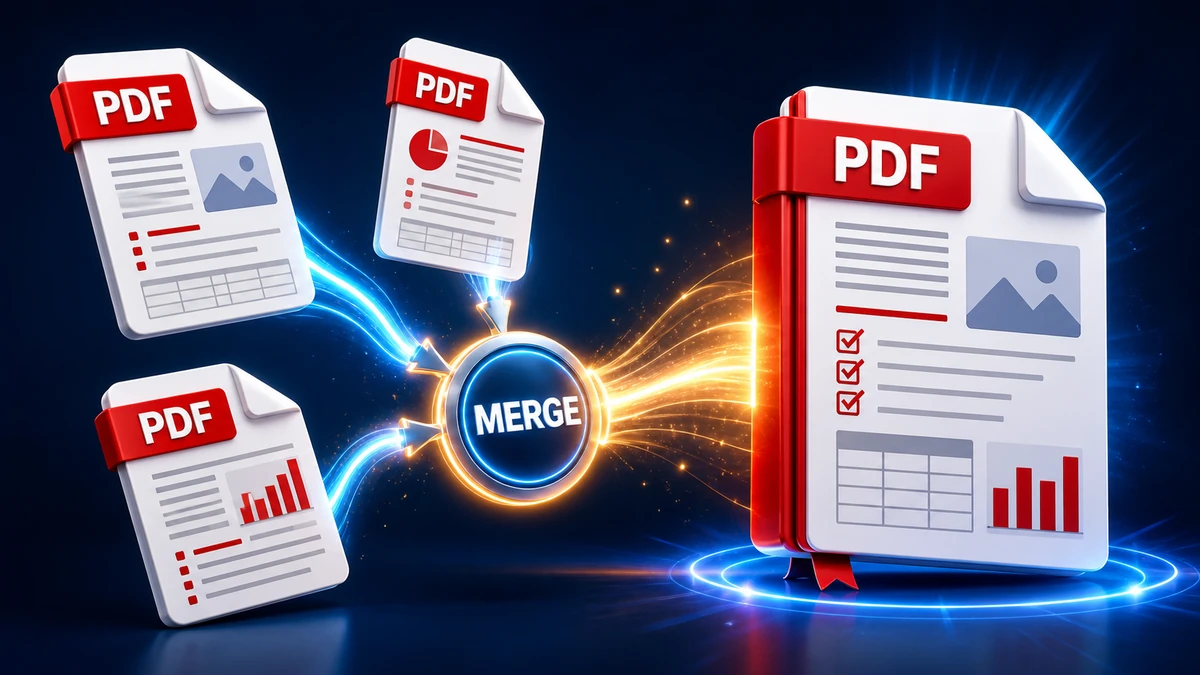
You have multiple PDF files that belong together—chapters of a report, pages of a scanned document, or documents from different sources. Now you need them in one file.
Merging PDFs sounds simple, but many tools are clunky, expensive, or don't work well. This guide shows you free methods that actually work—tested and reliable ways to combine PDF files quickly.
Why Merge PDF Files?
There are many situations where combining PDFs makes sense:
- Compile reports from multiple sections
- Combine scanned pages into one document
- Merge invoices for record-keeping
- Create portfolios from separate documents
- Assemble contracts with attachments
- Organize documentation for easier sharing
"Pro tip: Merging before sharing saves recipients from juggling multiple files. One organized PDF is much easier to handle than 10 separate ones."
Method 1: Online PDF Merger (Fastest)
Online tools are the quickest way to merge PDFs—no installation required.
Using FreeFast Converter
- Visit our document converter
- Upload all PDF files you want to merge
- Arrange them in the desired order
- Click Merge
- Download your combined PDF
Pros:
- Works on any device with a browser
- No software installation
- Usually free for reasonable file sizes
- Fast and simple
Cons:
- Requires internet connection
- File size limits on some services
- Privacy-conscious users may prefer offline tools
Other Reliable Online Options
| Tool | Free Limit | Notes |
|---|---|---|
| SmallPDF | 2 tasks/day | Simple interface |
| iLovePDF | Limited daily | Good quality |
| PDF24 | high-volume | German-hosted, reliable |
Method 2: Using Preview on Mac (Built-In)
Mac users have a free PDF merger built right into their system.
Step-by-Step Instructions
Method A: Thumbnails View
- Open the first PDF in Preview
- Go to View → Thumbnails to see the sidebar
- Drag additional PDF files into the thumbnail sidebar
- Arrange pages by dragging thumbnails
- File → Export as PDF to save
Method B: Print Dialog
- Select all PDFs in Finder
- Right-click → Open With → Preview
- Press Cmd+P to open Print
- Click PDF → Save as PDF
"Pro tip: In Preview's thumbnail view, you can also delete individual pages by selecting them and pressing Delete. Great for removing unwanted pages while merging."
Pros:
- Free, built into Mac
- Works offline
- Good quality
Cons:
- Mac only
- Can be slow with many pages
Method 3: Using Microsoft Word
Word can import and combine PDFs (with some limitations).
Step-by-Step Instructions
- Open Microsoft Word
- Go to Insert → Object → Text from File
- Select your first PDF
- Repeat for additional PDFs
- File → Save As → PDF
Limitations:
- May alter formatting
- Works best with text-based PDFs
- Scanned images may not import well
Best for: Merging and editing text-heavy PDFs
Method 4: Adobe Acrobat (Professional)
Adobe Acrobat is the gold standard, but it's not free.
Step-by-Step Instructions
- Open Adobe Acrobat Pro
- Go to Tools → Combine Files
- Click Add Files and select your PDFs
- Drag to arrange order
- Click Combine
- Save the merged file
Pros:
- Best quality and compatibility
- Can reorder pages precisely
- Handles complex PDFs well
- OCR and editing capabilities
Cons:
- Expensive subscription required
- Overkill for simple merging
Method 5: Free Desktop Software
For privacy or offline work, desktop software is the way to go.
PDFsam Basic (Free, Cross-Platform)
PDFsam Basic is free, open-source, and works on Windows, Mac, and Linux.
Step-by-Step:
- Download PDFsam Basic from pdfsam.org
- Open and select Merge
- Drag PDFs into the window
- Arrange order
- Click Run
Pros:
- Completely free
- Works offline
- No ads or limits
- Open source
PDF-XChange Editor (Windows)
A full-featured PDF editor with merging capabilities.
Step-by-Step:
- Open PDF-XChange Editor
- Go to File → New Document → Combine Files into a Single PDF
- Add files and arrange
- Click OK to create merged PDF
Method 6: Command Line (Power Users)
For batch processing or automation, command-line tools work great.
Using Ghostscript
gs -dBATCH -dNOPAUSE -q -sDEVICE=pdfwrite -sOutputFile=merged.pdf file1.pdf file2.pdf file3.pdf
Using PDFtk
pdftk file1.pdf file2.pdf file3.pdf cat output merged.pdf
"Pro tip: Command-line tools are reliable for automated workflows—you can merge hundreds of PDFs in seconds with a simple script."
How to Arrange and Organize Pages
Most merge tools let you control page order. Here's how to organize effectively:
Before Merging
- Rename files with numbers (01-intro.pdf, 02-chapter1.pdf)
- Review each file for unwanted pages
- Sort files in your file manager first
After Merging
Many tools let you rearrange pages after the initial merge:
- Preview (Mac): Drag thumbnails
- Adobe Acrobat: Page Thumbnails panel
- PDFsam: Visual page organizer
Deleting Unwanted Pages
Don't want every page? Remove them during or after merging:
- Most tools let you select specific page ranges
- Some tools let you delete pages from the merged result
Troubleshooting Common Issues
Problem: Merged File is Too Large
Causes:
- High-resolution scans
- Embedded images
- Duplicated fonts
Solutions:
- Compress the merged PDF
- Reduce image quality during merge (if option available)
- Use PDF compression tools
Problem: Pages Are in Wrong Order
Solutions:
- Rename source files with numbers before merging
- Use a tool with visual reordering
- Most merge tools let you drag to rearrange
Problem: Some Pages Are Rotated Wrong
Solutions:
- Fix rotation before merging
- Most PDF tools (Preview, Acrobat) can rotate pages
- In Preview: Select pages → Tools → Rotate
Problem: Text Looks Different After Merge
Causes:
- Font embedding issues
- Incompatible PDF versions
Solutions:
- Use a tool that preserves original formatting
- Adobe Acrobat handles this best
- Try a different merge method
Best Practices for Merging PDFs
1. Keep Original Files
Never delete your source PDFs until you've verified the merged result looks correct.
2. Use Consistent Naming
Name your merged files descriptively:
- ❌ "merged.pdf"
- ✅ "2024-Q1-Financial-Report-Complete.pdf"
3. Check Page Count
After merging, verify the total page count matches what you expected.
4. Test the Result
Open the merged PDF and scroll through to verify:
- All pages are present
- Order is correct
- Formatting looks right
- Text is still selectable
5. Consider File Size
Large merged PDFs may need compression. See our PDF compression guide.
"Pro tip: Before sending a merged PDF, always open it in a different viewer than you used to create it. This catches issues you might miss otherwise."
Quick Decision Guide
Which method should I use?
- Quick one-time merge? → Online tool (FreeFast, SmallPDF)
- Mac user? → Preview (built-in, free)
- Need offline/privacy? → PDFsam Basic
- Professional/complex needs? → Adobe Acrobat
- Batch/automation? → Command line (Ghostscript, PDFtk)
Frequently Asked Questions
Is there a page limit for merging PDFs?
Most tools handle hundreds of pages without issues. Online tools may have file size limits (usually 100 MB or more).
Can I merge password-protected PDFs?
Usually you need to enter the password first. Encrypted PDFs can be merged after unlocking.
Will merging reduce quality?
Good tools don't reduce quality—they simply combine existing pages. However, some tools may recompress images. Use reputable tools for best results.
Can I merge PDFs on my phone?
Yes! Options include:
- Mobile web browsers with online tools
- iOS Files app (select multiple PDFs → Share → Create PDF)
- Android apps like PDF Merge
How do I split a PDF (opposite of merging)?
Use the same tools! PDFsam, Adobe Acrobat, and online tools all offer splitting. See our complete guide for details.
Can I add Word or image files while merging?
Convert them to PDF first, then merge. Our document converter can help with Word to PDF.
Conclusion
Merging PDFs is straightforward once you know your options:
Key Points to Remember:
- Online tools are fastest for quick jobs
- Preview on Mac is free and already installed
- PDFsam Basic is the best free desktop option
- Adobe Acrobat is best for complex or professional needs
- Command line is best for automation
Quick Decision:
- One-time quick merge? → Online merger
- Regular offline use? → PDFsam Basic
- Already on Mac? → Preview
Ready to combine your PDFs? Try our free PDF merger for instant results.
Related articles:
- PDF Compression: How to Reduce PDF File Size
- PDF to Word: Best Practices for reliable Conversions
- Word to PDF: Complete Conversion Guide
- How to Batch Convert Multiple Files
Related Topics
On This Page
Share Article
Try FreeFast Converter
Start with free daily conversions, then choose a plan if you need higher limits.
Open PDF to WordRelated converters
Stay Updated
Get the latest tips delivered to your inbox.