Excel to PDF: Conversion Tips for Reliable Results
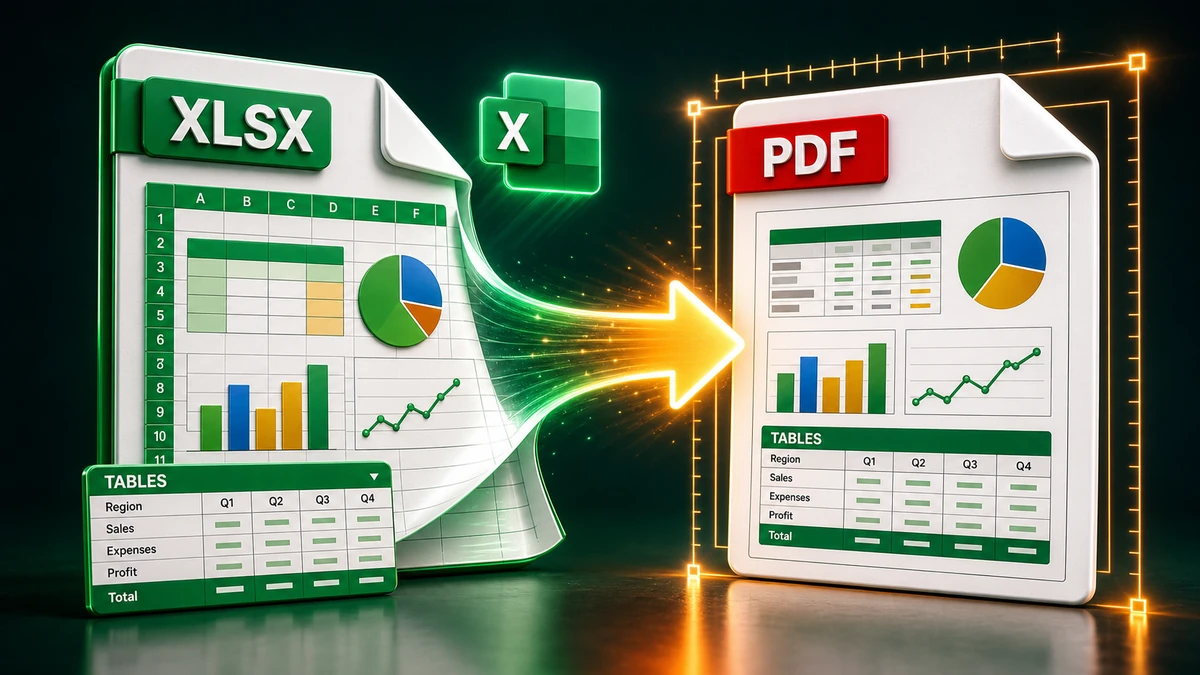
You've spent hours refining your Excel spreadsheet. The formulas work, the data is accurate, the formatting looks great. Now you need to share it as a PDF—but when you convert, it's a disaster. Columns get cut off, pages break in weird places, and that carefully arranged layout is destroyed.
Excel to PDF conversion trips up even experienced users. This guide shows you exactly how to convert Excel files to PDF while keeping your formatting reliable.
Why Excel to PDF Conversion Goes Wrong
Excel and PDF have fundamentally different relationship with page layout:
Excel: Designed for a continuous, scrollable canvas. Not inherently page-based.
PDF: Strictly page-based. Everything must fit within defined page boundaries.
This mismatch causes most conversion problems:
- Wide spreadsheets get cut off
- Tall sheets break at random places
- Page orientation doesn't match content
- Headers/footers appear inconsistently
"Pro tip: The key to good Excel-to-PDF conversion is preparing your spreadsheet for printing BEFORE you convert. PDF is essentially a frozen print job."
Method 1: Built-in Excel Export (Recommended)
Excel has PDF export built right in—and it gives you the most control.
Quick Export
- Open your spreadsheet in Excel
- Go to File → Save As (or File → Export)
- Choose PDF as the file type
- Click Save
Better Export (With Options)
- Go to File → Export → Create PDF/XPS
- Click Options
- Configure:
- What to publish: Entire Workbook, Selection, or Active Sheet(s)
- Include non-printing information: Document properties, accessibility tags
- Click OK, then Publish
Method 2: Print to PDF
Sometimes "printing" gives you more control than exporting.
Step-by-Step
- Set up your page layout (see section below)
- Press Ctrl+P (or Cmd+P on Mac)
- Select Microsoft Print to PDF (Windows) or Save as PDF (Mac)
- Preview and verify layout
- Click Print/Save
Advantage: You can see exactly how the PDF will look before creating it.
Page Setup: The Foundation of Good Conversion
Before converting, get your page setup right. This is where most problems are prevented.
Step 1: Choose Orientation
Go to Page Layout → Orientation
| Content Type | Recommended Orientation |
|---|---|
| Tall data (many rows) | Portrait |
| Wide data (many columns) | Landscape |
| Dashboard/mixed | Landscape |
Step 2: Set Paper Size
Go to Page Layout → Size
Common sizes:
- Letter (8.5 × 11") — Standard US
- A4 (210 × 297 mm) — International standard
- Legal (8.5 × 14") — Slightly taller
Step 3: Adjust Margins
Go to Page Layout → Margins
| Margin Type | Best For |
|---|---|
| Normal | Standard documents |
| Narrow | Fitting more content |
| Wide | Documents needing annotations |
| Custom | Specific requirements |
"Pro tip: Use Narrow margins for wide spreadsheets. That extra half-inch on each side can be the difference between fitting on one page versus two."
Step 4: Set Print Area
If you only want to convert part of the spreadsheet:
- Select the cells you want to include
- Go to Page Layout → Print Area → Set Print Area
- Only this area will convert to PDF
Handling Wide Spreadsheets
Wide spreadsheets are the biggest challenge. Here's how to handle them.
Option 1: Scale to Fit
- Go to Page Layout → Scale to Fit
- Set Width to 1 page
- Set Height to Automatic
Warning: Too much scaling makes text unreadable. Test at the final size.
Option 2: Fit to Page
- In Print Preview, find Scaling options
- Choose "Fit Sheet on One Page" or "Fit All Columns on One Page"
- Verify text is still readable
Option 3: Change Orientation to Landscape
Wide data often fits clearly in landscape orientation when portrait fails.
Option 4: Adjust Column Widths
Before converting:
- Double-click column borders to auto-fit content
- Manually narrow less-important columns
- Consider abbreviating column headers
Option 5: Split Across Pages
Sometimes the content should span multiple pages:
- Insert manual page breaks where logical
- Use Page Layout → Breaks → Insert Page Break
- Repeat column headers on each page (see below)
Repeating Headers on Every Page
For multi-page spreadsheets, repeat headers so each page is understandable on its own.
Step-by-Step
- Go to Page Layout → Print Titles
- In Rows to repeat at top, click the row selector icon
- Select your header row(s)
- Click OK
Now every page will have the same headers.
"Pro tip: For very wide spreadsheets, also set 'Columns to repeat at left' to keep identifier columns (like names or dates) on every page."
Professional Touches
Add Headers and Footers
- Go to Insert → Header & Footer
- Or use Page Layout → Page Setup dialog, then Header/Footer tab
- Common elements:
- Page numbers: &[Page] of &[Pages]
- Date: &[Date]
- File name: &[File]
- Sheet name: &[Tab]
Add Page Numbers
- In Page Setup → Header/Footer
- Click Custom Footer
- Add Page &[Page] of &[Pages]
Gridlines and Heading Display
In Page Layout tab:
- Print Gridlines: Show cell borders in PDF
- Print Headings: Show row (1, 2, 3) and column (A, B, C) labels
Handling Multiple Sheets
Convert All Sheets to One PDF
- Select all sheet tabs (click first, Shift-click last)
- Export to PDF as usual
- All sheets combine into one PDF
Convert Sheets to Separate PDFs
- Export each sheet individually
- Or use VBA/macro for automation
Consistent Formatting Across Sheets
Before exporting:
- Apply same page setup to all sheets
- Verify orientation and margins match
- Check print areas on each sheet
Troubleshooting Common Problems
Problem: Columns Get Cut Off
Fix:
- Use Scale to Fit (Width: 1 page)
- Switch to Landscape orientation
- Use Narrow margins
- Reduce font size slightly
Problem: Page Breaks in Wrong Places
Fix:
- Insert manual page breaks where you want them
- Use View → Page Break Preview to visualize and drag breaks
- Check Page Layout → Breaks settings
Problem: Text Is Too Small After Scaling
Fix:
- Accept multiple pages instead of extreme scaling
- Split wide tables into multiple logical sections
- Consider landscape orientation
- Use a larger paper size (Legal or A3)
Problem: Blank Pages Appear
Fix:
- Clear unused cells that may have formatting
- Check and reset the print area
- Delete extra rows/columns beyond your data
- Check Page Setup for extra margins
Problem: Charts Look Blurry
Fix:
- Ensure high quality is selected in Options
- Make charts larger before export
- Consider exporting chart as image first
Quick Decision Guide
What kind of spreadsheet do you have?
- Simple data table? → Quick export, Landscape if wide
- Dashboard with charts? → Page Setup, Fit to One Page
- Multi-page report? → Page breaks, repeating headers, page numbers
- Multiple sheets? → Select all tabs before export
Frequently Asked Questions
How do I fit a wide spreadsheet on one page?
Use Page Layout → Scale to Fit → Width: 1 page. Also try Landscape orientation and Narrow margins. If text becomes too small, accept multiple pages instead.
Can I convert just part of a spreadsheet?
Yes! Select the cells you want, then go to Page Layout → Print Area → Set Print Area. Only that area will be included in the PDF.
How do I include multiple sheets in one PDF?
Hold Ctrl (or Cmd on Mac) and click each sheet tab you want to include. Then export to PDF—all selected sheets will be combined.
Why do my formulas show instead of values?
This shouldn't happen in PDF export (PDFs show what's displayed). If you see formulas, check Formulas → Show Formulas and turn it off.
Can I add clickable links in the PDF?
Links in Excel (hyperlinks to websites or email addresses) often convert to clickable links in PDF. Test to verify after conversion.
How do I make the PDF smaller?
- Reduce image quality in Excel first
- Use "Minimum size (publishing online)" option if available
- Compress the PDF after creation (see our PDF compression guide)
Conclusion
Excel to PDF conversion is straightforward once you understand page setup:
Key Points to Remember:
- Set up page layout BEFORE converting
- Use Scale to Fit for wide spreadsheets
- Landscape orientation solves most width issues
- Repeat column/row headers for multi-page documents
- Use Print Preview to catch problems before final output
Quick Decision:
- Simple table? → File → Save As → PDF
- Wide table? → Landscape + Scale to Fit
- Multi-page? → Repeating headers + page numbers
- Professional document? → Headers/footers + gridlines
Need to convert other document types? Try our free document converter.
Related articles:
- Word to PDF: Complete Conversion Guide
- PDF Compression: Reduce File Size
- How to Merge PDF Files
- 10 File Conversion Mistakes to Avoid
Related Topics
On This Page
Share Article
Try FreeFast Converter
Start with free daily conversions, then choose a plan if you need higher limits.
Open PDF to WordRelated converters
Stay Updated
Get the latest tips delivered to your inbox.