WebP to PNG: How to Make Your Web Images Open Anywhere
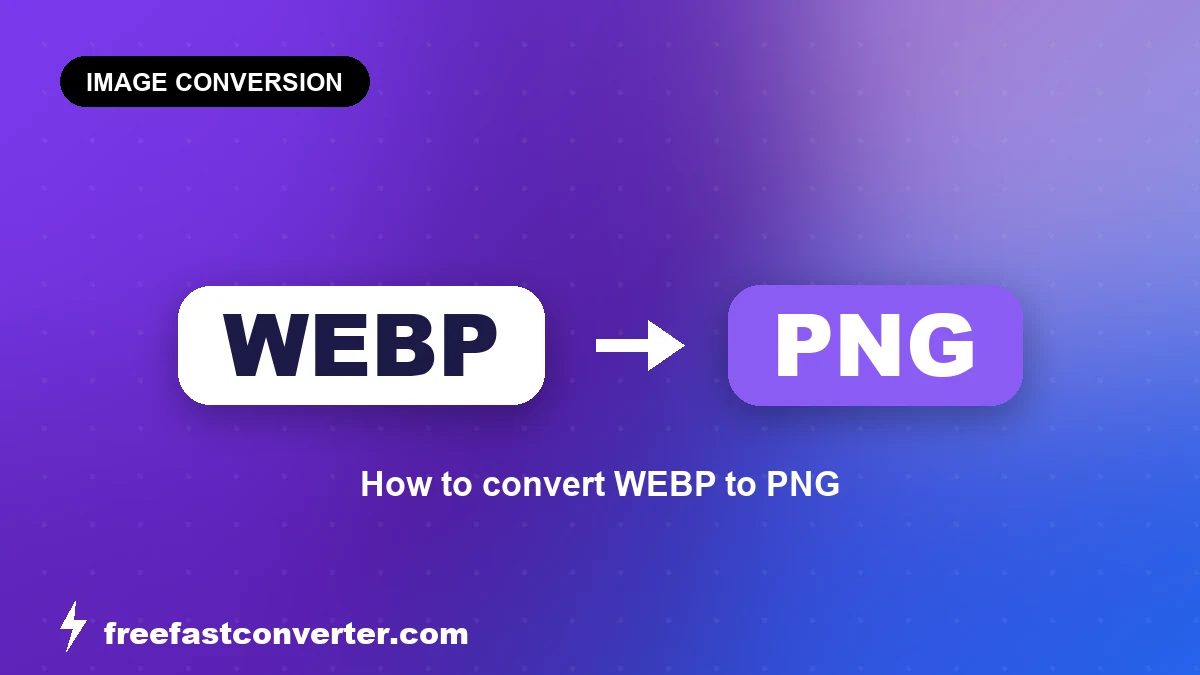
You downloaded a perfect-looking image, went to drop it into a PowerPoint slide or an email, and got a flat "unsupported file type" error. You check the extension and it says .webp — a format your browser loves but half your other software has never heard of. The fix is simple: convert it back to PNG, a format that opens literally everywhere.
This guide explains exactly when that conversion makes sense, what you gain, the one tradeoff to expect, and how to do it cleanly.
Why WebP trips up so many programs
WebP is a modern image format Google released in 2010, built specifically to make web pages faster. It compresses better than both JPG and PNG, supports transparency, and can even do animation. For serving images on a website, it's excellent — which is why so many sites now hand you WebP files when you right-click and save.
The problem is everywhere outside the browser. WebP support arrived late or not at all in a lot of common software:
- Older versions of Photoshop (before 23.2 / 2022) need a plugin to open WebP at all.
- Many email clients and webmail composers reject WebP inline images.
- Plenty of CMS uploaders, e-commerce platforms, and print shops still only accept JPG and PNG.
- Some desktop apps, slide tools, and legacy Windows software show a broken thumbnail or refuse the file.
PNG, by contrast, has been a web and desktop standard since 1996. There is essentially no mainstream image editor, office app, browser, or operating system that can't open a PNG. When you need a guarantee that a file will just open, PNG is the safe choice.
If you're going the other direction — shrinking PNGs for your own website — that's covered in our PNG to WebP guide. This article is the reverse trip.
When you should convert WebP to PNG
Convert when compatibility or editability matters more than file size:
- You need to open or edit the image in a tool that rejects WebP (older Photoshop, GIMP builds, design software, some mobile apps).
- You're attaching it to an email or pasting it into a document and want it to display reliably for the recipient.
- An upload form only accepts JPG, PNG, or GIF.
- You're sending it to a print service or client who told you they need PNG or "a standard image."
- You want a lossless working copy — PNG never re-compresses, so it's a clean base for further editing.
When you should NOT convert
Be honest about this: most of the time, if the image is just going back onto a website, leave it as WebP. Converting to PNG to then re-upload to a site is a step backward — you'll lose the efficiency that made WebP worth using.
Also, if your original WebP was a lossy WebP (the kind used for photos), converting to PNG will not restore detail that was already discarded. Lossy compression is permanent. PNG will faithfully preserve the image as it currently looks, blocky artifacts and all — it can't reach back and recover what's gone. Converting won't make a compressed photo sharper; it just changes the container.
The one tradeoff: your PNG will be bigger
This surprises people, so it's worth stating plainly. The PNG you get out is almost always larger than the WebP you put in — often by a wide margin.
That's not a flaw in the conversion. It's the whole reason WebP exists. PNG uses an older, less aggressive compression method (DEFLATE), while WebP uses modern techniques that pack the same pixels into far fewer bytes. You're trading file size for universal compatibility.
| Aspect | WebP (source) | PNG (output) |
|---|---|---|
| Typical file size | Smallest | Larger (often 2–5× for photos) |
| Compatibility | Modern browsers, newer apps | Universal — opens everywhere |
| Compression type | Lossy or lossless | Always lossless |
| Transparency (alpha) | Yes | Yes — preserved in conversion |
| Animation | Yes | No (use GIF/APNG instead) |
| Best used for | Serving images on the web | Editing, sharing, guaranteed opening |
A few practical notes from that table:
- Transparency carries over. If your WebP has a transparent background, the PNG keeps it. This is a key reason to pick PNG over JPG here — JPG can't do transparency and would fill it with white.
- Animated WebP won't survive as a single PNG. A standard PNG holds one frame. If you need motion preserved, that's a different conversion (to GIF or APNG), not this one.
How to convert WebP to PNG
The process is the same regardless of how many files you have:
- Open the WebP to PNG converter.
- Drag in your
.webpfile (or several at once). - Let it process — the conversion is lossless, so no quality settings to fuss over.
- Download your PNG.
Because PNG is always lossless, there's nothing to configure on the output side. Every pixel from the WebP is reproduced exactly; the only thing that changes is the file size and the format wrapper. A browser-based tool like our WebP to PNG converter also means your image isn't getting installed into some random desktop app you'll never use again.
If you're weighing which format to keep for the long term, our breakdown of WebP vs PNG vs JPG walks through the strengths of each so you're not guessing.
Frequently asked questions
Will converting WebP to PNG improve the image quality?
No. Conversion is lossless, which means PNG preserves exactly what's in the WebP — no better, no worse. If the original was a lossy WebP with visible compression artifacts, those artifacts come along for the ride. PNG can't invent detail that was already thrown away.
Why is my PNG so much bigger than the WebP?
Because PNG uses older, less efficient compression. WebP was designed to make files small for the web; PNG prioritizes universal compatibility and lossless storage. A 2–5× size increase for photographic images is normal and expected — it's the price of guaranteed compatibility.
Does the transparent background survive the conversion?
Yes. PNG fully supports alpha transparency, so a WebP with a transparent background converts to a PNG with the same transparency intact. This is why PNG is the right target — converting to JPG instead would replace transparency with a solid (usually white) background.
What about animated WebP files?
A standard PNG holds a single frame, so animation is lost in a WebP-to-PNG conversion. If you need to keep the motion, convert to GIF or APNG instead. For a still image, WebP-to-PNG is the right call.
Should I convert WebP to PNG before re-uploading to my website?
Usually not. If the image is headed back onto a website, keeping WebP serves your visitors smaller, faster-loading files. Only convert to PNG when something downstream — an editor, an email, an upload form, a print shop — can't handle WebP.
The bottom line
WebP is built for the web and it's very good at that job. But the moment your image needs to leave the browser — into an editor, an email, a slide, or an upload form that's stuck in the JPG/PNG era — compatibility beats efficiency. Converting to PNG gives you a lossless, universally supported file that opens anywhere, with transparency preserved.
Just remember the tradeoff: the PNG will be larger, and it won't undo any quality already lost in a lossy WebP. Keep your WebP for actual web use, and reach for PNG when you need the file to just work everywhere else.
Ready to convert? Drop your file into the WebP to PNG converter and you'll have a universally compatible image in seconds.
Related Topics
On This Page
Share Article
Try FreeFast Converter
Start with free daily conversions, then choose a plan if you need higher limits.
Start ConvertingOur Tools
Stay Updated
Get the latest tips delivered to your inbox.